Apple has a habit of quietly moving things around in macOS, and Safari’s settings panel is one of the more confusing examples. If you’ve spent a few minutes clicking through menus looking for something called “Preferences” and coming up empty, you’re not imagining things — Apple actually renamed it. Here’s exactly where to find Safari’s configuration screen on both Mac and mobile, plus what changed and why.
The Fast Answer for Mac Users
If you’re using a current Mac running macOS 26 (Tahoe) or the macOS Sequoia/Sonoma releases before it, the process is nearly identical to what longtime Mac users remember, just with a new label.
- Open Safari.
- Click Safari in the menu bar at the top-left of the screen (next to the Apple logo).
- Select Settings… from the dropdown menu — it sits right below “About Safari.”
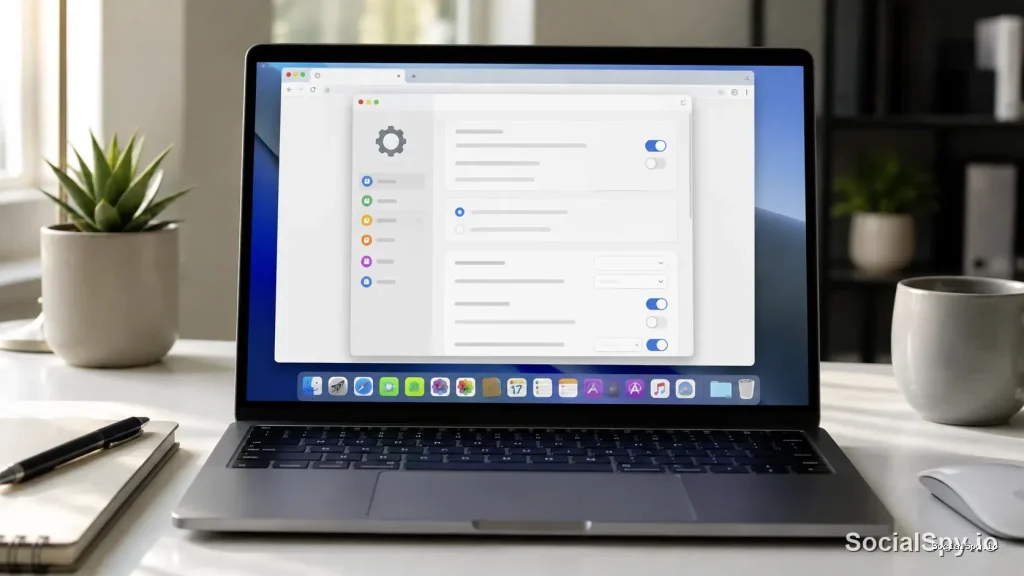
- A separate window opens with tabbed categories like General, Tabs, and Privacy.
The keyboard shortcut still works exactly like it always has: press Command+Comma (⌘,) while Safari is the active app, and the settings window pops up instantly. That shortcut has been unchanged since the days of Mac OS X, even though the menu label around it has shifted.
If you can’t see a menu bar at all, Safari is probably running in full-screen mode. Move your cursor to the very top of the screen to reveal it, or press Control+Command+F to exit full screen.
Why “Preferences” Became “Settings”
This is the part that trips up longtime Mac users the most. For roughly two decades, virtually every Mac application — Safari, Mail, Photos, Finder — used the word “Preferences” for its configuration screen. That changed system-wide starting with macOS Ventura (13) in 2022, when Apple redesigned System Preferences into System Settings to look and feel more like the iOS Settings app.
Individual apps followed at different speeds. Safari specifically made the switch from “Preferences” to “Settings” in its menu bar during the Safari 17 era (macOS Sonoma), and that naming has carried forward through macOS Sequoia and into today’s macOS 26 Tahoe. Third-party apps like Chrome and Firefox on Mac still say “Preferences” in some builds, which only adds to the confusion when you’re bouncing between browsers.
- Old name: Safari > Preferences (used through macOS Monterey and earlier)
- New name: Safari > Settings (used from Safari 17 onward)
- What didn’t change: the ⌘, keyboard shortcut, the icon, and the window’s basic layout
- Why Apple did it: to unify terminology across macOS and iOS/iPadOS, where “Settings” has always been the standard term
So if you’re following an older tutorial, a friend’s advice, or an outdated support article that tells you to click “Preferences,” know that it’s the exact same feature — Apple just gave it a rebrand.
What’s Actually Inside Safari’s Settings Window
Once the window is open, you’ll see a row of icons across the top representing different categories. The exact lineup has grown over the years as Apple has added privacy and AI-adjacent features, but here’s what current versions of Safari typically include.
| Tab | What You Control There |
|---|---|
| General | Homepage, default downloads folder, new tab/window behavior |
| Tabs | Tab layout, tab bar appearance, “show tab previews” |
| AutoFill | Saved contact info, credit cards, and usernames used for form-filling |
| Passwords | Saved logins, passkeys, and security recommendations (syncs with iCloud Keychain) |
| Search | Default search engine (Google, Bing, DuckDuckGo, Ecosia) |
| Security | Fraudulent website warnings, pop-up blocking, JavaScript toggle |
| Privacy | Cross-site tracking prevention, Hide IP Address, camera/microphone permissions |
| Websites | Per-site permissions for location, notifications, camera, and content blockers |
| Extensions | Manage installed Safari extensions and their permissions |
| Advanced | Developer tools, font settings, proxy configuration |
| Profiles | Separate browsing “identities” with their own history, cookies, and extensions |
A few of these deserve extra attention if you’re troubleshooting or trying to lock down your privacy:
- Privacy tab: This is where Intelligent Tracking Prevention and Hide IP Address from Trackers live — both are on by default and quietly block a huge amount of cross-site ad tracking.
- Passwords tab: Requires Touch ID, your Mac login password, or Apple Watch authentication before it’ll show saved credentials, which is a nice security layer if someone else uses your machine.
- Profiles tab: A newer addition that lets you keep a “Work” browsing profile totally separate from “Personal,” each with its own cookies, history, and extensions — genuinely useful if you share a Mac.
Finding Safari Settings on iPhone and iPad
Here’s where things diverge completely from the Mac experience, and it catches a lot of people off guard. Safari on iOS and iPadOS does not have an in-app settings menu at all. There’s no gear icon, no menu bar, nothing to tap inside the browser itself.
Instead, all of Safari’s mobile configuration lives inside the standalone Settings app — the same one you’d use to adjust Wi-Fi or Face ID.
- Open the Settings app on your iPhone or iPad (gray gear icon).
- Scroll down past your Apple ID and the built-in apps list.
- Tap Safari.
- Adjust options like Search Engine, AutoFill, Block Pop-ups, Privacy & Security, and Advanced settings.
This split-location design is a common source of confusion, similar to how people search for basic formatting characters that seem to vanish depending on the keyboard layout — if you’ve ever hunted for where is comma on iPhone, you already know Apple sometimes hides familiar things in less-than-obvious spots on mobile. Safari’s settings are the same story: perfectly logical once you know the answer, mildly infuriating until then.
Key iOS Safari Settings Worth Knowing
- Tabs > Tab Bar / Tab Grid: Controls whether Safari shows a compact tab bar or the full grid view on iPhone.
- Privacy & Security > Advanced Tracking and Fingerprinting Protection: iOS’s version of the Mac’s anti-tracking tools.
- Extensions: Manage Safari content blockers and third-party extensions like ad blockers, downloaded separately from the App Store.
- Clear History and Website Data: A one-tap way to wipe browsing history, cookies, and cached data without opening Safari.
Troubleshooting: When You Can’t Find the Settings at All
Sometimes the issue isn’t confusion about naming — it’s that the menu genuinely seems to be missing or unresponsive. Here are the most common culprits.
- Safari isn’t the active app. The Settings menu item only lives under the Safari menu when Safari itself is in focus. If another app is active, you’ll see that app’s menu bar instead, not Safari’s.
- You’re in full-screen or Split View mode. The menu bar hides automatically; hover at the very top of the display to bring it back.
- Managed device restrictions. On a work or school Mac managed through MDM (Mobile Device Management), IT administrators can gray out or hide certain settings, particularly Extensions and Privacy options.
- Parental Controls / Screen Time. If Screen Time restrictions are enabled on a family member’s account, some Safari settings tabs may appear locked with a padlock icon.
- Outdated macOS version. Very old macOS releases (Mojave and earlier) still use the “Preferences” label and a slightly different tab layout — if your screen looks nothing like current screenshots online, a software update may be overdue.
Fun fact for troubleshooters: pressing ⌘, inside almost any modern Mac app — not just Safari — opens that app’s settings window. It’s one of the most consistent shortcuts across the entire macOS ecosystem.
Conclusion
The disappearance of “Preferences” from Safari’s menu isn’t a bug, a hidden feature, or a sign you’re using an unsupported version — it’s simply Apple finishing a renaming project it started back in macOS Ventura. Everything that used to live under Preferences is sitting exactly where it always was, just relabeled as Settings, reachable through the Safari menu on Mac or through the standalone Settings app on iPhone and iPad. Once you internalize that split — Mac keeps it inside the browser, mobile pushes it out to the system Settings app — you’ll never lose track of it again, regardless of which macOS or iOS version Apple ships next.
FAQ
Yes, they’re identical — Apple simply renamed the menu label from “Preferences” to “Settings” starting with Safari 17 on macOS Sonoma, and that naming has continued through macOS Sequoia and macOS 26 Tahoe. All the same tabs, toggles, and options exist under the new name.
Apple designed iOS and iPadOS so that individual apps generally don’t host their own settings screens; instead, configuration options live in the central Settings app. For Safari specifically, you’ll find every relevant option under Settings > Safari rather than inside the browser itself.
Press Command+Comma (⌘,) while Safari is the active, focused application. This shortcut has worked consistently across every macOS version for over a decade, even though the menu item it corresponds to changed its name from Preferences to Settings.