Your battery percentage drops from 80% to 40% in a single afternoon, and you haven’t even opened Instagram that much. This isn’t just anxiety talking — iOS 17 and iOS 18 have introduced specific behaviors that genuinely accelerate battery drain for millions of users, and most people are troubleshooting the wrong things.
Check Your Battery Health Before Blaming Software
Apple puts a hard number on battery degradation, and it’s the first thing you should look at. Every lithium-ion battery loses capacity through charge cycles — one full cycle equals using 100% of the battery’s capacity, whether that’s one full charge or several partial charges added together.
Apple rates the iPhone battery for 500 complete charge cycles before it drops to 80% of original capacity. For most people, that’s roughly 18 to 24 months of typical daily use.
Here’s how to check it yourself:
- Open Settings
- Tap Battery
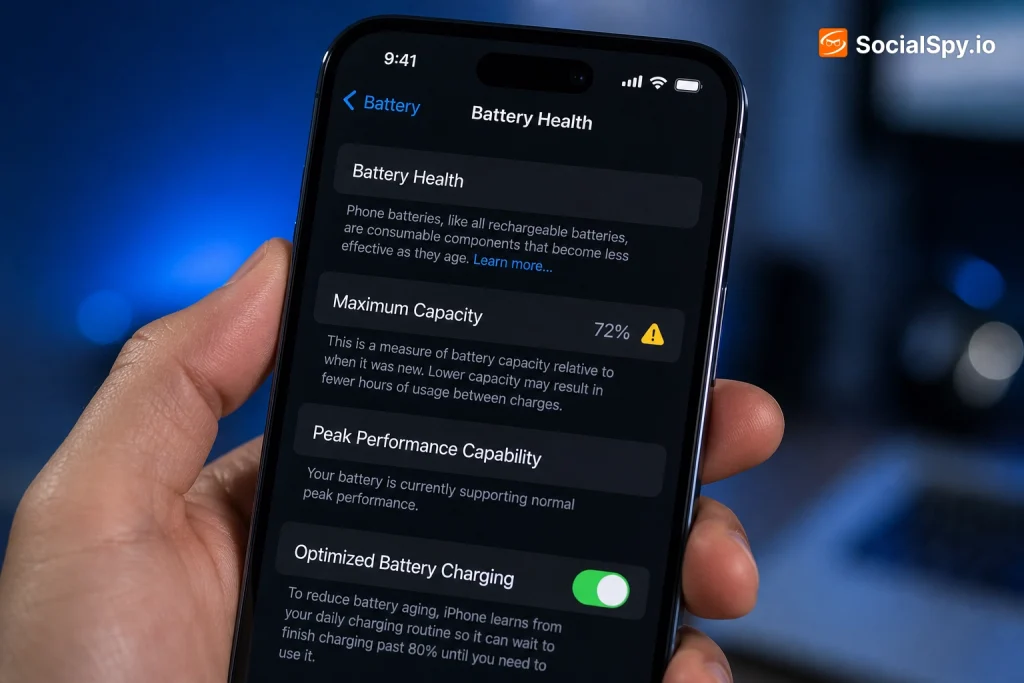
- Tap Battery Health & Charging
- Look at the Maximum Capacity percentage
An iPhone 13 with 79% maximum capacity is functionally a different device than the same phone at 95% — it holds noticeably less charge and its peak power output is throttled to protect the aging cells.
If your maximum capacity reads below 80%, that alone explains most of your drain complaints. Apple’s official battery replacement program charges $89 for most iPhone models ($99 for Pro Max variants) if you’re out of warranty, and it’s usually the single highest-impact fix available.
What “Peak Performance Capability” Means
Below that percentage, you may also see a note about “Peak Performance Capability.” This is Apple’s post-Batterygate transparency feature, added after the 2017 controversy where the company throttled older iPhones without telling users.
If your phone shows a message about performance management being applied, iOS is already slowing your processor to prevent unexpected shutdowns from an aging battery. That throttling itself increases how long apps take to complete tasks, which paradoxically burns more battery per task than a healthy battery would.
The iOS Update Problem Nobody Talks About Enough
Every major iOS release comes with a predictable pattern: a wave of battery complaints in the first two to four weeks. This isn’t paranoia — it’s a documented cycle going back to iOS 8.
Why New Updates Drain Batteries
- Spotlight re-indexing: After any major update, iOS rebuilds its search index of your photos, messages, and files, which can hammer the CPU for 24-48 hours
- App re-optimization: Apps compile new code paths on first launch after an update, spiking processor usage temporarily
- New feature overhead: iOS 18’s Apple Intelligence features (on supported models) run on-device machine learning processes that weren’t present before
- Background app refresh resets: Updates sometimes reset per-app permissions, silently re-enabling background refresh for apps you’d previously restricted
iOS 18.1 specifically drew complaints because Apple Intelligence, even in “preparing” or downloading states, consumed noticeable battery on the iPhone 15 Pro and iPhone 16 lineup. Apple’s own release notes for several 18.x point updates listed “battery life” fixes explicitly — a tacit admission the previous version had real problems.
The practical fix: wait it out. Give any new iOS version 3-5 days after installation before panicking, since background indexing tasks typically finish within that window.
Background App Refresh and Location Services Are Doing More Than You Think
Most people assume background app refresh just means Twitter loads faster when you open it. In practice, it’s far more aggressive than that.
Apps with background refresh enabled can:
- Download content over cellular or Wi-Fi while your phone sits locked in your pocket
- Check for push notification triggers on their own schedule, not just when Apple’s servers ping them
- Update location data continuously if they also have location permissions
- Run audio processing (think Spotify preloading playlists or podcast apps downloading new episodes)
The Location Services Multiplier Effect
Location services alone can be a bigger drain factor than most single apps combined, especially with certain settings enabled.
| Location Setting | Battery Impact | Common Culprits |
|---|---|---|
| “Always” access | Highest | Weather apps, fitness trackers, social media |
| “While Using” | Moderate | Maps, ride-share apps |
| “Precise Location” off but Always on | Moderate-high | Retail apps, delivery services |
| Never | None | N/A |
Go to Settings > Privacy & Security > Location Services and look for the purple arrow icon next to any app — that’s an active indicator the app has used your location recently. A solid outline arrow means it’s used location data within the last 24 hours even without you opening it.
Facebook, TikTok, and various weather apps are repeat offenders for requesting “Always” access when “While Using the App” would work identically for the user-facing features. Switching these to “While Using” typically recovers a measurable chunk of daily battery without any functionality loss you’d notice.
5G, Cellular Signal, and the Physics of Weak Reception
This is the drain cause most people never suspect because it feels invisible. Your iPhone’s cellular radio doesn’t use a fixed amount of power — it scales power output based on signal strength.
In a weak signal area — a basement, a rural stretch of highway, a concrete office building — your iPhone’s modem works significantly harder to maintain a stable connection to the cell tower. That’s straightforward radio physics, not an iOS bug.
5G makes this worse in specific ways:
- Sub-6GHz 5G (most common in the US via Verizon, AT&T, and T-Mobile) draws more power than LTE when actively transmitting
- mmWave 5G (Verizon’s ultra-fast variant) has a very short range and forces constant power renegotiation as you move
- Apps that stream or upload data (video calls, cloud backups, social media video) keep the 5G radio in a high-power state longer than they would on LTE
Apple actually added a setting to address this directly. Under Settings > Cellular > Cellular Data Options > Voice & Data, you can select “5G Auto” instead of “5G On.” Auto mode only activates 5G when it will meaningfully improve your experience — like large downloads or streaming — and otherwise defaults to LTE, which sips less power for everyday tasks like texting and browsing.
If you regularly find yourself in one or two bars of signal, this single setting change can outperform almost any other battery optimization on this list.
Specific Apps and Features That Are Silent Battery Killers
Some apps are simply more battery-intensive by design, and it’s worth knowing which ones to watch.
The Usual Suspects
- Social media apps with autoplay video: Instagram, TikTok, and Facebook decode video continuously as you scroll, which is CPU and GPU-intensive work happening dozens of times per minute
- Navigation apps left running: Google Maps or Waze running in the background after you’ve arrived somewhere still pings GPS
- Snapchat and camera-heavy apps: These keep the camera sensor “warm” for faster launch, which draws continuous low-level power
- Push email accounts: Fetching mail via push (versus manual fetch every 15-30-60 minutes) means constant background network activity
- Widgets on the Lock Screen and Home Screen: iOS 16 and later allow Live Activities and frequently-updating widgets that refresh data on a schedule you don’t control directly
How to Find Your Actual Culprits
Don’t guess — Apple gives you the exact data. Go to Settings > Battery and scroll down to see a breakdown by app over the last 24 hours or 10 days, split between “Screen On” and “Screen Off” usage.
Screen Off usage is the number to watch closely. High screen-off battery use for an app means it’s working while you’re not even looking at your phone — that’s background refresh, location tracking, or push notifications in action.
If an app you rarely open shows up high on the Screen Off list, that’s your prime candidate for disabling background refresh or restricting location access.
Practical Fixes Ranked by Actual Impact
Not all battery advice is equally useful. Some commonly repeated tips barely move the needle, while others make a dramatic difference.
- Replace the battery if health is below 80% — the single highest-impact fix, full stop
- Set Cellular to “5G Auto” — especially impactful for anyone with inconsistent signal
- Audit Location Services settings — switch “Always” to “While Using” for non-essential apps
- Disable Background App Refresh for rarely-used apps — Settings > General > Background App Refresh, toggle off apps you don’t need updating live
- Turn off Live Activities you’re not actively tracking — sports scores and delivery trackers left running all day add up
- Lower screen brightness or enable Auto-Brightness — the display is typically the single largest consumer of battery on any smartphone
- Disable “Raise to Wake” if you check your phone compulsively — sounds minor, but frequent screen wake events add up across hundreds of daily pickups
Low Power Mode remains underrated as a daily tool, not just an emergency measure. It’s available under Settings > Battery, and beyond the obvious brightness/refresh reductions, it also throttles background network activity and disables automatic downloads — without meaningfully slowing normal app use for most people.
Conclusion
Rapid iPhone battery drain almost never has one single cause — it’s usually a stack of two or three factors compounding each other. A 2-year-old battery at 82% health combined with weak 5G signal at your office and an Instagram habit with autoplay video is a realistic combination that explains a phone dying by 3pm.
The good news is that the diagnostic path is straightforward and entirely built into iOS already. Battery Health tells you if hardware is the issue, the Battery usage screen tells you which apps are actually responsible, and a handful of settings changes — 5G Auto, location permissions, and background refresh — address the software side without requiring you to buy anything or install a single third-party “battery saver” app, most of which do nothing Apple’s own tools don’t already do better.
If you’ve worked through every setting here and you’re still losing 20%+ battery overnight with the phone locked and untouched, that points to either a hardware fault or a specific misbehaving app — and an appointment at an Apple Store or authorized service provider is the next logical step, not another round of settings tweaking.
FAQ
No, and this is one of the most persistent myths in iOS troubleshooting. Apple has stated directly that force-closing apps from the app switcher doesn’t save battery and can actually cost more power, since iOS has to fully relaunch the app from scratch — including reloading it into memory — the next time you open it, rather than resuming it from an efficient suspended state.
If your iPhone is still under Apple’s standard one-year warranty or AppleCare+, opening the device yourself or using an unauthorized third-party repair shop can void coverage for that specific repair. Apple does support self-service repair through its Self Service Repair program for eligible models, but for most users, going through an Apple Store or an Apple Authorized Service Provider at the standard $89-$99 battery replacement price protects your warranty and ensures a genuine battery is installed.
Not with modern iPhones — Apple’s Optimized Battery Charging feature, found in Settings > Battery > Battery Health & Charging, learns your daily routine and delays charging past 80% until shortly before you typically wake up, which reduces the time your battery spends sitting at a full 100% charge. Since batteries degrade faster when held at high states of charge for extended periods, this feature specifically exists to make overnight charging safe for long-term battery health.