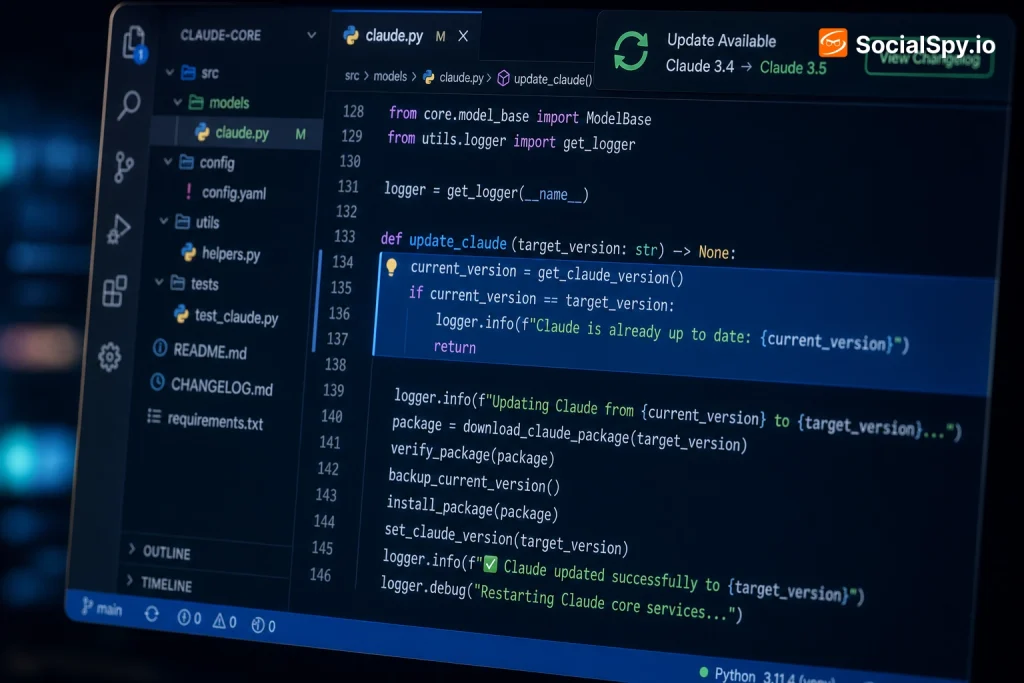
Anthropic ships new Claude Code builds constantly, and running a stale version means missing bug fixes, new slash commands, and the latest model defaults. If you’ve installed Claude Code once and never touched it since, there’s a good chance you’re several releases behind. Here’s exactly how to check, update, and troubleshoot Claude Code across every install method.
Why Keeping Claude Code Updated Actually Matters
Claude Code isn’t a static CLI tool — it’s tightly coupled to Anthropic’s model releases, tool-use protocols, and the Model Context Protocol (MCP) ecosystem. Anthropic pushes updates on a near-weekly cadence, and many of those releases quietly change default behavior, not just add features.
Skipping updates can cause real friction:
- Model mismatches — older Claude Code builds sometimes default to deprecated model aliases instead of the current Sonnet or Opus versions.
- Broken MCP servers — the Model Context Protocol spec has evolved fast, and older CLI versions can fail to connect to newer MCP servers.
- Missing safety and permission updates — Anthropic regularly patches how Claude Code handles file system access and shell command approval.
- Feature gaps — things like subagents, extended thinking controls, and improved `/compact` context management have all landed as incremental updates.
Anthropic’s own changelog shows Claude Code receiving multiple point releases per week during active development pushes — far more frequent than typical CLI tooling.
If you’re using Claude Code seriously for daily development work, treat it the way you’d treat your IDE or Node runtime: check it weekly, not yearly.
Checking Your Current Version
Before updating anything, confirm what you’re actually running. Open your terminal and type:
claude –version
This prints your installed version number along with the build date. Compare it against Anthropic’s official changelog (accessible from the Claude Code documentation site) to see how far behind you are.
A few things worth noting about version checks:
- Version numbers follow semantic versioning (e.g., `1.4.2`), so a jump from `1.3.x` to `1.4.x` usually signals a meaningful feature change, not just a bug fix.
- Claude Code logs update checks locally — if you’ve disabled telemetry or run in an offline sandbox, the CLI won’t auto-detect new releases.
- Enterprise and team deployments often pin specific versions for stability, so what you see locally may intentionally differ from the public latest release.
If your version string looks unfamiliar or the `–version` command fails outright, there’s a good chance your install is corrupted or was set up through an unofficial method — more on fixing that below.
The Standard Update Methods
Claude Code supports a few different installation paths, and each one requires a slightly different update command. Here’s the breakdown depending on how you originally installed it.
Native Installer (Recommended by Anthropic)
If you installed Claude Code through Anthropic’s native installer script (the method Anthropic now recommends over npm for most users), updating is built directly into the CLI:
claude update
This checks Anthropic’s release server, downloads the latest binary, and swaps it in automatically. No need to touch npm, Homebrew, or manual downloads.
npm Global Install
If you installed via `npm install -g @anthropic-ai/claude-code`, update it the same way you’d update any global npm package:
npm install -g @anthropic-ai/claude-code@latest
Run `npm outdated -g` first if you want to see whether an update is even pending before pulling it.
Homebrew (macOS)
Mac users who installed through Homebrew should run:
brew upgrade claude-code
Make sure you’ve run `brew update` beforehand so Homebrew’s formula index actually knows a new version exists.
| Install Method | Update Command | Notes |
|---|---|---|
| Native installer | `claude update` | Fastest, Anthropic’s preferred path |
| npm global | `npm install -g @anthropic-ai/claude-code@latest` | Requires Node.js环境 already set up |
| Homebrew | `brew upgrade claude-code` | macOS only, needs `brew update` first |
Automatic Updates and How to Control Them
Claude Code has a built-in auto-update mechanism that runs a lightweight background check every time you launch a session. By default, it’ll notify you in-terminal when a newer version is available rather than force-installing it mid-session.
You can control this behavior directly:
- Disable auto-update checks by setting the environment variable `DISABLE_AUTOUPDATER=1` before launching Claude Code — useful in CI pipelines or locked-down environments.
- Force a manual check anytime with `claude update –check`, which reports the latest available version without installing it.
- Pin a specific version in enterprise or team settings if you need reproducible behavior across a codebase — critical for teams running Claude Code inside automated QA pipelines, similar to the workflows described in how to use Claude Code for QA automation.
For solo developers, leaving auto-update notifications on is generally the right call — it costs nothing and keeps you informed without forcing disruptive mid-task updates. Teams running Claude Code as part of larger AI agent tooling (in the same category as agents discussed in how AI agents are changing the way developers write code) usually want more control, since an unexpected version bump mid-sprint can shift model behavior or command syntax without warning.
Troubleshooting Failed or Stuck Updates
Updates fail more often than you’d expect, usually due to permission issues, conflicting installs, or network restrictions. Here’s how to diagnose the most common problems.
Permission Errors
If `claude update` or the npm command throws an `EACCES` error, it almost always means Claude Code was installed with elevated permissions initially (often via `sudo npm install`) and your current user can’t write to that directory.
- Check ownership of the install directory with `ls -la $(which claude)`.
- If it’s owned by root, either re-run the update with `sudo`, or better, reinstall using a Node version manager like `nvm` so future installs don’t require elevated permissions at all.
- Avoid mixing `sudo` and non-`sudo` installs going forward — this is the single most common cause of “phantom” version conflicts.
Multiple Installations Conflicting
Running `which claude` and getting an unexpected path is a strong sign you have duplicate installs — say, one from Homebrew and one from npm, both on your `PATH`.
- Run `which -a claude` (macOS/Linux) to list every binary in your `PATH` named `claude`.
- Remove the outdated or duplicate installation entirely rather than trying to update both.
- Restart your terminal session after removal, since shells cache binary paths.
Update Succeeds But Version Doesn’t Change
This usually means a cached binary is still being called. Clear your shell’s command hash table with `hash -r` (bash/zsh) and re-check `claude –version`. If it’s still stale, your `PATH` likely lists an old install location before the new one.
What’s New in Recent Claude Code Releases
Understanding why to update helps motivate actually doing it. Recent Claude Code releases have focused heavily on three areas: model defaults, context management, and agent orchestration.
Some notable categories of recent changes:
- Default model updates — new installs and updates now default to current-generation Sonnet and Opus models rather than legacy aliases, meaning an outdated CLI could be silently running an older, less capable model.
- Subagent support — the ability to spin up specialized subagents for isolated tasks (like test-writing or refactoring) inside a single session has matured significantly across recent point releases.
- Improved `/compact` and context window handling — smarter automatic summarization when conversations approach context limits, reducing dropped context mid-task.
- Expanded MCP tooling — better first-class support for connecting external tools and data sources, which matters if you’re chaining Claude Code with other AI coding agents, including newer entrants like Meta’s code-focused agent covered in Meta launches Muse Code, an AI agent for large code bases.
It’s worth remembering Claude Code sits in an increasingly crowded field of AI coding assistants. If you’re deciding whether to stick with Claude Code specifically versus other assistants, it’s worth revisiting the broader landscape comparison in ChatGPT vs Claude vs Gemini: Which AI Chatbot Should You Use in 2026, since model defaults shift with nearly every Claude Code update and can change which tool wins for your specific workflow.
Updating Safely in Team and CI Environments
Solo developers can update freely whenever a prompt appears, but teams need more discipline. An unannounced version bump in a shared CI pipeline can break builds if a new release changes default flags or output formatting.
Best practices for team environments:
- Pin exact versions in your CI config rather than trusting `@latest` — reference the specific version number Claude Code reports via `–version`.
- Test updates in a staging branch first, especially if your pipeline depends on specific Claude Code output parsing for automated QA steps.
- Document the update cadence somewhere your team can see it — a shared README section or internal wiki page noting the last verified-compatible version.
- Roll back quickly if needed — most package managers let you install a specific prior version explicitly (e.g., `npm install -g @anthropic-ai/claude-code@1.3.8`) if a new release introduces regressions.
Teams building automated testing workflows around Claude Code — the kind of setup detailed in the QA automation guide linked above — are especially sensitive to silent behavior changes, since a model or flag change can produce false test failures that have nothing to do with the actual code being tested.
Conclusion
Updating Claude Code isn’t a “set it and forget it” task the way updating a text editor might be — because the tool is so tightly bound to Anthropic’s model release cycle, an outdated CLI can mean you’re literally talking to a worse or deprecated model without realizing it. The fix takes under a minute: run `claude update` (or the npm/Homebrew equivalent for your install method), verify with `claude –version`, and move on. The bigger discipline is building a habit around it — checking weekly if you use Claude Code daily, and being more deliberate about version pinning if you’re running it inside CI or shared team pipelines where a surprise update could break something downstream.
FAQ
Anthropic pushes updates to Claude Code on a near-weekly basis during active development periods, ranging from minor bug-fix patches to larger feature releases like subagent support or updated default models. Checking for updates weekly is a reasonable habit for anyone using the tool daily for development work.
No, updating the CLI binary itself doesn’t touch your project files, conversation history, or local configuration — those live in separate directories from the executable. That said, if you’re worried about losing work in Claude’s broader ecosystem, it’s worth understanding recovery limitations covered in Is It Possible Recover Deleted Projects on Claude AI, since project recovery works differently from simple version updates.
This usually points to a caching issue or a duplicate installation shadowing the real binary on your `PATH`. Run `which -a claude` to check for conflicting installs, clear your shell’s command cache with `hash -r`, and if the problem persists, uninstall completely and reinstall using Anthropic’s native installer script rather than mixing package managers.