
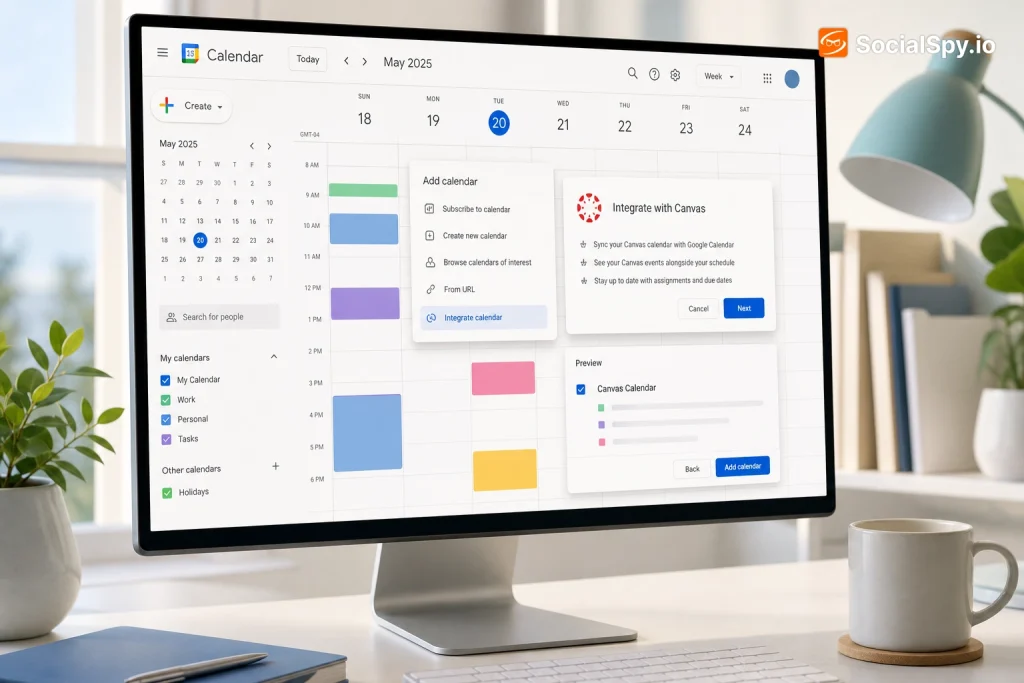
Canvas is where most college students track assignments, quizzes, and discussion deadlines, but almost nobody actually opens the Canvas app every morning to check what’s due. Google Calendar is where the rest of life lives – work shifts, gym sessions, family events. Getting Canvas deadlines to show up automatically inside Google Calendar means one less app to check and one less missed deadline.
Why Sync Canvas with Google Calendar in the First Place
Canvas has its own built-in calendar, and it’s genuinely decent for viewing assignments by course. The problem is that it lives in a separate silo from everything else in a student’s life.
Most students already run their schedule out of Google Calendar because it syncs across phone, laptop, and browser without friction. Adding Canvas deadlines into that same view means due dates sit next to work shifts, club meetings, and doctor’s appointments instead of getting forgotten in a tab nobody opens.
Academic advising offices consistently report that missed deadlines are one of the top reasons students lose points on otherwise solid coursework – not because they didn’t do the work, but because they didn’t see it was due.
There’s also a practical family angle. Parents who help manage a student’s schedule, or students who share a household calendar with roommates, get real value from having academic deadlines visible in a shared or synced view rather than buried in a login-only LMS.
Here’s what actually improves once the sync is live:
- Cross-device visibility – assignments show up on phone widgets, smartwatches, and any device signed into the Google account
- Color-coding – Canvas events can be assigned their own calendar color, separate from work or personal events
- Notification stacking – Google Calendar’s reminder system (email, popup, mobile push) layers on top of Canvas’s own notifications
- Single source of truth – no more toggling between two calendar apps to plan a week
Finding Your Canvas Calendar Feed URL
The entire sync depends on one thing: Canvas’s calendar feed, which is a private ICS (iCalendar) link unique to each student’s account. This isn’t a public link – it’s tied to your login, so treat it like a password.
Here’s how to locate it:
- Log in to Canvas through a web browser (this feature isn’t accessible from the mobile app)
- Click Calendar in the left-hand global navigation menu
- Look at the bottom-right corner of the calendar screen for a small link labeled Calendar Feed
- Click it – a popup window will appear showing a long URL starting with something like `https://[yourschool].instructure.com/feeds/calendars/user_…`
- Copy that entire URL to your clipboard
A few things worth knowing about this feed before moving on:
| Detail | What It Means |
|---|---|
| Feed scope | Includes assignments, quizzes, and events from all currently enrolled courses |
| Privacy | The URL contains a private token – anyone with the link can view your assignment schedule |
| Course filtering | Cannot be filtered by course from Canvas directly; it’s all-or-nothing |
| Regeneration | If the link leaks, most Canvas instances allow resetting it through institutional IT support |
If your school uses single sign-on (SSO) through a portal rather than direct Canvas login, the Calendar Feed link still appears in the same spot – it’s a Canvas-native feature, not something your school customizes.
Adding the Canvas Feed to Google Calendar
Once that URL is copied, the Google Calendar side takes less than a minute. This works the same way whether you’re on a Chromebook, Windows laptop, or Mac.
- Open Google Calendar in a web browser at calendar.google.com
- On the left sidebar, find Other calendars and click the + icon next to it
- Select From URL from the dropdown menu
- Paste the Canvas ICS link into the field provided
- Click Add calendar
Google will process the feed and, after a short delay, a new calendar will appear under “Other calendars” – usually just labeled with your school’s Instructure domain. From there, students should immediately:
- Click the three-dot menu next to the new calendar and choose a distinct color
- Rename it something clearer like “Canvas Assignments” via Settings and sharing
- Check that notifications are configured the way you want under that calendar’s specific settings
One important limitation: Google Calendar treats ICS feed imports as read-only. You can’t drag an assignment to a new time, edit its title, or delete a single event without unsubscribing from the whole feed. If a professor pushes a deadline back, that change comes from Canvas, and Google will pick it up automatically – not the other way around.
Why the Sync Feels Slow (and How to Speed It Up)
This is the single most common complaint students have, and it’s not a bug – it’s just how ICS feed syncing works. Google Calendar doesn’t monitor external feeds in real time; it periodically checks for updates, typically every 12 to 24 hours.
That means if a professor adds a new assignment at 9 a.m., it might not show up in Google Calendar until the next day. For students used to instant push notifications, this feels broken even though it’s working exactly as designed.
Ways to Force a Faster Refresh
- Remove and re-add the calendar – forces Google to re-pull the entire feed immediately, though this resets any custom color settings
- Check Canvas directly for anything due within 24-48 hours – treat Google Calendar as the long-view planner, not the same-day source of truth
- Use the Canvas mobile app’s push notifications as the immediate-alert layer, with Google Calendar as backup
Students juggling multiple sync tools sometimes run into the same lag issue elsewhere – it’s worth comparing against how other platforms behave, like when syncing an Outlook calendar with an iPhone, which relies on a different refresh mechanism entirely (push-based via Exchange rather than a pulled ICS feed).
For anyone who’s found the delay genuinely disruptive to daily planning, some students skip Google Calendar’s native app altogether in favor of a lighter front-end. Tools like the Notion Calendar widget can pull in the same Google Calendar (including the Canvas feed sitting inside it) and present it in a cleaner, more customizable layout without changing anything on the sync side.
Customizing and Managing What Syncs
Because Canvas’s feed is all-or-nothing, students taking five or six courses often end up with a cluttered calendar full of quiz reminders, optional readings, and discussion posts they don’t actually need reminders for. Fortunately, Google Calendar offers cleanup options even though the source feed itself can’t be filtered.
Here’s what’s editable versus what isn’t, once the feed is imported:
| Element | Editable in Google Calendar? |
|---|---|
| Event title/time | No – locked to Canvas source |
| Notification timing for the whole feed | Yes |
| Calendar color | Yes |
| Visibility (show/hide calendar) | Yes |
| Individual event deletion | No |
| Sharing the calendar with others | Yes (as a whole) |
If the clutter is too much, a workaround some students use is keeping the Canvas feed calendar toggled off by default in the sidebar and only checking it during weekly planning sessions, while a manually curated personal calendar handles day-to-day scheduling. It’s a hybrid approach – Canvas remains the automated backup, not the primary interface.
Parents managing a shared family calendar for a high schooler using Canvas can follow this same setup, then decide whether to make that calendar visible to just the student or shared more broadly – similar to how families now manage shared visibility in other Google products, like the recent Google Wallet feature letting parents set up secure balances for kids, where control and visibility settings matter just as much as the core feature itself.
Canvas Calendar Sync vs. Other Student Workflow Tools
Syncing Canvas into Google Calendar solves the scheduling half of student life, but it’s worth knowing this sits alongside a broader ecosystem of tools students stitch together each semester. Comparing them clarifies what each piece is actually for.
- Canvas ICS feed → Google Calendar: best for passive deadline awareness across all devices
- Canvas mobile app: best for real-time push notifications and submitting work on the go
- Manual calendar entry: best for students who want full control and don’t mind occasional data entry
- Note-taking sync tools: best for connecting class notes to the same digital ecosystem as deadlines
That last category matters more than students often realize. Deadlines without context are just noise – a due date for “Essay 2” means little without the actual notes or rubric nearby. Students who’ve built workflows around syncing handwritten or app-based notes, such as adding Notability notes to Google Drive, often find that pairing that habit with a synced Canvas calendar creates a genuinely complete academic operating system – one place for deadlines, one place for notes, both accessible from the same Google account.
It’s also worth remembering Canvas assignments frequently link out to collaborative documents or forms professors use for submissions or peer review. Students building more interactive coursework – the kind covered in guides on making interactive Google Docs for students – benefit from having the deadline for that document already sitting in their synced calendar rather than needing to cross-reference Canvas separately.
Conclusion
The Canvas-to-Google Calendar sync isn’t flashy, but it’s one of those small infrastructure fixes that quietly removes a recurring source of stress for students. Once the ICS feed is added, deadlines simply show up where students already look – no separate login, no separate app to remember to open.
The tradeoffs are real: the feed is read-only, it can’t be filtered by course, and the 12-to-24-hour refresh delay means it’s not a substitute for checking Canvas directly the day something’s due. But as a background safety net covering an entire semester’s worth of deadlines across every device a student owns, it’s hard to beat for the two minutes of setup it requires.
Treat it as the long-range radar, not the cockpit instrument panel – and pair it with Canvas’s own notifications for anything due in the next 24 hours.
FAQ
No, it doesn’t. Google Calendar pulls updates from Canvas’s ICS feed on its own schedule, typically refreshing every 12 to 24 hours, so newly posted assignments or changed due dates may not appear immediately even though the underlying feed has already updated.
Not through Canvas’s native calendar feed – it’s an all-or-nothing export covering every currently enrolled course. Some students work around this by keeping the imported calendar hidden by default and only checking it during scheduled planning sessions, rather than trying to filter individual courses.
It’s not recommended. The feed URL contains a private access token tied to your Canvas login, meaning anyone with the link can view your personal assignment schedule indefinitely, and if it’s ever leaked, the safest fix is asking your school’s IT or Canvas admin to regenerate a new feed URL.



