
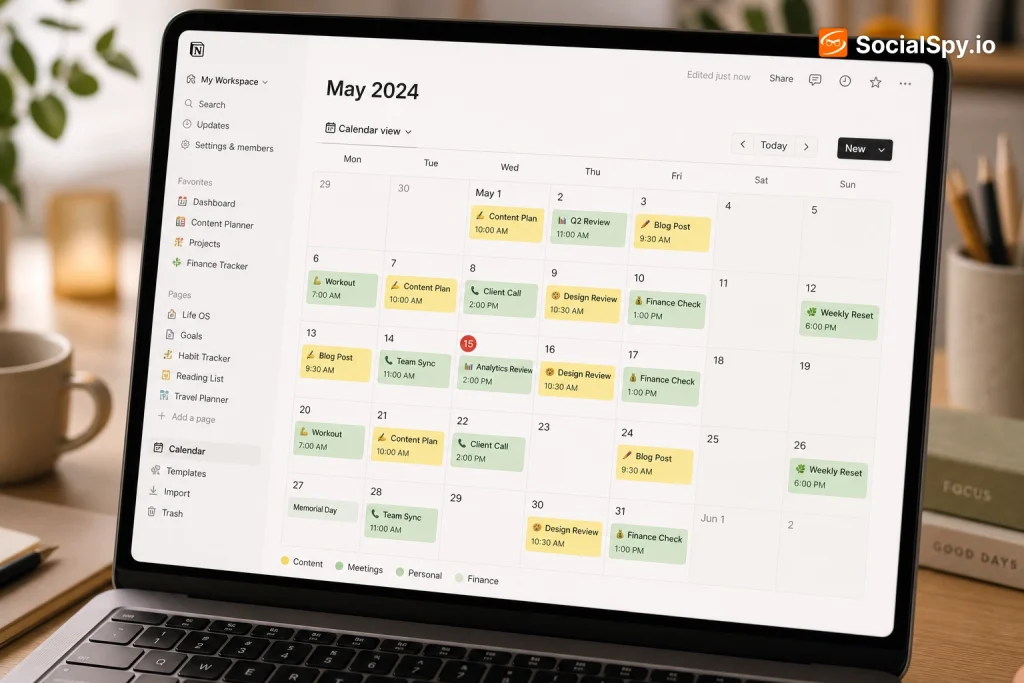
Notion built its reputation as the ultimate all-in-one workspace, but for years it had a glaring gap: no real calendar. That changed when Notion acquired the startup Cron in 2022 and relaunched it in 2023 as Notion Calendar, a standalone app that syncs with your Notion workspace and now ships with dedicated widgets for iPhone, iPad, and Mac. This guide breaks down exactly what the Notion Calendar widget does, how to set it up, and where it still falls short compared to alternatives like Google Calendar or Fantastical.
What Exactly Is the Notion Calendar Widget (And What It Isn’t)
There’s genuine confusion online about what “Notion Calendar widget” even refers to, because it actually describes two different things.
The first is the native widget built into the Notion Calendar app (formerly Cron), which you add to your phone’s home screen or your Mac’s menu bar. It shows a condensed view of upcoming events pulled from connected calendars.
The second is a third-party embedded calendar block that people drop into a Notion page — usually an iframe of a Google Calendar or a widget from a service like Indify or Elfsight — to visually display a schedule inside a Notion dashboard. Notion itself has no native “live calendar widget” block for pages; that functionality has always come from workarounds.
- Native app widget: Built by Notion, official, updates automatically, lives on your device’s home screen or menu bar.
- Embedded page widget: Built by third parties, uses an embed/iframe block inside a Notion page, requires your calendar to be set to “public” for the link to work.
- Notion’s own Calendar view: A database view type inside Notion (for pages with a Date property), which is different from both of the above and doesn’t sync with Google or Outlook at all.
Industry reviewers covering productivity tools consistently note that this three-way naming overlap is the single biggest source of confusion for new Notion users searching for calendar features.
Setting Up Native Widgets: iOS, macOS, and Android
Getting the official widget running takes about two minutes, but a few settings determine whether it’s actually useful or just a pretty clock face.
On iPhone/iPad
- Download Notion Calendar from the App Store (it’s a separate app from the main Notion app).
- Sign in and connect at least one calendar — Google Calendar, iCloud, or Outlook are all supported.
- Long-press your home screen, tap the + icon, and search for “Notion Calendar.”
- Choose from the small, medium, or large widget sizes; the large size shows a mini agenda with up to 5-6 events.
- Tap the widget after adding it to select which calendars display, since by default it shows everything.
On Mac
The macOS version lives in your menu bar rather than as a desktop widget. Clicking the menu bar icon drops down a full week view, and you can enable a setting that shows your next meeting countdown directly in the menu bar text — a small feature that early reviewers repeatedly cite as more useful than it sounds, since it eliminates the need to open any app to know you have 8 minutes until your next call.
On Android
Android support arrived later than iOS and remains slightly more limited. The Android widget supports small and medium sizes but currently lacks some of the tap-to-join meeting shortcuts available on iOS. This gap matters if your team is split across device ecosystems, since the experience isn’t fully symmetrical.
Key Features That Make It Useful for Time-Blocking
The widget isn’t just a passive display — it inherits several features from the full Notion Calendar app that make it genuinely competitive with dedicated calendar apps like Fantastical or Cron’s original standalone version.
- Color-coded calendar overlay: Personal, work, and shared calendars each get distinct colors, visible even in the compact widget view.
- One-tap video call joining: Zoom, Google Meet, and Microsoft Teams links embedded in events show a joinable icon directly on the event row.
- Time-zone intelligence: If you’re scheduling across regions, the widget reflects the correct local time automatically, useful for remote teams spanning more than one U.S. time zone.
- Task and event blending: Notion Calendar can pull in tasks from a connected Notion database and display them alongside calendar events as time blocks.
- Scheduling links: Built-in booking links (similar to Calendly) let others book time on your calendar; while this feature itself lives in the full app, confirmed bookings instantly appear in the widget.
For people who practice time-blocking — assigning specific hours to specific tasks rather than working off an open-ended to-do list — the ability to see Notion tasks rendered as calendar blocks directly in a home-screen widget removes a real friction point. You no longer need to open two separate apps to compare your task list against your literal free time.
Embedding a Live Calendar Into Your Notion Dashboard
This is where most “Notion Calendar widget” searches actually lead people, because a huge number of Notion users want a visual calendar sitting inside a page — a life dashboard, a content calendar, a team hub — not just on their phone’s home screen.
Since Notion doesn’t offer this natively, the standard workaround is embedding a public Google Calendar iframe. Here’s the general process:
- In Google Calendar settings, select the calendar you want to display and enable “Make available to public.”
- Copy the embed HTML/iframe URL from the “Integrate calendar” section.
- In Notion, type `/embed` and paste the URL.
- Resize the block to fit your dashboard layout.
The tradeoff: making a calendar public means anyone with the link can view your event titles and times, which is a real privacy consideration for anything containing sensitive scheduling information.
Third-Party Widget Services
For a more polished look than a bare Google Calendar iframe, many Notion users turn to dedicated widget-generator services:
| Service | What It Adds | Typical Cost |
|---|---|---|
| Indify | Customizable styled calendar widgets matching Notion’s aesthetic | Free tier; paid plans for more widgets |
| Elfsight | Broader widget library including calendars, embeddable anywhere | Free tier; paid plans scale with views |
| Apption (Widgets for Notion) | Notion-specific widget pack including calendar, weather, countdown | One-time or subscription fee |
These services essentially generate a styled iframe you embed the same way, but they solve the visual mismatch problem — a raw Google Calendar embed looks noticeably out of place against Notion’s minimalist design, while these tools theme the widget to blend in.
Notion Calendar vs. Google Calendar vs. Fantastical
A fair number of people considering the Notion Calendar widget are really deciding whether to switch their entire calendar workflow. Here’s how the three stack up on the features that matter most for widget/glance-based use.
| Feature | Notion Calendar | Google Calendar (native) | Fantastical |
|---|---|---|---|
| Home screen widget | Yes, small/med/large | Yes, but more basic layout | Yes, highly customizable |
| Menu bar app (Mac) | Yes, built-in | No native option | Yes, core feature |
| Multi-calendar sync | Google, Outlook, iCloud | Google only (natively) | Google, Outlook, iCloud |
| Notion task integration | Yes, native | No | No |
| Price | Free | Free | Free tier + $4.99-7.99/mo premium |
| Natural language event entry | Limited | Basic | Extensive |
The honest takeaway: Fantastical still wins on pure calendar-app polish and natural language input (“lunch with Sam next Tuesday at noon” style entry). But Notion Calendar’s widget wins for anyone whose task management already lives in Notion, because nothing else blends tasks and events into one glanceable widget as directly.
Common Problems and Limitations
No calendar widget setup is flawless, and it’s worth knowing the friction points before building your entire workflow around one.
- No offline widget refresh on some Android devices: Widget data can go stale if the app hasn’t run in the background recently, a known Android battery-optimization quirk.
- Public embed privacy risk: The iframe embedding method requires making a Google Calendar public, exposing event details to anyone with the link unless you strip details down to “busy/free” only.
- Sync delay: Multiple user reports describe a 1-5 minute lag between creating an event in Google Calendar and it appearing in the Notion Calendar widget, which matters if you’re double-booking-checking in real time.
- Limited widget interactivity: Unlike the full app, the iOS widget doesn’t let you create a new event directly — tapping it opens the full app rather than a quick-add sheet.
- No native recurring task-to-calendar sync for complex recurrence rules: Highly customized recurring Notion tasks (e.g., “every 2nd Tuesday except holidays”) don’t always translate cleanly into calendar blocks.
These aren’t dealbreakers for most casual users, but for anyone running a business calendar with back-to-back client meetings, the sync delay and lack of quick-add functionality are worth testing during a trial period before fully committing.
Conclusion
The Notion Calendar widget succeeds at the thing most people actually need from a widget: a fast, low-friction glance at “what’s next” without opening a full app. Its real differentiator isn’t visual polish — Fantastical still looks and feels more refined — it’s the fact that Notion tasks and Google/Outlook events finally live in one unified view, something no competitor offers natively. If your task management already lives inside Notion databases, adopting the Notion Calendar widget closes a workflow gap that’s existed since Notion launched in 2016. If you just want a pretty calendar embedded in a dashboard page, though, you’ll still need a third-party service or a Google Calendar iframe, since that’s a separate problem the native widget doesn’t solve at all.
FAQ
No, they’re different tools solving different problems. The widget is a native home-screen or menu-bar feature from the Notion Calendar app for glancing at your schedule, while embedding a calendar in a Notion page requires a third-party iframe or widget service like Indify, since Notion has no built-in live calendar embed block.
Yes, Notion Calendar supports syncing with Google Calendar, Outlook, and iCloud calendars simultaneously, and the widget will display events from all connected sources in one merged, color-coded view. This multi-account support is actually broader than Google Calendar’s own native widget, which is built primarily around Google accounts.
No, the Notion Calendar app and its widgets are completely free to use, including multi-calendar sync, scheduling links, and task integration with Notion databases. This differs from competitors like Fantastical, which gate features such as multi-calendar sets and advanced templates behind a $4.99-7.99 monthly premium subscription.



