
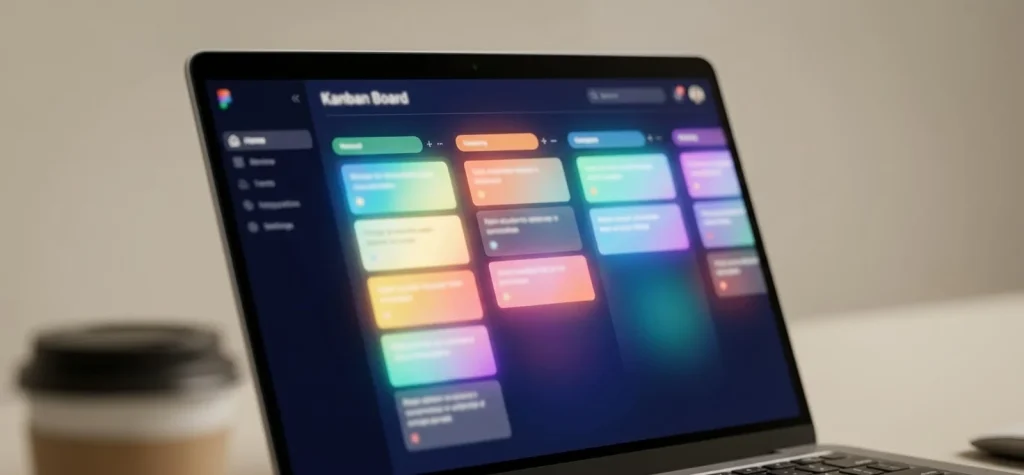
Students juggling five classes, three group projects, and a part-time job don’t need another app — they need one system that actually holds everything together. A Notion assignment tracker does exactly that, turning a wall of due dates into a single, filterable database you can check from your phone between classes.
Why Notion Beats a Paper Planner or Google Calendar
A physical planner can’t sort your assignments by urgency. Google Calendar shows you when something’s due but buries the actual instructions, rubric, or file attachments somewhere in your email. Notion solves both problems by combining a database engine with unlimited nested pages.
Here’s the core advantage: every assignment in Notion isn’t just a line item — it’s a page. You can open any assignment and drop in the rubric, a linked Google Doc, your outline, and even a subtask checklist, all without leaving the tracker.
Early adopters among college productivity communities consistently cite one reason for switching to Notion: the ability to see a class-wide view and a single-assignment view without switching apps.
- Flexibility: Toggle between calendar, board (kanban), table, and timeline views of the exact same data.
- Relational power: Link assignments to a separate “Classes” database so professor contact info, syllabus links, and office hours live one click away.
- Cross-device sync: Free tier syncs instantly across phone, tablet, and laptop — no premium tier required for basic tracking.
- Automation-lite: Notion’s built-in formulas can auto-flag anything due within 48 hours, so nothing sneaks up on you.
The tradeoff is a learning curve. Notion isn’t as instantly intuitive as opening a paper planner, and first-time users often over-engineer their setup before they’ve even added a single assignment.
Building the Database: Core Properties You Actually Need
The temptation with Notion is to add 15 properties because you can. Resist it. A lean, functional assignment tracker needs about six properties to cover 90% of use cases.
- Assignment Name (title property) — the default field every database starts with.
- Class (select or relation) — use a relation if you’ve built a separate Classes database; use select if you want something quick and simple.
- Due Date (date property) — this is what powers your calendar and timeline views.
- Status (status property, not select) — Notion’s dedicated Status property gives you built-in groups like “To-do,” “In Progress,” and “Done,” which unlocks progress bars automatically.
- Priority (select) — Low/Medium/High/Urgent, color-coded for instant scanning.
- Estimated Time (number property) — genuinely underrated; helps with realistic weekly planning.
Optional but high-value additions include a Weight property (percentage of final grade) and a Type property (essay, quiz, problem set, presentation) so you can filter by workload category during finals season.
| Property | Type | Why It Matters |
|---|---|---|
| Due Date | Date | Powers calendar/timeline views and reminders |
| Status | Status | Enables automatic progress tracking |
| Priority | Select | Lets you sort by urgency, not just chronology |
| Class | Relation | Links assignment to syllabus, grades, professor info |
Setting Up Formulas That Actually Save Time
Notion formulas intimidate people, but the two most useful ones for an assignment tracker are short.
- Days Until Due: `dateBetween(prop(“Due Date”), now(), “days”)` — instantly shows how many days you have left, updating daily without you touching it.
- Overdue Flag: a formula that returns “⚠️ Late” if today’s date passes the due date and status isn’t “Done” — this single formula eliminates the need to manually audit your tracker every morning.
Views That Match How Students Actually Work
The database itself is only half the system — views are what make it usable day-to-day. Notion lets you build unlimited views of the same underlying data, each filtered and sorted differently, without duplicating a single assignment.
- This Week Board: A kanban board filtered to due dates within the next seven days, grouped by Status.
- By Class Table: Grouped by the Class property, useful during midterms when you need to see one subject’s full workload.
- Calendar View: Every assignment plotted on a monthly grid — genuinely the closest Notion gets to a traditional planner feel.
- Master Timeline: A Gantt-style view for the whole semester, ideal for spotting collision weeks where three papers land on the same day.
If you rely on Notion’s calendar heavily, it’s worth pairing your tracker with the Notion Calendar Widget, which lets you embed a live, clickable calendar directly on your homepage dashboard instead of navigating into the database every time.
A Simple Weekly Ritual
Most students who abandon their Notion tracker don’t fail because the setup was bad — they fail because they never built a habit around checking it.
- Sunday night: Open the “This Week Board,” move anything unfinished into the new week.
- Daily: Check the “Days Until Due” formula column, sorted ascending.
- Friday: Archive completed assignments into a “Done” filter view instead of deleting them — useful for finals review.
Templates vs. Building From Scratch
Notion’s template gallery has dozens of pre-built assignment trackers, and the built-in “Student Hub” style templates cover most of what’s outlined above. The real question is whether a template or a custom build serves you better.
A template gets you organized in five minutes. A custom build gets you organized in a way that matches exactly how your brain sorts information — but it costs you an evening of setup.
When a template makes sense:
- You’re mid-semester and need something working today, not next week.
- You don’t yet know which properties matter to you.
- You want a proven structure rather than experimenting blind.
When building from scratch makes sense:
- You already track grades, weights, or credit hours and need a relation-heavy structure.
- You’re combining assignment tracking with a broader academic system — job applications, extracurriculars, or a Notion College Application Template-style workflow for students juggling both coursework and application deadlines.
- You want full control over automations and formulas from day one.
A middle path that works well: import a free template, then strip out every property you don’t understand within the first week. Most students end up deleting 30-40% of a template’s default fields because they never touch them.
Customization That Keeps You Actually Using It
The biggest reason productivity systems die isn’t bad design — it’s boredom. If opening your tracker feels like opening a spreadsheet, you’ll stop opening it by week three.
Notion gives you real customization options that go beyond just data:
- Color-coded classes: Assign each class a distinct color in the Select property so your board view reads like a subject-coded rainbow at a glance.
- Icons per assignment type: A 📝 for essays, 🧮 for problem sets, 🎤 for presentations — tiny visual cues that speed up scanning dramatically.
- Cover images and page aesthetics: Some students go further and personalize the entire workspace background, and if you’re wondering can you change background in Notion, the answer involves both built-in dark/light themes and third-party CSS tweaks that go well beyond the defaults.
- Embedded widgets: Countdown timers to finals week, motivational quote blocks, or a linked Pomodoro tracker on the same dashboard page.
None of this changes the underlying function of the tracker, but the visual layer is exactly what determines whether a student opens the app voluntarily or only under deadline pressure.
Conclusion
A Notion assignment tracker isn’t about building the most elaborate database possible — it’s about building the smallest system that you’ll actually maintain past the second week of the semester. Start with six properties, one weekly ritual, and two or three views, then add complexity only when you feel a genuine gap, not because a template made it look impressive. The students who stick with Notion long-term are almost never the ones with the fanciest setup; they’re the ones who checked their tracker every Sunday night without fail. Build for consistency first, aesthetics second, and the system will outlast the semester it was built for.
FAQ
No. Notion’s free plan supports unlimited databases, properties, views, and cross-device syncing, which covers everything a personal assignment tracker needs. The paid plans mainly add value for teams collaborating on shared workspaces, not for individual student use.
Notion doesn’t natively sync with Canvas, but you can connect Notion Calendar (a separate companion app) to Google Calendar for two-way syncing of due dates. Some students also use third-party automation tools like Zapier or Make to pull Canvas assignment data into a Notion database automatically, though this requires a bit of initial setup.
Overloading the database with too many properties before ever using it day-to-day, which makes the tracker feel like extra homework instead of a time-saver. The fix is starting lean with five or six core fields, using it consistently for two weeks, and only adding new properties once you’ve identified a real, recurring gap.



