
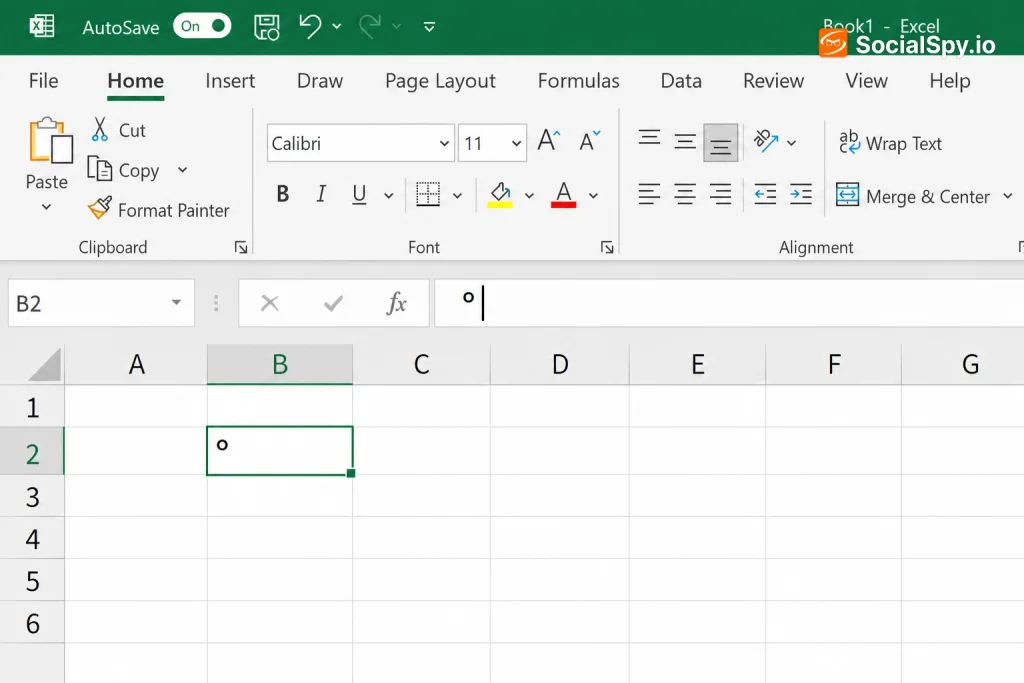
Typing a degree symbol in Excel sounds like a two-second task until you actually try it mid-spreadsheet and realize your keyboard doesn’t have a dedicated key for it. Whether you’re logging temperature data, building an engineering spec sheet, or just labeling a column of angle measurements, there are half a dozen ways to get that little “°” character into a cell — and some are far faster than others.
The Fastest Method: Keyboard Shortcuts
If you’re entering degree symbols regularly — say, in a weather log or a batch of temperature readings — a keyboard shortcut beats every other method for speed. The trick is knowing which shortcut matches your operating system and keyboard type.
On Windows, the shortcut is Alt+0176. You hold down the Alt key and type 0176 on the numeric keypad, not the number row above the letters. This matters because Windows’ Alt-code system only reads keypad input; laptops without a physical numpad often need Num Lock enabled on an embedded keypad (usually accessed via Fn) for this to work at all.
On Mac, Excel users get an even simpler combo: Option+Shift+8. This works system-wide in macOS, not just in Excel, so it’s worth memorizing if you write documents across multiple apps.
Industry surveys of spreadsheet power users consistently rank Alt-code shortcuts among the most requested “hidden” Excel features, precisely because Microsoft never added a dedicated degree key to any keyboard layout.
Here’s a quick reference for the most common symbol-entry shortcuts people confuse with the degree symbol:
| Symbol | Windows Shortcut | Mac Shortcut |
|---|---|---|
| Degree (°) | Alt+0176 | Option+Shift+8 |
| Plus-minus (±) | Alt+0177 | Option+Shift+= |
| Micro (µ) | Alt+0181 | Option+M |
Using AutoCorrect to Type “deg” Automatically
If you don’t trust yourself to remember a four-digit Alt code every time, Excel’s AutoCorrect feature can do the work for you permanently. This is arguably the best long-term solution for anyone who inserts degree symbols multiple times a week.
Here’s how to set it up:
- Go to File > Options > Proofing > AutoCorrect Options.
- In the “Replace” field, type a shorthand you’ll remember, like `deg`.
- In the “With” field, paste an actual degree symbol (you can copy one from a Google search result or generate it once using Alt+0176).
- Click Add, then OK.
From that point forward, typing `deg` followed by a space in any cell will auto-convert to °. This works across every workbook on that machine because AutoCorrect settings are stored at the application level, not the file level — a detail many users miss and then wonder why the shortcut disappears on a new spreadsheet.
- Pro tip: choose a shorthand that isn’t a real word (like “deg” rather than “d”) so AutoCorrect doesn’t accidentally trigger when you’re typing normal text.
- This method does not work if you’re editing the same file on a coworker’s computer, since AutoCorrect entries don’t travel with the workbook.
- It also doesn’t work in Excel Online (the browser version), since AutoCorrect customization is a desktop-app-only feature as of the current Microsoft 365 release.
The Insert Symbol Dialog Box
For a completely keyboard-shortcut-free approach, Excel’s built-in Symbol library covers you. This is the method most beginners stumble onto first, and it’s reliable even if you forget every Alt code you’ve ever learned.
- Click the cell where you want the degree symbol.
- Go to the Insert tab on the ribbon.
- Click Symbol (usually on the far right of the ribbon, sometimes tucked under a small dropdown arrow depending on window size).
- In the dialog box, set the font to (normal text) and the subset to Latin-1 Supplement.
- Scroll until you find °, select it, and click Insert, then Close.
The upside here is discoverability — you don’t need to memorize anything. The downside is speed: this is a five-click process for a single character, which becomes tedious fast if you’re filling out dozens of cells.
Excel also remembers your most recently used symbols in a small row at the bottom of the dialog box, so after the first insert, grabbing a second degree symbol later in the session takes just two clicks instead of five.
Formula-Based Approaches: CHAR(176) and Concatenation
Manually typing symbols works fine for static labels, but if you’re building formulas that combine numbers with unit labels — say, converting Celsius to Fahrenheit and displaying the result with a degree sign — you need a formula-friendly method.
The CHAR function references character codes from the underlying character set Excel uses (based on Windows-1252 / ANSI encoding), and 176 is the code for the degree symbol.
=CHAR(176)
This becomes powerful when combined with concatenation to build dynamic labels:
=A1&CHAR(176)&”F”
This formula takes whatever numeric value is in cell A1 and appends a degree symbol plus “F” directly after it, turning a plain number like 72 into a readable “72°F” — all without hardcoding the symbol as static text. If you’re merging degree symbols with text pulled from multiple cells, the underlying logic is the same one covered in How to Combine Text From Two Cells in Excel, just with CHAR(176) inserted as an extra piece of the concatenation chain.
A few scenarios where CHAR(176) beats manual typing:
- Data imported from external sources (CSV files, databases, APIs) where you need to programmatically append units to thousands of rows at once.
- Templates shared across teams where you can’t guarantee everyone knows the Alt-code shortcut, so the formula guarantees consistent formatting.
- Conditional formulas that only show a degree symbol when a cell contains a numeric temperature value, avoiding stray symbols on blank or text cells.
Once you’ve built a formula like this in one cell, you’ll typically want it applied down an entire column of temperature or angle data — that’s a job for Excel’s fill handle or, for more complex sheets, the techniques in Excel Copy Formula, which covers how relative and absolute references behave when you drag formulas across large datasets.
Custom Number Formatting: Displaying Without Typing
Here’s a method most Excel users never discover, and it’s genuinely useful: you can make Excel display a degree symbol after a number without actually typing the symbol into the cell at all. The number stays a pure numeric value, but it visually appears with a ° attached.
This matters because a cell containing the text string “72°” can’t be averaged, summed, or used in further math — but a cell containing the number 72 formatted to display as “72°” absolutely can.
To set this up:
- Select the cell or range with your numeric data.
- Press Ctrl+1 to open Format Cells.
- Under Number, choose Custom.
- In the “Type” field, enter: `0″°”` (or `0.0″°”` for one decimal place).
- Click OK.
Now every number in that range automatically shows a degree symbol as a suffix, while remaining a fully functional number underneath for formulas, charts, and sorting.
This is the single most common mistake in temperature-tracking spreadsheets: mixing text-based degree symbols with numeric ones in the same column, which silently breaks SUM and AVERAGE formulas without any error message.
This custom-format trick pairs especially well with data sorting. If you’re organizing a large dataset of temperature readings from highest to lowest and want the degree symbol to persist through the reorder, the number-format approach guarantees Excel treats the values as true numbers the whole time — a distinction that becomes relevant if you’re also using the Sort Excel Function to rank rows by magnitude rather than by the text string that includes the symbol.
Autocomplete Pitfalls and Common Errors
A surprising number of “how do I insert a degree symbol” support threads turn out to be formatting bugs rather than missing symbols. Knowing the common failure points saves troubleshooting time.
- Wrong keypad, wrong result: Typing Alt+0176 using the number row above the letters (instead of the numeric keypad) does nothing on most Windows machines — a frequent cause of “the shortcut doesn’t work” complaints.
- Font doesn’t support it: Extremely rare with standard fonts like Calibri or Arial, but some decorative or symbol-heavy fonts (Wingdings, certain condensed fonts) render ° as a blank box or wrong glyph.
- Autocorrect language conflicts: If your Office language pack is set to a locale where “deg” collides with another abbreviation, your custom AutoCorrect entry may silently fail to trigger.
- Copy-paste from web pages: Pasting a degree symbol copied from a website sometimes drags in hidden Unicode formatting characters, which can cause “value” errors if that cell is later referenced in a formula expecting a clean number.
- Superscript “o” confusion: Some users substitute a lowercase superscript “o” for the actual degree symbol because it looks similar visually — this passes a casual glance but fails any text-matching formula or data validation check.
If you’re building a spreadsheet template that other people will fill in, it’s worth locking down the format ahead of time using the custom number format method above rather than trusting every collaborator to type the correct symbol manually.
Conclusion
There’s no single “correct” way to insert a degree symbol in Excel — the right method depends entirely on how often you need it and what you’re doing with the data afterward. For occasional, one-off labels, Alt+0176 or the Insert Symbol dialog gets the job done in seconds. For anyone typing dozens of temperature or angle values a week, setting up an AutoCorrect shortcut once saves hundreds of repetitive keystrokes over time. But the method that actually matters most for data integrity is the custom number format trick — because a spreadsheet full of “72°” as text strings will quietly sabotage your SUM and AVERAGE formulas in ways that don’t throw an error, they just silently give you the wrong answer. Pick the method that matches not just how you type, but how the data will eventually be used.
FAQ
This shortcut requires input from a numeric keypad, and many laptops don’t have a dedicated physical numpad. You’ll need to enable the embedded numeric keypad (often via the Fn key plus Num Lock) or use an alternative method like Insert > Symbol or the CHAR(176) formula instead.
Yes, but only if you keep the symbol as a display format rather than typing it as part of the actual value. Use Format Cells > Custom with a format code like 0″°” so the cell displays “72°” while the underlying value remains the pure number 72, fully usable in SUM, AVERAGE, or other calculations.
Yes, and it matters more than it looks. The true degree symbol (°) is Unicode character 176 and is recognized correctly by formulas, formatting rules, and data validation, whereas a superscript lowercase “o” is a completely different character that only looks similar visually and will fail exact-match comparisons or CHAR-based formulas.



