
Extra spaces in Excel spreadsheets cause more silent errors than almost any other data problem — VLOOKUPs fail, duplicates go undetected, and totals come up wrong for no obvious reason. The TRIM function is the fix most people don’t know they need until they’ve spent an hour debugging a formula that should have worked.
What TRIM Actually Does (And What It Doesn’t)
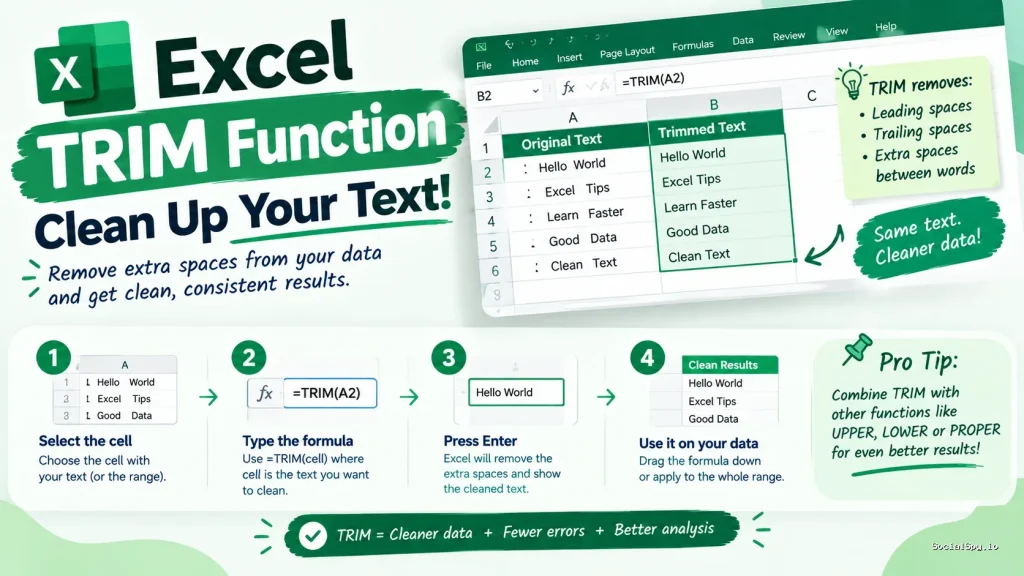
TRIM’s job is narrow but essential: it strips leading spaces, trailing spaces, and reduces any run of multiple spaces between words down to a single space. That’s it. It’s a one-trick function, but it’s a trick that solves a surprisingly common problem.
Here’s the basic syntax:
=TRIM(text)
Where `text` is a cell reference, a string, or a formula that returns text. There’s only one argument — no optional parameters, no delimiters to configure.
A cell containing ” John Smith ” (with leading and trailing spaces) becomes “John Smith” after =TRIM(A1). A cell with “John Smith” (four spaces between words) becomes “John Smith” with just one space.
What confuses a lot of users is what TRIM won’t touch:
- Tab characters (Chr(9)) — these look like spaces but aren’t, and TRIM ignores them entirely
- Line breaks (Chr(10)) — common in data pasted from web pages or PDFs, also untouched
- Non-breaking spaces (Chr(160)) — the sneakiest culprit, frequently found in data copied from HTML
- Leading zeros in numbers stored as text — TRIM cleans spaces, not formatting
That last category of invisible characters is why TRIM alone sometimes “doesn’t work” even though the formula is entered correctly. The cell looks empty of extra spaces, but there’s a non-breaking space lurking that TRIM simply doesn’t recognize as a regular space character.
Why Extra Spaces Break More Than You’d Think
Extra spaces are invisible in a cell, which is exactly why they’re dangerous. A spreadsheet can look perfectly clean and still be riddled with lookup failures.
Consider the practical fallout:
- VLOOKUP and XLOOKUP return #N/A — “Chicago” and “Chicago ” are not the same string to Excel, even though they look identical
- COUNTIF and SUMIF undercount — duplicate-looking entries with trailing spaces get treated as unique values
- Sorting behaves oddly — text with leading spaces sorts before text without them, throwing off alphabetical order in ways that are hard to spot; this becomes especially confusing when combined with more advanced sorting logic like the one covered in Sort Excel Function
- Concatenated text looks wrong — combining “First ” and ” Last” produces “First Last” with a double space, or awkward gaps in mail-merge documents
- Data validation and drop-down lists reject valid entries — a value that should match a list item doesn’t, because of a trailing space nobody can see
This problem is endemic to imported data specifically. Data pulled from a CRM export, a web scrape, a CSV from a legacy system, or copy-pasted from a PDF report almost always carries hidden whitespace. Analysts who work with exported data regularly report that TRIM is one of the first formulas they apply, before any VLOOKUP, pivot table, or aggregation touches the dataset.
How to Use TRIM in Real Formulas
The simplest use case is a standalone cleanup column, but TRIM becomes far more useful when nested inside other formulas.
Basic standalone cleanup
If column A has messy names, put this in B1 and fill down:
=TRIM(A1)
Then copy column B, paste as values over column A (or into a new column), and delete the original messy data.
Nesting TRIM inside lookups
Instead of cleaning data first and looking it up second, you can trim on the fly:
=VLOOKUP(TRIM(A1), TableRange, 2, FALSE)
This is useful when the lookup value itself is inconsistent — say, a customer name typed by different people with different spacing habits — but you don’t want to add a permanent helper column.
Combining TRIM with CLEAN for non-printing characters
Since TRIM ignores tabs, line breaks, and some non-printing characters, pairing it with CLEAN often solves the “TRIM isn’t working” complaint:
=TRIM(CLEAN(A1))
CLEAN removes most non-printable ASCII characters (codes 0–31), while TRIM handles the space normalization. Together they cover the vast majority of messy-import scenarios.
Handling non-breaking spaces specifically
Non-breaking spaces (Chr(160)) need a SUBSTITUTE step because neither TRIM nor CLEAN recognizes them:
=TRIM(SUBSTITUTE(A1, CHAR(160), ” “))
This converts the non-breaking space into a regular space first, then lets TRIM collapse and strip it normally.
TRIM in text concatenation
When joining first and last names where spacing is inconsistent:
=TRIM(A1) & ” ” & TRIM(B1)
This guarantees exactly one space between the two names regardless of how messy the source columns were.
TRIM vs. Other Cleanup Functions
TRIM is often mentioned alongside a handful of other text functions, and it’s worth knowing exactly where the boundaries are so you pick the right tool.
| Function | What It Removes | What It Leaves Alone |
|---|---|---|
| TRIM | Leading/trailing spaces, extra internal spaces | Tabs, line breaks, non-breaking spaces |
| CLEAN | Non-printable characters (codes 0–31) | Regular spaces, non-breaking spaces |
| SUBSTITUTE | Any specified character (fully customizable) | Everything except the exact character targeted |
| TEXTJOIN | Nothing (it’s a joining function, not a cleaner) | N/A — often paired with TRIM for clean joins |
A common mistake is assuming CLEAN and TRIM overlap more than they do. They’re actually complementary, not redundant — CLEAN handles the invisible control characters that come from system exports (like line feed and carriage return remnants), while TRIM handles the visible-but-excessive whitespace.
For readers who work heavily with restructuring text data, it’s also worth knowing about Excel Textsplit, which handles a different but related problem: breaking one messy text string into multiple columns based on a delimiter, rather than just cleaning whitespace within a single cell.
Practical Workflows Where TRIM Belongs
TRIM rarely operates alone in a real spreadsheet workflow — it’s usually step one in a data-cleaning sequence before the “real” analysis happens.
Before building a database or master list: Anyone consolidating multiple data sources into a single reference table — the kind of structured setup described in Excel Database — should run TRIM across every text column first. Inconsistent spacing is one of the top reasons merged datasets end up with duplicate “unique” entries that are actually the same value with different whitespace.
Before running totals or conditional sums: If a column of category labels has inconsistent spacing, a SUMIF or COUNTIF grouped by category will undercount. This directly affects tasks like the ones in How Do I Total a Column in Excel, where category-based subtotals depend on exact text matches.
Before conditional logic: Nested IF statements and AND/OR conditions that test text values are vulnerable to the same invisible-space problem. A formula built using the patterns in If and Formula in Excel will silently fail its logical test if one side of the comparison has a trailing space and the other doesn’t.
Before transposing or restructuring data: When flipping rows to columns using the techniques in Transpose Excel, any whitespace inconsistency gets carried along for the ride — cleaning first avoids repeating the fix twice.
A recommended order of operations for a messy import:
- Run =TRIM(CLEAN(cell)) across all text columns in a helper column
- Paste the results as values over the original columns
- Check for non-breaking spaces if lookups still fail, using the SUBSTITUTE/CHAR(160) method
- Remove duplicate rows only after cleanup, never before
- Proceed with lookups, sorting, pivot tables, or database structuring
Common TRIM Mistakes and Troubleshooting
Even experienced Excel users hit a few predictable snags with TRIM. Knowing them in advance saves real time.
- Applying TRIM to numbers stored as text — TRIM works on text, and while it can technically process a numeric-looking string, it won’t fix number formatting issues or convert text-numbers into true numbers; use VALUE for that
- Forgetting to paste as values — if you delete the original column after adding a TRIM formula column, you’ll break the formula since it references the now-deleted cells; always copy → paste special → values first
- Assuming TRIM fixes case sensitivity — “Chicago” and “chicago” trimmed are still two different strings for exact-match lookups; pair with UPPER or LOWER if case consistency also matters
- Expecting TRIM to work across an entire array without a modern Excel version — in older Excel versions, applying TRIM to a range and expecting an automatic array result required Ctrl+Shift+Enter; in Microsoft 365, dynamic arrays handle this natively
- Not checking for the CHAR(160) non-breaking space issue — this is the single most common reason someone insists “TRIM isn’t working” when it’s actually working exactly as designed, just on a different character
For anyone doing this kind of cleanup regularly across large workbooks, learning a few keyboard efficiencies pays off — the shortcuts covered in Excel Keyboard Shortcuts Save As and, for Mac users specifically, Shortcut Keys Excel Mac make the copy-paste-special-values cycle considerably faster when you’re running it across dozens of columns.
Conclusion
TRIM is one of the least glamorous functions in Excel, but it earns its place because it prevents downstream errors that are otherwise nearly impossible to diagnose visually. The real skill isn’t memorizing the syntax — it’s one argument, after all — it’s recognizing when hidden whitespace is the actual cause of a broken VLOOKUP, an undercounted SUMIF, or a “duplicate” row that Excel refuses to flag. Build the habit of running =TRIM(CLEAN(cell)) on any imported text data before it touches a formula, and pair it with the CHAR(160) fix for non-breaking spaces when standard TRIM doesn’t seem to be working. That single habit, applied at the start of a workflow rather than after something breaks, is what separates clean spreadsheets from ones full of mysterious errors.
FAQ
TRIM only removes standard space characters (leading, trailing, and repeated internal spaces) — it does not touch tabs, line breaks, or non-breaking spaces (Chr 160), which are common in data copied from web pages. If TRIM appears to fail, try =TRIM(SUBSTITUTE(A1, CHAR(160), ” “)) to convert non-breaking spaces first.
TRIM is designed for text strings and will process numeric-looking text, but it doesn’t convert text-formatted numbers into true numeric values or fix number formatting issues. If a cell contains a number stored as text with extra spaces, wrap TRIM inside a VALUE function, like =VALUE(TRIM(A1)), to get a usable numeric result.
Yes — in Microsoft 365 you can select a formula cell, enter =TRIM(A1:A1000), and Excel’s dynamic array behavior will spill the cleaned results down automatically without needing Ctrl+Shift+Enter. In older Excel versions, you’d need to enter it as an array formula or simply fill the single-cell formula down the column and paste the results as values afterward.



