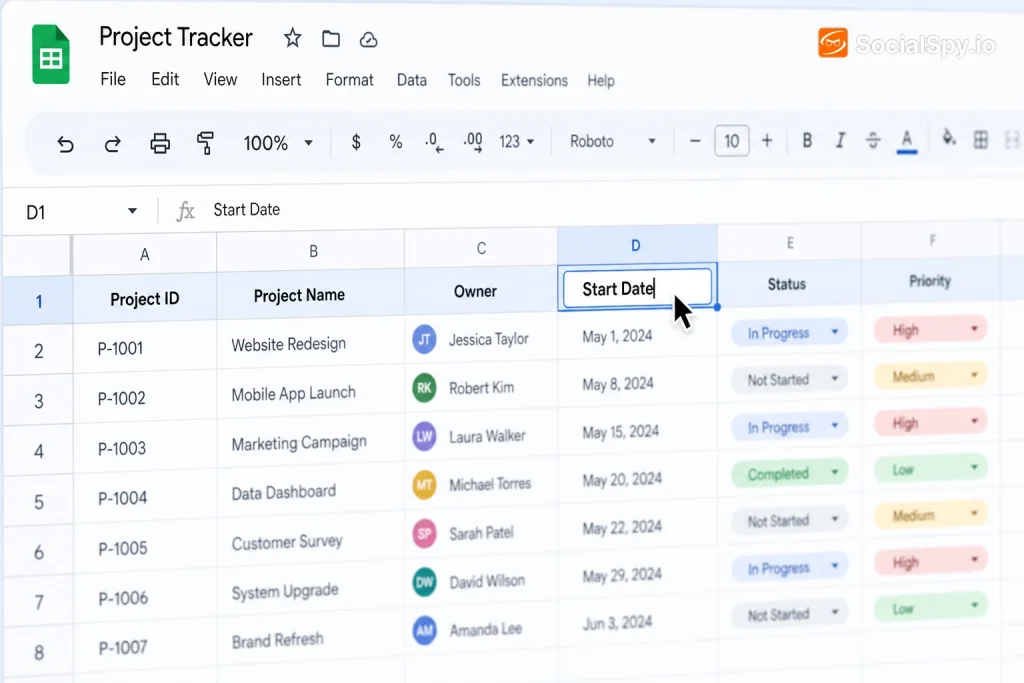
Renaming a column in Google Sheets sounds trivial until you’re staring at a spreadsheet with headers like “Column1” and “Column2” imported from a CSV, or you’re trying to clean up a shared workbook that a whole team relies on. The good news is that Google Sheets gives you several ways to do it, and the “right” method depends on whether you’re working with a plain header row, a formatted Table, or a pivot table pulling data from elsewhere.
Understanding What “Column Name” Actually Means in Sheets
Unlike a database or a tool like Airtable, Google Sheets doesn’t have a built-in concept of a “column name” separate from cell content. The letters A, B, C, and so on across the top are permanent column identifiers used in formulas — you can never rename those. What people usually mean by “renaming a column” is changing the text in the header row, which is just an ordinary cell.
This distinction matters because it explains why there’s no “Rename Column” option hiding in a right-click menu for standard ranges. You’re not renaming a system object; you’re editing text.
- Column letters (A, B, C…) — fixed, used in formulas like `=SUM(B2:B10)`, cannot be changed
- Header row text — fully editable, this is what you’re actually renaming
- Table column names — a newer exception, tied to Sheets’ Table feature, which behaves more like a database field
Google rolled out the Tables feature more broadly through 2025 and into 2026, and it does introduce real named columns that formulas can reference by name instead of letter — more on that below.
The Basic Method: Editing the Header Cell
For roughly 95% of spreadsheets, renaming a column is just editing a cell. There are three near-identical ways to do it, and which one you use usually comes down to habit or how precise you want to be.
- Double-click the header cell — this puts the cell directly into edit mode with your cursor placed where you clicked, so you can fix a typo without retyping the whole label.
- Single-click the cell, then type — this replaces the entire contents immediately, which is faster if you’re renaming “Column1” to something completely different like “Customer Email.”
- Click the cell once, then edit in the formula bar — useful when the header text is long or contains a formula-driven label (like a header built with `TEXT()` or `CONCATENATE()`), since the formula bar shows the full content without truncation.
A common mistake: renaming the header cell in row 1 while forgetting that row 1 isn’t “frozen” yet. If your sheet scrolls and the header disappears, go to View > Freeze > 1 row first so you can always see and edit column names no matter how far down you scroll.
Once you’ve renamed a header, any formula referencing that cell by absolute or relative address (like `A1`) still works fine — only formulas that reference the text of the header (common in `VLOOKUP`, `INDEX/MATCH`, or `QUERY` formulas) will break if you don’t update them too.
Renaming Headers Without Breaking Formulas
If your sheet uses `QUERY()` or `INDEX/MATCH` functions that reference header text directly, changing a header name can silently break downstream calculations. Before renaming anything in a shared or heavily-formula’d sheet, it’s worth running a quick check.
- Use Find and Replace (`Ctrl+H` or `Cmd+H`) with “Search: Formulas” enabled to find every place the old header text appears
- Check any `QUERY()` formulas — they often reference column headers as literal strings inside quotes
- Check data validation rules and conditional formatting rules built on that column, since these can reference headers indirectly
- If you use Named Ranges, note that renaming a header does not automatically rename an associated named range — you’ll need to update that separately in Data > Named ranges
Renaming Columns Inside a Google Sheets Table
Google’s Tables feature — the structured, database-like objects you can insert via Insert > Table — changed the renaming process. Unlike a plain range, a Table gives each column an actual name property, similar to a field name in Airtable or a proper database schema.
Here’s how renaming differs inside a Table:
| Action | Plain Range | Google Sheets Table |
|---|---|---|
| Rename method | Edit header cell text | Double-click column name in Table header |
| Formula references | By cell address (A1, B2) | Can reference by column name |
| Renaming risk | May break text-based formulas silently | Table auto-updates formula references |
| Visual indicator | None, looks like any cell | Colored header band, dropdown chevron |
To rename a column in a Table, double-click the column header exactly like a regular sheet, but you’ll notice Sheets automatically propagates that name change through any formulas that reference the column by name (using the `Table1[Column Name]` syntax). This is a meaningfully safer way to rename things in a large, formula-heavy workbook, and it’s part of why Google has been pushing users toward Tables throughout 2026 for anyone building recurring trackers, project management sheets, or CRM-style workbooks.
If you haven’t tried Tables yet, it’s worth testing on a copy of a sheet before converting a production spreadsheet, since converting a range to a Table changes some formatting and filtering behavior.
Renaming Columns in a Pivot Table
Pivot tables handle this differently again, and it trips up a lot of people because the “rename” happens in the editor panel, not directly on the pivot output.
Here’s the actual sequence:
- Click any cell inside your pivot table to open the Pivot table editor on the right.
- Under Rows, Columns, or Values, find the field you want to rename.
- Click into the field’s summary label — for Values, this often shows as “SUM of Revenue” — and there’s no direct rename button here.
- Instead, go directly to the pivot table’s generated header cell and double-click it, just like a normal header, since pivot table headers are editable text once generated.
- Alternatively, rename the source column in your raw data sheet before building the pivot, since the pivot table typically inherits field names from the source header row.
- Renaming a pivot’s summary column (like changing “SUM of Revenue” to “Total Revenue”) is done by clicking directly into that generated header cell
- If you refresh or rebuild the pivot table (e.g., by changing the data range), custom pivot header renames can sometimes revert to the default label
- The most durable fix is renaming the column in your source data, not patching the pivot output after the fact
Bulk Renaming Multiple Columns at Once
When you’re dealing with a messy import — say, a CSV export from a CRM or a Google Form response sheet — you often need to rename ten or twenty columns at once. Typing each one manually works, but there are faster paths.
- Find and Replace across row 1 only: select just the header row, open `Ctrl+H`, check “Specific range,” and limit replacements to that selection to avoid accidentally editing data cells
- Paste values from a template: if you maintain a standard header row you reuse across sheets (a common practice for teams running the same tracker monthly), copy that row and paste it over the messy one with Paste special > Values only
- Apps Script for repeated jobs: for recurring imports, a short Apps Script snippet using `setValues()` on the header range can auto-rename columns every time new data lands, which is common in automated reporting pipelines
- TRANSPOSE and QUERY tricks: some power users build a lookup table mapping “old header” to “new header,” then use `VLOOKUP` combined with `TRANSPOSE` to regenerate a clean header row programmatically
For teams that receive the same messy Google Form export every week — a scenario common in schools and small nonprofits — pairing a bulk-rename script with proper form management matters too. If you’re managing recurring survey data, it’s worth knowing how to close a Google Form once responses hit your target count, since a form left open indefinitely just means more inconsistent headers to clean up later.
Naming Conventions Worth Following
Renaming is easy; renaming well is what actually saves time later. Analysts who work across large multi-tab workbooks tend to converge on a few shared rules.
“Consistent naming isn’t cosmetic — it’s what makes `QUERY()`, `IMPORTRANGE()`, and filter views actually maintainable months later,” is the kind of guidance you’ll hear repeatedly from spreadsheet-heavy operations teams.
- No spaces in formula-referenced headers when possible — use underscores or camelCase (`customer_email` or `customerEmail`) if the header will be referenced heavily in `QUERY()` strings, since spaces require extra quoting
- Avoid special characters like `#`, `%`, or `/` in headers that feed into `QUERY()`, since these can break SQL-like syntax
- Keep headers short but unambiguous — “Rev_Q1_26” beats both “Revenue” (too vague across multiple quarters) and “Total Revenue Generated for the First Quarter of 2026” (too long for formulas and column width)
- Match naming across tabs — if “Email” appears in one tab and “Email Address” in another, any cross-tab `VLOOKUP` or `IMPORTRANGE` setup becomes fragile
This kind of structural discipline matters more as spreadsheets get embedded into broader workflows — similar to how building an interactive Google Doc for students requires upfront planning around structure so the document doesn’t fall apart once other people start interacting with it.
Mobile App Renaming
The mobile Google Sheets app (iOS and Android) handles header renaming almost identically to desktop, but the interaction points differ slightly since there’s no formula bar visible by default.
- Tap once on the header cell to select it
- Tap again to enter edit mode, or tap the pencil/edit icon that appears
- A small text box expands above the keyboard showing the full cell content for longer headers
- Table and pivot table editing on mobile is more limited — renaming Table columns works, but building new pivot fields is still easier on desktop
If you’re managing spreadsheets on the go — logging expenses, tracking a project, or updating a roster — mobile renaming is fine for quick fixes but not ideal for bulk cleanup. Save the twenty-column CSV cleanup job for a desktop session.
Conclusion
Renaming columns in Google Sheets is deceptively simple at the surface — double-click, type, done — but the details change depending on whether you’re touching a raw header cell, a Table’s structured column, or a pivot table’s generated field. The real skill isn’t the click sequence; it’s knowing which formulas, named ranges, and pivot dependencies will break silently when you do it. Build the habit of renaming headers before you build formulas on top of them, adopt Google’s Table feature for anything with heavy formula dependencies, and keep naming conventions consistent across tabs — that’s what separates a spreadsheet that scales from one that quietly falls apart three months in.
FAQ
No, the lettered column identifiers (A, B, C, etc.) are fixed system labels used in cell references and formulas, and Google Sheets does not allow you to rename them. What you can rename is the header text in row 1 (or wherever your labels live), which is what most people actually mean when they say “rename a column.”
It depends on how your formulas reference the column. Formulas using cell addresses like `A1` or `SUM(B2:B10)` are unaffected by a header rename, but formulas like `QUERY()` that reference header text as a literal string, or named ranges tied to that column, can break and need to be manually updated.
In a regular sheet, renaming is just editing plain text in a header cell with no special behavior attached. In a Google Sheets Table, columns have actual name properties that formulas can reference directly (like `Table1[ColumnName]`), and renaming automatically updates those formula references instead of silently breaking them.