
Google Forms remains one of the quietest workhorses in the Google Workspace lineup, powering everything from classroom quizzes to event RSVPs and customer feedback surveys. But once a form has done its job, leaving it open indefinitely invites late submissions, skewed data, and sometimes even spam. Here’s exactly how to shut the door on new responses without losing anything you’ve already collected.
The Two Meanings of “Closing” a Google Form
People searching for this usually mean one of two very different things, and it’s worth separating them before diving into steps.
- Closing response collection — stopping the form from accepting any new submissions while preserving existing data. This is the far more common intent.
- Closing the form window/tab — simply exiting the editor or the live form in your browser, which requires no special action beyond hitting the X.
Most confusion around this topic comes from Google’s own terminology shift — the setting used to be buried in a toggle, but as of the 2026 Forms interface, it’s labeled clearly as “Accepting responses” with a visible on/off switch.
If you’re building forms as part of a broader classroom workflow, it’s worth pairing this with something like a How to Make an Interactive Google Doc for Students setup, since many educators run forms and interactive docs side by side for the same assignment cycle.
How to Manually Close a Google Form (Desktop)
This is the fastest and most direct method, and it works for any form you own or have editing rights to.
- Open the form in Google Forms (forms.google.com) or from Google Drive.
- Click the Responses tab at the top of the editor, next to Questions and Settings.
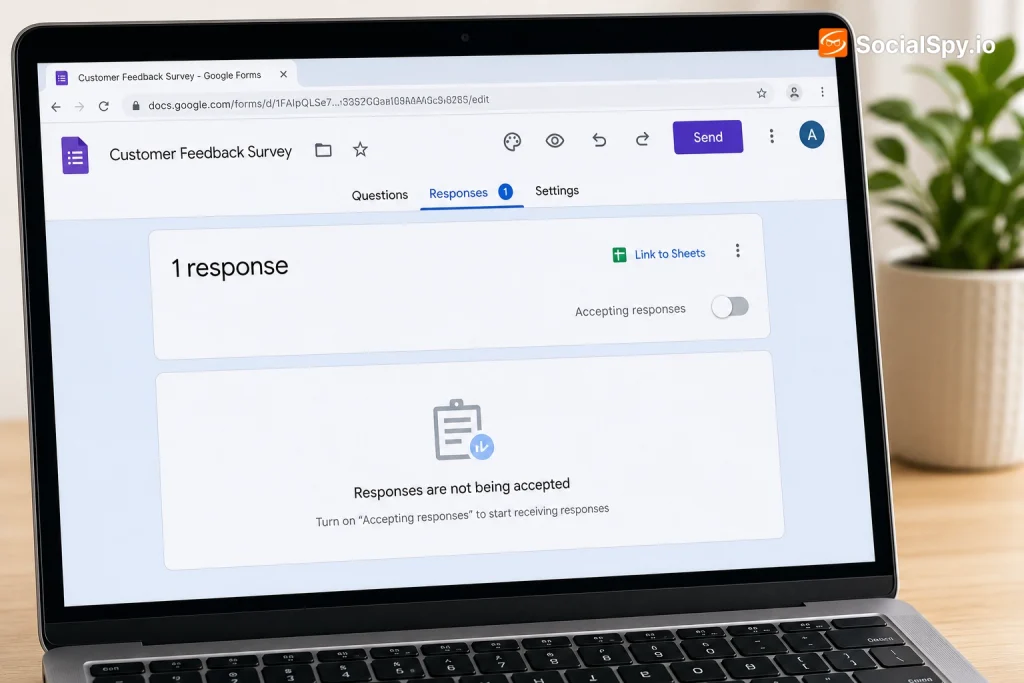
- Look for the toggle labeled Accepting responses — it’s usually a green switch near the top right of the panel.
- Click it to turn it off. The switch will turn gray, confirming the form no longer accepts new entries.
- Optionally, click Message to respondents to customize what people see when they try to open the closed form.
Once toggled off, anyone who clicks your form link sees a default message: “This form is no longer accepting responses.” You can personalize that text — a good move if you want to redirect people, thank them, or point them to a replacement form.
What Respondents See After Closure
- A plain notice that the form is closed, styled in Google’s standard gray banner
- Your custom message, if you added one (limited to a short block of text, no links auto-embedded but you can paste a URL)
- No option to submit, even if they had the form open in another tab before you closed it — refreshing triggers the closed message
Automating Closure Without Lifting a Finger
Manually remembering to close a form is fine for a one-off survey, but it falls apart for recurring events, contests, or deadline-driven assignments. Google has steadily built out native automation for this exact problem.
Setting a Response Limit
Google Forms now lets you cap total submissions directly, no add-on required.
- Go to the Responses tab and click the gear/settings icon
- Under Responses, toggle Limit to 1 response if you want one-per-person enforcement (requires respondents to sign in)
- For a numeric cap (e.g., “close after 200 signups”), use the Response Limiter add-on or Google’s rollout of native response caps in Workspace for Education accounts
Scheduling an Automatic Close Date
As of the 2026 Forms update, Workspace accounts can set a specific close date and time without third-party tools, though free consumer Gmail accounts still often rely on add-ons for this.
| Method | Requires Add-on? | Works on Personal Gmail? | Precision |
|---|---|---|---|
| Native scheduled close (Workspace) | No | Limited rollout | Exact date/time |
| Form Limiter add-on | Yes | Yes | Date/time or response count |
| Manual toggle + calendar reminder | No | Yes | As accurate as you are |
| Zapier/Make automation | Yes | Yes | Custom triggers |
If you don’t have the native scheduling option yet, the Form Limiter add-on (found in the Forms add-on marketplace via the puzzle-piece icon) remains the most reliable free workaround. It lets you set an exact closing timestamp, a maximum response count, or both, and it swaps in your custom “closed” message automatically.
Closing a Google Form on Mobile
The mobile experience is slightly more limited but still gets the job done through the Google Forms app or a mobile browser.
- Open the Google Forms app on Android or iOS
- Tap the form you want to close from your list
- Tap the Responses tab at the bottom of the screen
- Tap the three-dot menu or the toggle for Accepting responses, depending on your app version
- Confirm the switch flips to off — you’ll see the same gray “not accepting responses” state as desktop
If your app version doesn’t show the toggle directly (this happens on older app builds that haven’t updated their UI), switch to a mobile browser, log into forms.google.com, and use the desktop steps instead — the mobile web version mirrors desktop functionality closely.
Reopening, Editing, and Protecting Closed Forms
Closing a form isn’t permanent, and that flexibility is genuinely useful for deadline extensions or reopened enrollment windows.
- Reopening: Simply flip the “Accepting responses” toggle back on — all previous responses remain untouched and new ones append to the same spreadsheet or response tab
- Editing after close: You can still edit questions on a closed form; changes won’t affect already-submitted answers but will apply if you reopen it
- Exporting data before closing: Always download a copy (File > Download > Microsoft Excel or CSV) as a backup before closing high-stakes forms like scholarship or job applications
- Deleting vs. closing: Deleting a form removes it entirely, including the linked response spreadsheet if unlinked; closing simply pauses collection — never delete when you mean to close
Security is worth a pause here too. Forms that stay open too long, especially ones collecting emails, phone numbers, or payment-adjacent details, become soft targets for scraping or social-engineering follow-up. Given recent reporting on how Google says hackers are calling financial firm employees to hack and extort victims, it’s a good reminder that any public-facing collection form, not just financial ones, should be closed the moment it’s no longer needed rather than left live “just in case.”
Common Mistakes and Troubleshooting
Even a simple toggle can trip people up, usually because of permission issues or cached links.
- “I closed it but people can still submit” — this almost always means someone has an old cached tab open; a hard refresh or new link click resolves it, since Google Forms checks status server-side on load, not on submit alone
- “I don’t see the Accepting responses toggle” — you likely have viewer, not editor, access; ask the form owner to transfer editing rights or make the change themselves
- “Closing didn’t stop email notifications” — closing the form only stops submissions, it doesn’t affect notification rules already set up in Responses > Get email notifications for new responses, which is a separate setting
- “My response limit add-on stopped working” — Google occasionally revokes add-on permissions after security audits; reauthorize the add-on from the Extensions menu if this happens
For anyone managing multiple forms across a semester or a season of events, it helps to build a lightweight system rather than relying on memory. A shared tracking doc — even a simple one built using tips from How to Insert Footnote in Google Docs to annotate deadlines and exceptions — can keep close dates organized across a team.
Quick Reference Checklist
- [ ] Export or download responses before closing, if data matters long-term
- [ ] Toggle off “Accepting responses” or set a scheduled close date
- [ ] Customize the closed-form message so respondents aren’t confused
- [ ] Double-check notification settings aren’t still pinging you unnecessarily
- [ ] Reopen only if truly needed, and communicate the new deadline clearly
Conclusion
Closing a Google Form is a two-second action once you know where the toggle lives, but the real skill is in timing it well and automating it so you’re not chasing down late submissions or forgetting to shut a form off entirely. Use the manual toggle for one-off surveys, lean on response limits or scheduled closing for recurring forms, and always export your data before you flip the switch on anything important. The feature set has matured meaningfully through 2026, with native scheduling finally reaching more Workspace accounts, but the fundamentals — toggle off, customize the message, back up your data — haven’t changed much and probably won’t need to.
FAQ
No, closing a form only stops new submissions from coming in; every response already recorded stays fully intact in both the Responses tab and any linked Google Sheets spreadsheet.
Yes, either through Google’s native scheduled-close feature (currently rolling out more broadly to Workspace accounts in 2026) or through the free Form Limiter add-on, which lets personal Gmail users set an exact closing timestamp or response cap.
This usually means you only have viewer access rather than editor access to the form; ask the original creator to either flip the toggle themselves or add you as an editor so you can manage it directly.



