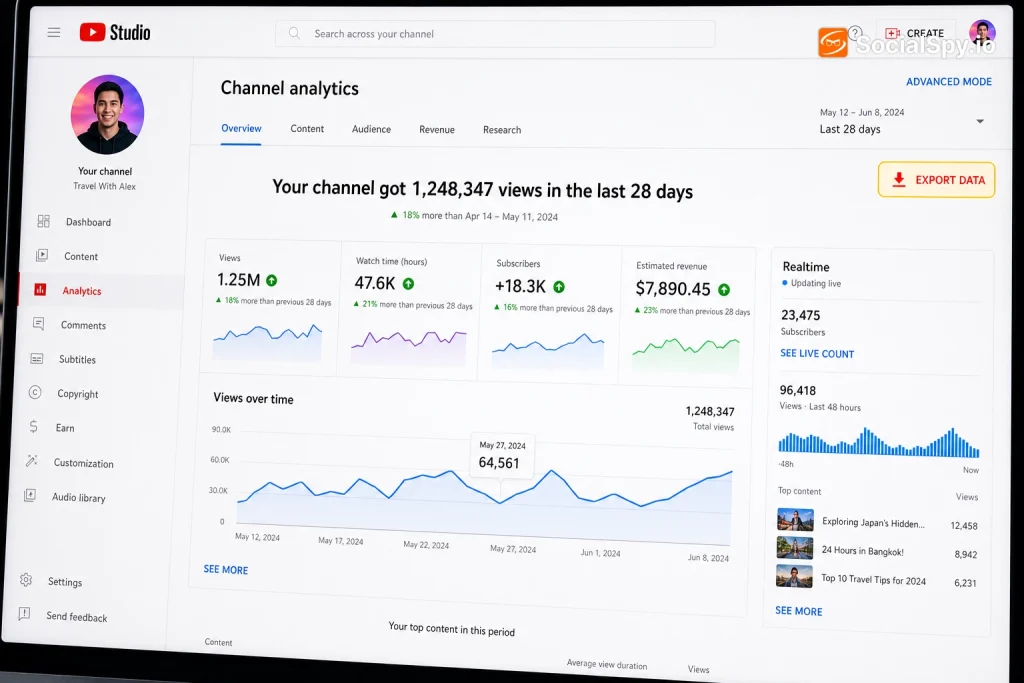
Every YouTube creator eventually hits the same wall: YouTube Studio’s dashboard is great for a quick glance, but terrible for real analysis. If you want to pivot tables, track trends across years, or hand data to a sponsor, you need it in CSV format, not locked inside a graph you can’t manipulate.
Why You’d Want CSV Data in the First Place
YouTube Studio shows you charts, but charts don’t let you filter, sort, or merge with other spreadsheets. A CSV file does. Once your channel data is in spreadsheet form, you can build custom dashboards in Google Sheets, Excel, or tools like Looker Studio.
This matters more than most creators realize once a channel starts generating real revenue or partnership interest.
- Sponsorship reporting: Brands increasingly want raw retention and demographic data, not screenshots.
- Long-term trend tracking: YouTube Studio only shows limited historical windows by default; CSVs let you archive data indefinitely.
- Cross-platform comparison: If you also post on TikTok or Instagram, CSV exports let you compare performance in one master sheet.
- Tax and revenue records: Monthly revenue CSVs are far easier to reconcile with accounting software than dashboard screenshots.
Creators who export data monthly and archive it externally almost always catch algorithm shifts or retention drops faster than those relying on Studio’s rolling 90-day or 365-day default views.
Method 1: Exporting Directly From YouTube Studio
This is the simplest route and works for the vast majority of creators who just need a specific report.
Step-by-Step
- Go to studio.youtube.com and sign into the channel you manage.
- Click Analytics in the left sidebar.
- Choose the tab you need — Overview, Reach, Engagement, Audience, or Revenue.
- Select your desired date range using the calendar picker in the top right.
- Click the download icon (a downward arrow) near the top of the report.
- Choose CSV or Comma-separated values from the format dropdown, then confirm.
This works for most standalone charts — subscriber growth, watch time, impressions, and click-through rate. The limitation is that each export only covers the specific chart or table you’re viewing, so getting a full picture often means downloading several files and stitching them together manually.
Advanced Mode: Bigger, Richer Exports
YouTube Studio also has a lesser-known Advanced Mode that gives more granular exports than the default dashboard.
- From any Analytics tab, click See more at the bottom of a chart.
- In the top right of the expanded view, click Advanced Mode.
- Build a custom table using multiple metrics and dimensions (e.g., traffic source + device type + watch time).
- Click Export current view, then select CSV.
Advanced Mode is the closest thing to a “power user” export inside Studio itself, and it’s free — no third-party tool required. It’s especially useful if you’re trying to answer a specific question, like which traffic source drives the best average view duration.
Method 2: Google Takeout for a Full Account Archive
If you want everything — not just analytics, but comments, subscriptions, playlists, and video metadata — Google Takeout is the tool built for that.
Google Takeout pulls data across your entire Google account, and YouTube is one of the included services. This is different from Studio’s Analytics export because it focuses on account and content records rather than performance metrics.
Here’s roughly what you’ll find inside a YouTube Takeout archive:
| Data Type | Format | Useful For |
|---|---|---|
| Subscriptions list | CSV | Auditing who you follow, migrating channels |
| Comments you’ve posted | CSV/JSON | Moderation history, content audits |
| Playlists | CSV | Backing up curated content |
| Video metadata (titles, descriptions, upload dates) | CSV/JSON | Content inventory and SEO audits |
| Watch history (if enabled) | JSON | Personal usage tracking |
How to Request It
- Go to takeout.google.com while signed into the account tied to your channel.
- Click Deselect all, then scroll to find YouTube and YouTube Music.
- Check the box, then click into it to select specific data types (subscriptions, playlists, comments, etc.).
- Choose your export type — .zip is standard — and file size limit.
- Click Create export. Google will email you a download link, usually within minutes to a few hours depending on account size.
Takeout is not real-time analytics, so it won’t give you day-by-day view counts. Think of it as your channel’s structural backup rather than a performance report. If you’re also thinking about data portability more broadly — say, backing up your ChatGPT conversation history alongside your creator accounts — the same logic applies, and it’s worth reading how to do a full data extraction from ChatGPT for a comparable process on a different platform.
Method 3: The YouTube Analytics API for Automated Pulls
For creators managing multiple channels, agencies, or anyone who wants recurring exports without manually clicking through Studio every week, the YouTube Analytics API is the real answer.
This requires a bit of technical setup, but it’s free within generous quota limits, and it’s what most third-party analytics dashboards use under the hood anyway.
What You Need
- A Google Cloud Console project with the YouTube Analytics API and YouTube Data API v3 enabled.
- OAuth 2.0 credentials tied to the Google account that owns or manages the channel.
- Basic familiarity with running API queries — either through Google’s API Explorer (no coding) or a script in Python/Node.js.
A Simple Workflow
- Enable the API in Google Cloud Console and generate OAuth credentials.
- Authenticate using Google’s OAuth Playground or a small script for a one-time or recurring token.
- Query the `reports.query` endpoint, specifying metrics like `views`, `estimatedMinutesWatched`, `subscribersGained`, and dimensions like `day` or `country`.
- Export the JSON response and convert it to CSV using a script, or use Google Sheets’ `IMPORTDATA`/App Script to automate the conversion.
- Schedule the script (via cron job or Google Apps Script triggers) to run weekly or monthly.
Analysts who work across dozens of channels almost always automate this step — pulling data manually from Studio for 20+ channels every month simply isn’t sustainable.
The API also lets you pull data Studio’s UI doesn’t surface cleanly, like per-video revenue broken down by country, or subscriber source segmented by traffic type. If you’re a creator scaling toward brand deals, this level of detail is often what separates a $500 sponsorship from a $5,000 one, because you can hand over precise, verifiable numbers instead of screenshots.
Method 4: Third-Party Tools and Spreadsheet Add-Ons
If the API sounds like overkill, several tools sit in the middle ground between manual export and full API integration.
- Social Blade: Offers historical estimates and CSV exports for public channel stats, though it relies on estimates rather than your private Studio data.
- TubeBuddy / VidIQ: Both offer CSV export features for keyword and video performance data within their paid tiers.
- Google Sheets add-ons (like Supermetrics): Pull YouTube Analytics directly into a live spreadsheet, refreshing automatically without manual downloads.
- Looker Studio (formerly Data Studio): Connects natively to YouTube Analytics and lets you export underlying tables as CSV from any visualization.
The tradeoff with third-party tools is usually cost versus convenience. Supermetrics and similar connectors often run $50–$150/month depending on data volume, which only makes sense once you’re managing several channels or need daily refreshed dashboards rather than occasional exports.
Common Problems When Exporting YouTube Data
Even with the right method, a few recurring issues trip creators up. Knowing them in advance saves a lot of frustration.
- Row limits on large exports: Studio’s CSV downloads can cap out on channels with thousands of videos; Advanced Mode and the API handle this better.
- Time zone mismatches: Studio defaults to Pacific Time, which can throw off day-by-day comparisons if you’re analyzing data alongside another platform reporting in your local time zone.
- Metric definitions changing over time: YouTube has redefined metrics like “views” and “engagement” in past updates, so older exported CSVs may not be directly comparable to new ones without noting the change.
- Multi-channel ownership confusion: If you manage a channel via a Brand Account, make sure you’re exporting from the correct account context — Takeout and API access both depend on account permissions, not just channel access.
- Currency and revenue rounding: Revenue CSVs are estimates until finalized, typically a few days after month’s end, so early exports may not match your final AdSense payout.
Understanding these quirks matters even more given how much scrutiny data handling is under industry-wide right now. Platforms of every size have faced scrutiny over how user and creator data is stored and secured — a pattern covered in pieces like why data breaches keep happening even at big companies — so treating your own exported CSVs with basic security hygiene (password-protected archives, limited sharing) isn’t paranoia, it’s good practice.
What to Actually Do With the CSV Once You Have It
Getting the file is only step one. The value comes from what you build with it.
- Pivot tables in Google Sheets or Excel: Quickly break down views by traffic source, device, or country without touching Studio again.
- Retention curve overlays: Plot multiple videos’ audience retention CSVs on one chart to spot where viewers consistently drop off.
- Upload cadence vs. performance: Cross-reference your publish dates (from Takeout metadata) against view CSVs to see if certain days or times outperform others — a natural next step if you’re also researching how to post videos on YouTube more strategically.
- Format comparison: If you post both long-form and Shorts, comparing CSV exports side by side often reveals which format actually drives subscriber growth versus just views, which ties into broader strategy questions like how to get more views on short-form video without paying for ads.
Given YouTube’s dual identity as both a video platform and a social network, it’s also worth revisiting whether YouTube counts as social media when deciding which metrics matter most for your reporting — engagement-focused brands may care more about comments and shares than raw view counts.
Conclusion
There’s no single “correct” way to get your YouTube data into CSV — the right method depends entirely on scale. A solo creator checking monthly performance is fine with Studio’s built-in export button. Someone managing a growing channel with sponsorship deals should get comfortable with Advanced Mode and Google Takeout for fuller archives.
Agencies or creators running multiple channels are the ones who genuinely benefit from the YouTube Analytics API or a paid connector like Supermetrics, since the automation pays for itself in saved time. Whichever tier you’re in, the underlying principle is the same: don’t let your channel’s history live only inside YouTube’s dashboard. Export it, own it, and build your own record that no algorithm update or interface redesign can take away from you.
FAQ
Yes, that data lives outside the Analytics dashboard entirely. Use Google Takeout, select the YouTube and YouTube Music service, and choose watch history, comments, and subscriptions individually — Studio’s Analytics exports won’t include this personal activity data.
YouTube Studio typically lets you export up to the full lifetime of your channel for most reports, though very large channels with thousands of videos may hit row limits on certain exports. The YouTube Analytics API doesn’t have the same practical limits and is the better option for pulling years of granular, day-by-day data.
Not necessarily — Google’s API Explorer lets you run one-off queries and download results without writing code. However, if you want automated, recurring exports on a schedule, you’ll need at least basic scripting knowledge in Python, JavaScript, or Google Apps Script to convert the API’s JSON output into a clean CSV file.