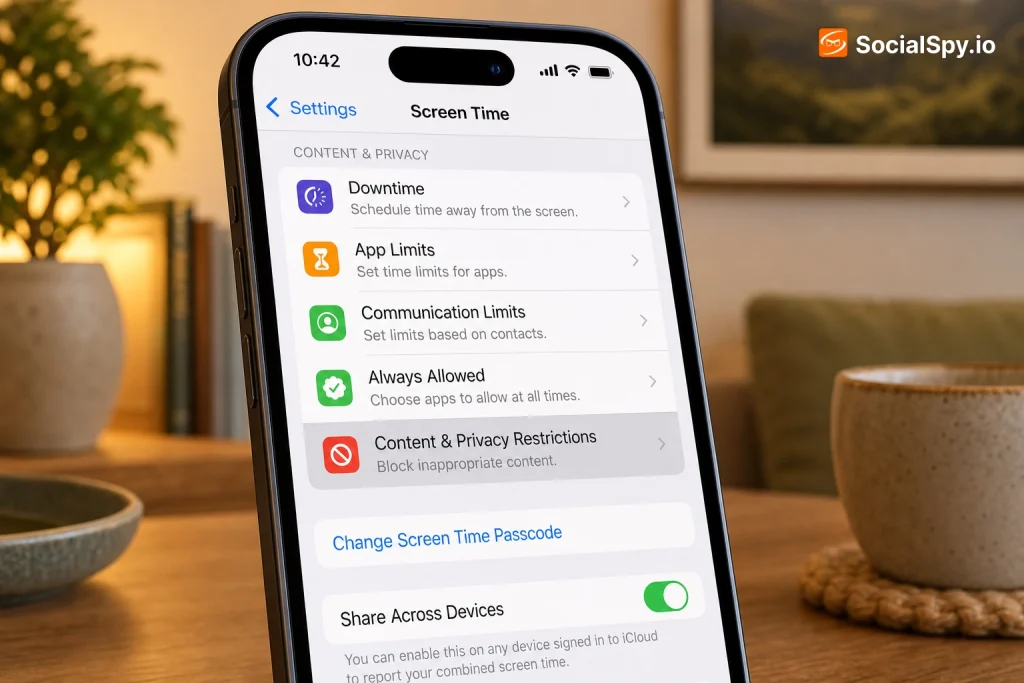
Apple builds some of the most capable content-filtering tools in the mobile industry directly into iOS, yet most iPhone owners never touch them. Whether you’re setting up a device for a child, trying to break a personal habit, or managing a shared family phone, the built-in Screen Time restrictions combined with a few third-party tools can lock down adult content far more thoroughly than most people realize.
Start With Apple’s Built-In Screen Time Filter
Apple’s native tool is called Content & Privacy Restrictions, and it lives inside the Screen Time menu. It’s free, requires no third-party app, and works at the system level rather than inside a single browser, which matters because it also filters links opened from Messages, Mail, and social apps.
Here’s the exact path to set it up:
- Open Settings, tap Screen Time.
- Tap Content & Privacy Restrictions and toggle it on.
- Tap Content Restrictions, then Web Content.
- Select Limit Adult Websites (or Allowed Websites Only for a stricter allowlist-only mode).
- Add specific sites to a “Never Allow” list if the default filter misses something.
The Limit Adult Websites setting uses Apple’s own automated web classifier, which scans URLs and page content in Safari and blocks pages it flags as explicit. It’s not perfect — no automated filter is — but Apple has quietly improved its detection significantly since Screen Time replaced the old Restrictions menu, and it now catches a large majority of mainstream adult sites without manual list-building.
Industry testers who regularly audit parental control software note that Apple’s native filter performs competitively with paid third-party apps for mainstream Safari browsing, though it still struggles with content buried inside search engine image results and some non-Safari browsers.
Lock It Down With a Separate Screen Time Passcode
None of this matters if the person you’re restricting can just turn the filter off. This is the step most parents skip, and it’s the reason so many “parental controls” get disabled within a week.
- Set a Screen Time passcode that is different from the device’s unlock passcode.
- Never reuse a passcode the child already knows from unlocking the phone.
- Avoid obvious combinations like birthdays or repeating digits.
- If you forget the Screen Time passcode yourself, Apple requires an Apple ID-based recovery process, so store it somewhere safe.
Without this step, anyone can go into Screen Time, tap “Turn Off Content & Privacy Restrictions,” and undo everything in about ten seconds. The passcode is the actual lock; the filter settings are just the mechanism.
Family Sharing Makes This Remote
If you’re managing a child’s device from your own phone, Apple’s Family Sharing feature lets you configure and lock these settings remotely through your own Screen Time app, so the child never sees the passcode prompt at all. This is generally more durable than configuring restrictions directly on the child’s device, since they can’t even attempt to guess the code.
Why Safari Filtering Alone Isn’t Enough
A common mistake is assuming Screen Time’s web filter blocks porn everywhere on the device. It primarily governs Safari and system-level web views. Determined users, especially teenagers, often route around it through alternative apps or browsers.
Here’s where gaps typically show up:
| Content path | Covered by Screen Time Web filter? | Notes |
|---|---|---|
| Safari browsing | Yes | Apple’s classifier scans pages directly |
| Third-party browsers (Chrome, Firefox) | Partial | Content Restrictions still apply but detection is less consistent |
| App Store adult-adjacent apps | Yes, via age ratings | Restrict apps to 17+ or lower in Content Restrictions |
| Social media DMs/links | No | Filter doesn’t scan private messages or in-app browsers reliably |
| VPN or Tor-based browsers | No | Bypasses DNS-based and network filters entirely |
This is why layering matters. Screen Time should be treated as one layer of a stack, not the entire solution. Restricting app downloads to age-appropriate ratings (also under Content Restrictions) closes off a chunk of the alternative-browser loophole, since many alternative browsers themselves carry 17+ ratings that get blocked automatically.
Add DNS-Level or Router-Level Filtering for Whole-Home Coverage
If Screen Time is your only layer, someone can still disconnect from Wi-Fi and hop onto cellular data where the same restrictions technically still apply on-device, but any additional home network filtering disappears. A DNS filter closes that gap at the network level, covering every device connected to your Wi-Fi, not just one iPhone.
Popular DNS filtering options in 2026 include:
- CleanBrowsing — free DNS-based adult content filtering, configurable through iOS profile settings or router DNS entries.
- OpenDNS FamilyShield — a longstanding free option that blocks adult content categories at the router level.
- NextDNS — a more granular, customizable filter with detailed logs, offering a free tier and paid tiers for advanced rule sets.
- Router-based parental controls — many mesh routers (Eero, Google Nest Wifi, Asus) now include built-in content filtering profiles per device.
The advantage of DNS-level filtering is that it works regardless of which browser or app someone uses, because it blocks the underlying domain requests before they ever resolve. The tradeoff is that determined users can switch their device’s DNS settings manually or use a VPN to bypass it, so it works best combined with Screen Time restrictions that prevent settings changes.
Third-Party Parental Control Apps Worth Considering
For families wanting more granular reporting — think weekly usage summaries, real-time alerts, or app-specific time limits — dedicated parental control apps go beyond what Apple offers natively.
- Qustodio — cross-platform monitoring with detailed activity reports and app blocking, popular for households with mixed Android/iOS devices.
- Bark — focuses on monitoring text and social content for concerning language and imagery, sending alerts rather than just blocking.
- Norton Family — bundles web filtering with location tracking and time limits, often included with Norton security subscriptions.
- Apple’s own Screen Time — free and sufficient for many single-iPhone households that don’t need cross-platform reporting.
Before installing any third-party monitoring app, it’s worth remembering that some of these apps request broad permissions and, on iOS specifically, are limited by Apple’s sandboxing compared to Android. They can supplement Screen Time but rarely replace it entirely, since Apple restricts how deeply any app can inspect Safari traffic without using a VPN profile.
Blocking Porn as an Adult: Self-Control Tools
Plenty of people set up these blocks on their own phones, not a child’s, as a deliberate friction tool for personal habit change. The approach differs slightly because the goal isn’t secrecy from a monitored user — it’s making the block hard for your own impulsive future self to undo in the moment.
A few tactics that work well for self-imposed blocking:
- Set the Screen Time passcode, then have a trusted friend or family member set the actual PIN so you don’t know it yourself.
- Combine this with Allowed Websites Only mode rather than the looser adult-content filter, since it’s harder to argue your way around an allowlist.
- Use an app like Freedom or Covenant Eyes, which are built specifically around accountability rather than parental control, often sending reports to an accountability partner.
- Delete alternative browsers from the App Store restrictions list so Safari’s filter can’t be circumvented by installing Chrome.
Covenant Eyes in particular has built a niche specifically around accountability reporting rather than pure blocking, sending a log of visited sites to a chosen partner rather than silently filtering. For some people, the psychological effect of knowing someone else sees the report is more effective than a technical block that can eventually be reverse-engineered.
Common Mistakes That Undermine Every Setup
Even a well-configured filter fails if basic setup mistakes creep in. These are the errors that show up most often when these restrictions get bypassed within days.
- Reusing the device passcode as the Screen Time passcode. This is the single most common failure point.
- Forgetting to restrict app installs, allowing a new unrestricted browser to be downloaded straight from the App Store.
- Not restricting Safari’s private browsing — Content Restrictions can hide the private tab option entirely, and skipping this leaves an easy workaround.
- Ignoring cellular data as a bypass route for router-based filters, since DNS filtering at home does nothing once someone’s off Wi-Fi.
- Not updating restrictions after an iOS update, since Apple occasionally resets certain toggles during major version upgrades.
- Skipping factory-reset protections, which would let a tech-savvy teen wipe the device and reconfigure it without any restrictions at all — this requires a separate Apple ID / Screen Time recovery lock to prevent.
Beyond content filtering, general device management matters too — things like knowing how to properly back up messages before making changes, similar to the process covered in this guide on how to archive text messages on iPhone, ensures nothing important gets lost while you’re reconfiguring settings and restrictions.
Setting Up a Kid’s First iPhone the Right Way
If you’re configuring a device for a child from scratch, doing this during initial setup — before the phone is loaded with apps, accounts, and habits — is far easier than retrofitting restrictions onto an already-personalized device.
Recommended order of operations for a new setup:
- Complete Apple ID creation through Family Sharing, ideally with a Child Account rather than an adult Apple ID.
- Configure Screen Time restrictions immediately, before installing any apps.
- Set Downtime hours so the phone locks out non-essential apps overnight.
- Restrict App Store content by age rating (commonly 12+ or lower for younger kids).
- Enable Communication Limits to control who can message or call the device.
- Only after all restrictions are locked, hand over the device and let the child personalize it with approved apps.
Physical setup matters too — a properly protected phone in a durable case makes it less likely a frustrated kid “accidentally” damages the device trying to work around restrictions, similar to considerations discussed in this breakdown of what cases work on the iPhone 11 Pro Max for older but still widely used models still common in family device rotations.
Conclusion
No single toggle makes an iPhone completely porn-proof, and anyone claiming a one-step fix is oversimplifying how iOS actually works. The realistic approach is layered: Apple’s Content & Privacy Restrictions with a separate Screen Time passcode as the foundation, a DNS-level filter like CleanBrowsing or NextDNS for network-wide coverage, and either a monitoring app or an accountability tool depending on whether this is for a child or for personal habit change. The families and individuals who actually succeed at this treat it as an ongoing maintenance task — checking after iOS updates, tightening App Store restrictions, and revisiting the setup every few months — rather than a one-time settings change they configure once and forget.
FAQ
No — it catches a large majority of mainstream adult websites in Safari through Apple’s automated content classifier, but it isn’t foolproof, especially with search engine image results, alternative browsers, and content shared through private messages or in-app links.
Yes, if the Screen Time passcode is weak, reused, or known to them, or if they can factory reset the device without an Apple ID lock in place; using Family Sharing to manage restrictions remotely and setting a unique Screen Time passcode significantly reduces this risk.
They solve different problems — Screen Time works on-device across apps and cellular data, while DNS filters like CleanBrowsing or OpenDNS FamilyShield cover every device on a home Wi-Fi network but stop working once a device switches to cellular data, so most experts recommend using both together.