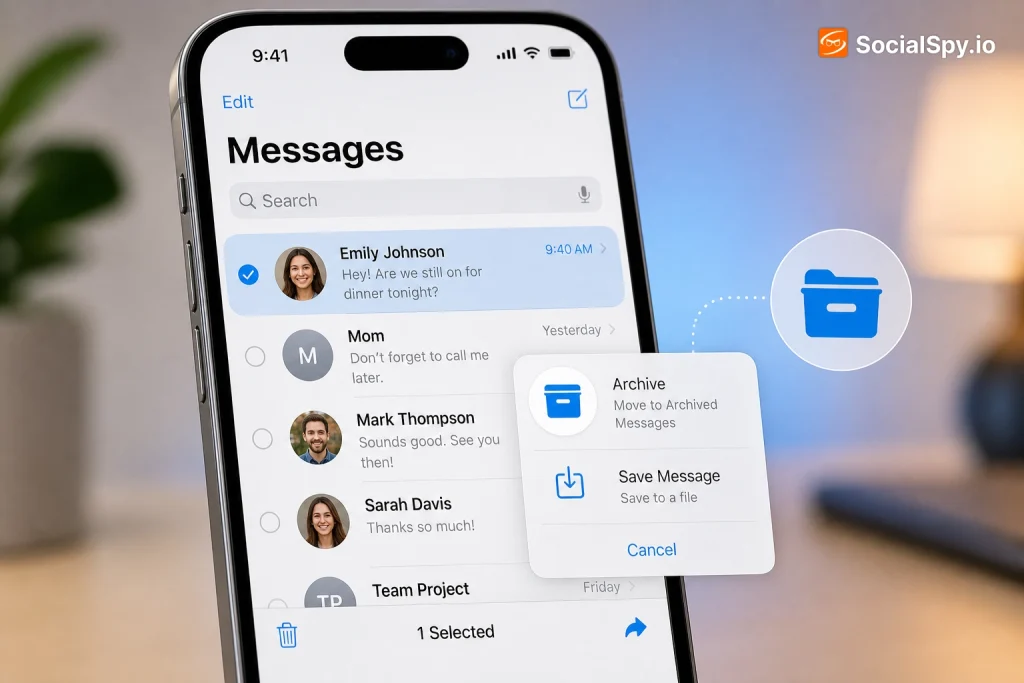
Text messages on an iPhone quietly pile up until a phone gets lost, traded in, or wiped for resale—and only then do most people realize there’s no simple “Archive” button like Gmail has. Apple treats iMessage and SMS as a rolling conversation history, not a filing system, which means preserving old texts takes a bit of engineering on the user’s part.
Why iPhone Doesn’t Have a Built-In “Archive” Button
This surprises a lot of people switching from email apps or Android’s Google Messages, both of which let you archive a thread in one swipe. Apple’s Messages app was never designed around archiving—it’s designed around continuity across devices via iCloud.
That said, Apple does give you indirect control over how long messages stick around through a setting most people never touch.
The Message History Setting That Controls Everything
Buried in Settings > Messages > Keep Messages, there are three options that determine your baseline retention:
- 30 Days – texts older than a month are automatically deleted forever
- 1 Year – anything older than 12 months disappears
- Forever – nothing is auto-deleted (this is the default on most iPhones)
If your iPhone is set to “30 Days” or “1 Year,” you are actively losing message history right now without any warning dialog. Checking this setting is the single most important five-second task before you do anything else in this guide.
If it’s set to “Forever,” you already have a passive archive sitting on your device—the real question becomes how to get it off the phone and into a format that survives a device swap, an iOS update gone wrong, or an accidental deletion.
Method 1: Let Messages in iCloud Do the Archiving For You
The closest thing Apple offers to a true archive is Messages in iCloud, a feature introduced in iOS 11.4 that syncs your entire conversation history to Apple’s servers instead of just storing it locally on one device.
Here’s how it actually behaves differently from a normal backup:
- Go to Settings > [Your Name] > iCloud > Show All (or See All) and toggle on Messages
- Every text, photo, and attachment uploads to iCloud and syncs across your iPhone, iPad, and Mac
- When you delete a conversation on one device, it deletes everywhere—this is the catch
- When you get a new iPhone and sign into the same Apple ID, your full history reappears automatically
The Tradeoff Nobody Mentions
Messages in iCloud is fantastic for continuity but it is not a true archive in the traditional sense, because deletions sync too. If you’re trying to preserve a specific conversation before deleting it from your main view, this feature won’t help—you need one of the export methods below instead.
It also counts against your iCloud storage plan. A heavy texter with years of photo-laden group chats can easily use 15GB to 50GB just on Messages data, which is why Apple sells iCloud+ tiers at $0.99/month for 50GB, $2.99/month for 200GB, and $9.99/month for 2TB.
Method 2: Create a Full Local Backup With a Computer
For people who want an offline, permanent snapshot of their entire message history without relying on Apple’s servers, a computer backup is the gold standard. Unlike iCloud Backup (which is capped and can be overwritten), a local backup via Finder on macOS or the Apple Devices app on Windows creates a complete, dated snapshot you control.
Here’s the process on a Mac running macOS Catalina or later:
- Connect the iPhone via USB-C or Lightning cable (or use Wi-Fi sync if already paired)
- Open Finder, select your iPhone from the sidebar
- Under the General tab, choose Back up all of the data on your iPhone to this Mac
- Check Encrypt local backup and set a password—this is required to capture Health data and saved passwords, and it’s good practice for message privacy too
- Click Back Up Now
On Windows, the equivalent is the Apple Devices app (which replaced iTunes in 2023 for Windows 11 users), found in the Microsoft Store.
Why a Local Backup Beats iCloud Backup for Archiving
| Factor | iCloud Backup | Local Computer Backup |
|---|---|---|
| Storage limit | Capped by iCloud plan (free tier is just 5GB) | Limited only by your hard drive |
| Cost | Recurring monthly fee for larger plans | One-time, free if you own a computer |
| Overwrite risk | Often auto-overwrites older backups | You can keep multiple dated copies manually |
| Offline access | Requires internet to restore | Fully accessible offline |
| Readable without restoring | No, needs a full device restore | No natively, but third-party tools can read the file |
The major limitation of both backup types is that you can’t casually browse them—you’d need to restore an entire iPhone (or a spare one) just to read a single text thread. That’s where extraction tools come in.
Method 3: Export Individual Conversations to PDF or Text Files
Sometimes you don’t need your whole message history archived—you need one specific thread saved as proof, sentiment, or a record for something like a custody case, a small claims dispute, or just sentimental value. Apple actually built a surprisingly capable export tool into Messages for Mac.
If you have a Mac and Messages in iCloud enabled (or the conversation is still synced), you can do this:
- Open the Messages app on Mac and find the conversation
- Select the messages you want (click one, then Shift-click to select a range, or Cmd+A for the whole thread)
- Go to Edit menu (or right-click) and choose to copy, or use File > Print on the open conversation window
- In the Print dialog, click the PDF dropdown in the bottom-left corner and select Save as PDF
- Name the file and save it to a folder, external drive, or cloud storage like Google Drive or Dropbox
This produces a clean, timestamped PDF that looks essentially like a screenshot roll of the conversation, readable without any Apple device at all. It’s genuinely one of the most underused features in Messages for Mac.
The iPhone-Only Screenshot Workaround
Without a Mac, the manual fallback is screenshotting each screen of a conversation and compiling them, which is tedious for long threads but works in a pinch. Third-party apps can automate this same idea far more efficiently, which brings up the next option.
Method 4: Third-Party Apps Built Specifically for Archiving
For anyone doing this regularly—small business owners preserving customer texts, people documenting harassment for legal purposes, or just digital pack rats—dedicated software beats manual methods every time. These tools read the iPhone’s backup file structure directly and convert conversations into searchable, shareable formats.
- iMazing (Mac/Windows, one-time purchase around $59.99 for a lifetime license, free trial available) – lets you browse and export individual conversations as PDF, HTML, CSV, or even a re-importable format; widely used because it doesn’t require jailbreaking
- Decipher TextMessage (Mac/Windows, roughly $19.99) – specializes narrowly in extracting and exporting texts, including deleted messages recoverable from unencrypted backups
- AnyTrans (Mac/Windows, subscription or one-time fee around $39.95) – broader device-management tool that includes message export among photo and app-data transfer features
- Backuptrans iPhone SMS Transfer (Windows-focused, around $19.95) – aimed at moving texts to a new phone (including Android) rather than just archiving
What These Apps Actually Do Behind the Scenes
They don’t hack into Apple’s servers or bypass encryption in any scary way—they simply parse the SQLite database (sms.db) inside a standard local backup and render it in human-readable form. That’s a meaningful distinction if privacy is a concern: the data never leaves your control, and no cloud upload to a third-party server is required for most of these tools.
The main reason people pay for these instead of using free methods is speed at scale. Exporting 400 individual conversations by hand via the Mac Print method would take days; iMazing can batch-export an entire message history to individual PDFs in a few minutes.
Storage, Privacy, and Retention Best Practices
Archiving isn’t just about the “how”—it’s about doing it in a way that doesn’t create new problems, like blowing through iCloud storage or leaving sensitive PDFs sitting unencrypted in a Downloads folder.
A few practical habits worth building in:
- Set Keep Messages to Forever before doing anything else, so you’re not fighting Apple’s own auto-deletion
- Encrypt local computer backups with a strong, memorable password—unencrypted backups store some data, like Health info, less securely
- Store exported PDFs or CSVs in an encrypted folder or a password-protected cloud drive rather than a plain desktop folder
- Periodically check Settings > [Your Name] > iCloud > Manage Account Storage > Messages to see exactly how much space texts are consuming
- If switching to a new iPhone, confirm Messages in iCloud has fully synced (check the progress bar in Settings) before wiping the old device
One thing that trips people up: attachments, not text, are usually what eats storage. A years-long thread that’s mostly plain text might be a few megabytes, but the same thread loaded with photos and videos can balloon into gigabytes—which matters if you’re archiving to a computer with limited SSD space.
Conclusion
Apple’s decision to skip a native archive button isn’t an oversight—it reflects a design philosophy where Messages is meant to feel like a continuous, synced conversation rather than a filing cabinet. That works fine until you actually need to preserve something specific, whether that’s a decade of family group chat history before a phone upgrade or a single thread that matters for legal or personal reasons.
The realistic approach for most people is layered: keep Keep Messages set to Forever and Messages in iCloud on as a passive safety net, run a proper encrypted local backup through Finder or Apple Devices every few months, and reach for a tool like iMazing or the Mac’s built-in PDF export only when a specific conversation needs to be pulled out and preserved on its own. None of these methods require jailbreaking or third-party cloud uploads, and combined, they cover the gap Apple has left unfilled for over a decade.
FAQ
Yes, if Messages in iCloud is turned on, deleting a conversation on your iPhone syncs that deletion to every device signed into the same Apple ID, including any Mac or iPad. It is not a true archive because deletions propagate everywhere rather than being hidden in a separate folder.
It depends on whether they exist in an old, unencrypted backup or if the storage space they occupied has been overwritten. Tools like Decipher TextMessage or professional data recovery services can sometimes pull deleted texts from a backup file taken before the deletion, but there is no guaranteed recovery once enough time and phone usage has passed.
Generally yes, because reputable tools like iMazing and Decipher TextMessage work locally on your computer by reading a standard iPhone backup file rather than uploading your data to their own servers. Still, it’s worth downloading only from the developer’s official website and avoiding lesser-known free alternatives that ask for iCloud credentials directly.