ChatGPT’s desktop app for Mac and Windows has sparked a wave of confused searches from users noticing something new: the app can “see” what’s on their screen, remembers past conversations, and occasionally runs in the background using system resources. The question “does ChatGPT use my desktop memory” actually bundles together three separate issues — RAM usage, OpenAI’s Memory feature, and screen-reading permissions — and each works very differently than people assume.
What “Memory” Actually Means in Three Different Contexts
OpenAI has muddied the waters by using the word “memory” for at least three distinct things. Understanding which one you’re asking about changes the answer entirely.
- System RAM usage — the physical memory your Mac or PC allocates to run the ChatGPT desktop application itself, same as any software.
- ChatGPT’s Memory feature — a persistent, cross-conversation memory system launched in February 2024 and expanded significantly in April 2025 that lets the model recall facts about you across sessions.
- Screen and clipboard access — a desktop-specific capability introduced with the native macOS app in May 2024 and the Windows app in late 2024, which lets ChatGPT read visible content on your screen when you invoke it.
Most people asking this question are really worried about the third one — whether the app is silently watching their desktop. It isn’t, but the mechanics are worth unpacking.
How Much Actual RAM the Desktop App Consumes
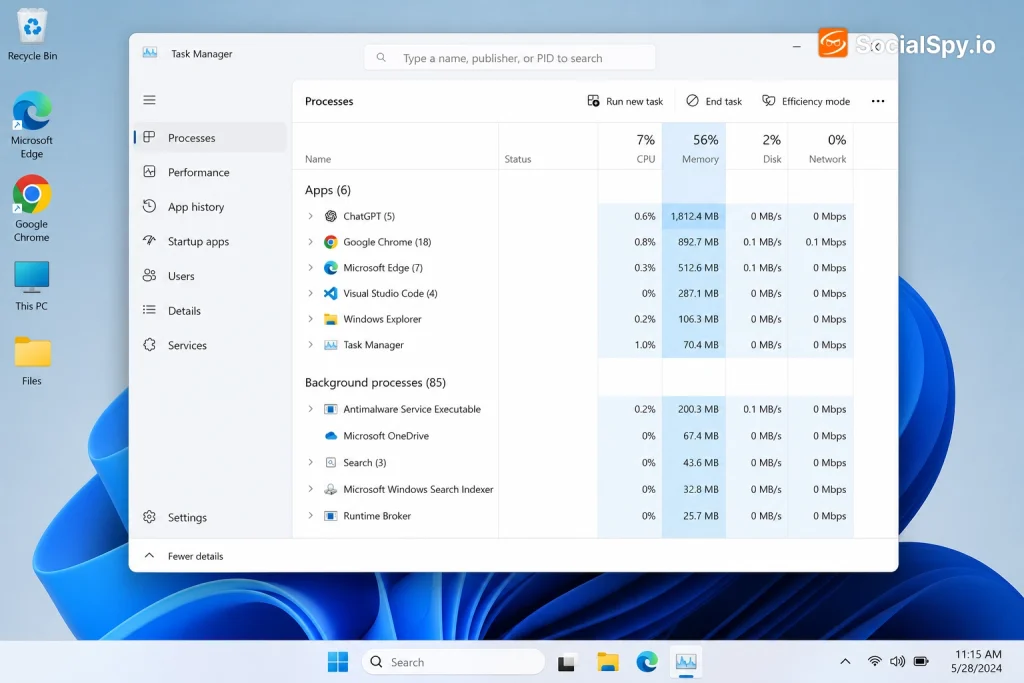
The ChatGPT desktop app is built on Electron, the same Chromium-based framework used by Slack, Discord, and Visual Studio Code. That means it behaves like a lightweight embedded browser rather than a native, memory-optimized application.
In practical testing on a MacBook Air M2 with 16GB of RAM, the idle ChatGPT app typically consumes between 180MB and 260MB. Opening multiple chat windows, uploading large files, or running voice mode pushes usage toward 500MB–700MB, comparable to having a few extra browser tabs open.
| Scenario | Approx. RAM Usage | CPU Impact |
|---|---|---|
| Idle, minimized to tray | 150–200MB | Near 0% |
| Active text chat | 250–350MB | 1–3% |
| Voice mode active | 400–550MB | 8–15% |
| Screenshot/vision analysis | 500–700MB | 10–20% (spike) |
None of this is unusual for a modern app, but it’s meaningfully heavier than the previous browser-tab-only version, since the desktop client keeps a background process alive to listen for the global keyboard shortcut (Option+Space on Mac, Alt+Space on Windows) even when the window is closed.
On systems with 8GB of RAM or less, users have reported noticeable slowdowns when ChatGPT runs alongside Chrome and other Electron apps — a known limitation of the framework, not something specific to OpenAI’s coding.
Does It Read Files From Your Hard Drive?
This is the core privacy fear, and the answer is no — with one important nuance around uploaded files. The desktop app does not have a background process that indexes, scans, or reads your local filesystem the way antivirus software or a search indexer would.
ChatGPT can only “see” content you explicitly hand it, through one of these deliberate actions:
- Typing or pasting text directly into the chat box.
- Uploading a specific file via the paperclip/attachment icon.
- Using the “Ask about screen” feature, which captures a snapshot of your active window when you trigger it manually.
- Granting explicit clipboard read permission when you paste an image or text you copied elsewhere.
Uploaded files (PDFs, spreadsheets, code) are processed and, depending on your settings, may be temporarily stored on OpenAI’s servers to answer follow-up questions in that conversation — not saved to some persistent local cache on your machine. Once a conversation is deleted, associated files are removed from OpenAI’s systems within 30 days, per OpenAI’s data retention policy, unless retained longer for legal or safety review.
The “Ask About Screen” Feature: What It Actually Captures
OpenAI rolled out screen-sharing style functionality first for macOS, letting Plus, Team, and Enterprise users trigger ChatGPT to analyze whatever is currently visible on their display — a spreadsheet, a code editor, a design mockup, even a paused YouTube video frame.
How the capture actually works
It is not continuous surveillance. Each capture is a single still image taken at the moment you invoke the shortcut, similar to pressing a screenshot key.
- No capture happens unless you press the trigger (keyboard shortcut or clicking the screen icon).
- The captured image is sent to OpenAI’s vision model for that single request only.
- It is not saved to a rolling buffer or used to build a timeline of your activity, unlike tools such as Microsoft’s Recall feature for Copilot+ PCs, which does take periodic screenshots automatically.
- You can revoke screen-recording permission at any time via System Settings > Privacy & Security > Screen Recording on macOS.
This distinction matters because Microsoft’s Recall drew intense criticism in 2024 for silently snapshotting the screen every few seconds and storing it locally. ChatGPT’s desktop app was deliberately designed to avoid that comparison by requiring an explicit, per-instance trigger.
OpenAI’s Persistent Memory Feature — The Part That Actually Learns About You
The feature genuinely worth scrutinizing isn’t RAM or screenshots — it’s ChatGPT’s cross-chat Memory, which OpenAI significantly expanded in April 2025 for Plus and Pro subscribers. This is the system that makes ChatGPT feel like it “knows” you across sessions.
There are actually two memory layers running simultaneously now:
- Saved memories — discrete facts ChatGPT chooses to remember (e.g., “User is a freelance graphic designer based in Austin”) that you can view and delete individually in Settings.
- Chat history reference — a broader capability where the model can pull relevant context from your entire chat history, even conversations you never explicitly asked it to remember, to personalize responses.
Neither of these systems has anything to do with your device’s RAM or local files. They live entirely on OpenAI’s servers, tied to your account, and sync across whichever device you’re using — desktop app, mobile app, or browser.
| Memory Type | Where It’s Stored | Can You Delete It? |
|---|---|---|
| Saved memories | OpenAI account servers | Yes, individually or all at once |
| Chat history reference | OpenAI account servers | Yes, via “Temporary Chat” or disabling the setting |
| Local app cache | Your device’s disk (not RAM) | Yes, by clearing app cache/reinstalling |
To manage this, go to Settings > Personalization > Memory in the app. You’ll find a full list of stored facts, a toggle to disable memory entirely, and a “Clear all memories” nuclear option.
Local Cache vs. RAM: What’s Actually Stored on Your Disk
There’s a subtler technical distinction people miss: RAM is temporary and wiped on restart, but the desktop app does keep a small local cache on your disk for performance reasons — recent chat previews, UI assets, and login tokens.
This cache is not your conversation “memory” in the AI sense; it’s standard app caching, similar to what Slack or Spotify store locally to load faster.
- On macOS, this lives in
~/Library/Application Support/ChatGPT. - On Windows, it’s typically under
%AppData%ChatGPT. - Deleting this folder doesn’t erase your account’s memory (that’s server-side) — it just forces the app to re-download data on next launch.
If you’re troubleshooting high memory or disk usage, clearing this cache folder and restarting the app is the first fix IT support teams recommend, and it resolves the majority of reported slowdowns.
Enterprise and Team Accounts: A Different Privacy Deal
If your desktop ChatGPT is tied to a ChatGPT Enterprise or Team account rather than a personal Plus subscription, the memory and data-handling rules change substantially, and IT administrators have more control.
OpenAI states explicitly that ChatGPT Enterprise and Team conversations are not used to train its models by default, and admins can enforce data retention windows as short as 30 days.
Key differences worth knowing if you use ChatGPT through work:
- Admins can disable the Memory feature entirely at the workspace level, overriding individual user preference.
- Screen-capture features may be blocked via Mobile Device Management (MDM) policies on company-issued laptops.
- Enterprise conversations are encrypted in transit and at rest, and SOC 2 Type II compliance covers the infrastructure.
- Data residency options exist for some Enterprise customers, controlling which region’s servers process requests.
If you’re on a work machine and unsure which tier applies, check Settings — Enterprise/Team accounts display the organization name at the top of the sidebar rather than “ChatGPT Plus.”
Practical Steps to Control What ChatGPT Can Access
Whether your concern is performance or privacy, there are concrete settings to adjust rather than just uninstalling the app.
- Disable Memory: Settings > Personalization > Memory > toggle off. This stops both saved memories and chat history reference.
- Revoke screen recording permission: On Mac, System Settings > Privacy & Security > Screen Recording > uncheck ChatGPT.
- Use Temporary Chat: Available from the new-chat menu, this mode never saves to memory and doesn’t appear in history — ideal for one-off sensitive queries.
- Limit background activity: Right-click the menu bar/tray icon and quit the app fully (not just close the window) when not in use to free RAM.
- Check for auto-launch: On Windows, Task Manager > Startup tab can disable ChatGPT from launching at boot, reducing baseline resource use.
For anyone managing a fleet of machines, OpenAI also publishes an admin console setting that can disable the desktop app’s global hotkey and screenshot tool organization-wide, which several companies have adopted after internal security reviews.
The Bottom Line on What’s Actually Happening
The fear behind “does ChatGPT use my desktop memory” is understandable given how aggressively AI assistants are being marketed as ambient, always-on tools — Microsoft’s Recall, Google’s Gemini in Chrome, and Apple Intelligence’s on-device processing have all trained users to be suspicious of anything touching their screen.
ChatGPT’s desktop app, by contrast, is closer to a traditional application with an added, opt-in vision feature than it is to a surveillance tool. It uses RAM the way any Electron app does, it caches minor data locally for speed, and its “memory” of you is a deliberate, server-side, user-editable feature rather than a hidden background process combing through your files.
The real thing to monitor isn’t whether it’s silently reading your hard drive — it isn’t — but how much personal context you’re voluntarily feeding into the Memory feature over months of use, since that accumulated profile is genuinely powerful and worth periodically auditing.
Frequently Asked Questions
Does closing the ChatGPT desktop window stop it from using RAM?
Not entirely. Closing the window on both Mac and Windows typically minimizes the app to the system tray or menu bar rather than quitting it, so a background process keeps listening for the global hotkey. To fully free the RAM, right-click the tray/menu bar icon and select “Quit” rather than just clicking the window’s close button.
Can ChatGPT access files I haven’t uploaded, just because the app is open?
No. The app has no filesystem indexing or background scanning process. It can only see a file if you actively attach it through the upload button, or see on-screen content if you trigger the screen-capture feature manually — there’s no passive access to anything else on your drive.
If I delete the ChatGPT app, does that erase my Memory data too?
No, and this trips people up. Memory data lives on OpenAI’s servers tied to your account, not on your local device, so uninstalling the app (or even reinstalling on a new computer) will not clear it. You need to manually clear memories through Settings > Personalization > Memory, or contact OpenAI support to request full account data deletion.