
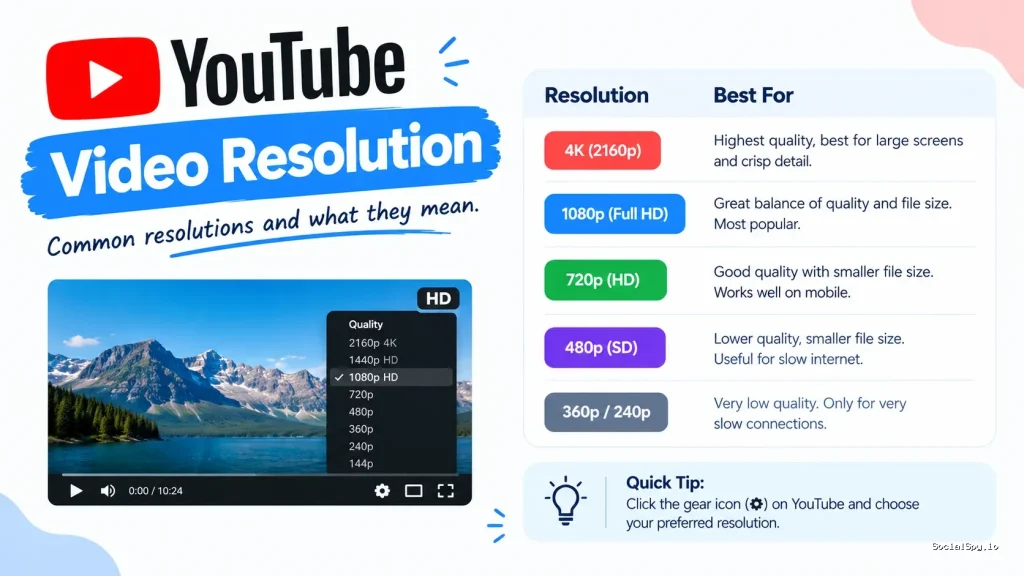
YouTube video resolution determines how sharp, detailed, and data-hungry your viewing (or uploading) experience is, and in 2026 the gap between the lowest and highest tiers has never been wider. Between AV1 codec rollouts, 8K support, and YouTube’s own bandwidth-saving algorithms, “resolution” now means more than just a number of pixels. Here’s what actually matters when you’re picking, forcing, or troubleshooting a resolution on YouTube today.
The Full YouTube Resolution Ladder Explained
YouTube doesn’t just offer “high” or “low” quality — it encodes most uploads into a dozen-plus renditions using adaptive bitrate streaming. This means your player is constantly deciding, second by second, which version to pull based on your connection.
Here’s the standard ladder YouTube uses for most uploaded content:
| Resolution Label | Pixel Dimensions | Typical Use Case |
|---|---|---|
| 144p | 256×144 | Emergency fallback on very slow mobile data |
| 240p | 426×240 | Old phones, extremely limited data plans |
| 360p | 640×360 | Basic streaming, saves significant data |
| 480p | 854×480 | Standard definition, decent on small screens |
| 720p (HD) | 1280×720 | Default “HD” tag, good balance of quality/size |
| 1080p (Full HD) | 1920×1080 | Most common creator upload target |
| 1440p (2K/QHD) | 2560×1440 | Gaming and tech channels, sharper detail |
| 4K (2160p/UHD) | 3840×2160 | Premium content, large TV viewing |
| 8K (4320p) | 7680×4320 | Rare, mostly demo/showcase footage |
Not every video is available at every tier. YouTube only generates the resolutions up to whatever the original uploaded file supports — you can’t upload a 720p file and expect a genuine 4K option to magically appear.
Industry analysts tracking YouTube’s infrastructure note that the platform now processes tens of petabytes of video daily, and resolution transcoding accounts for a significant chunk of that compute load.
How YouTube Decides What Resolution You Actually See
Most viewers never touch the resolution setting, which means YouTube’s algorithm is making the call. It weighs several signals simultaneously.
- Network speed: Detected in real time through buffering data, not just your stated Wi-Fi or data plan.
- Device screen size: A phone screen rarely needs 4K, so YouTube often caps mobile playback lower by default even on strong connections.
- App settings: The YouTube app has a “Data Saver” toggle that intentionally suppresses resolution to protect mobile data caps.
- Video popularity: Extremely popular videos sometimes get pre-cached at multiple resolutions closer to edge servers, making higher quality load faster.
- Codec support: Devices that support AV1 or VP9 decoding get access to more efficient streams, meaning better quality at the same file size compared to older H.264 devices.
This is also why two people watching the identical video on the identical Wi-Fi network can end up on different resolutions — one might be on a five-year-old smart TV that only decodes H.264, forcing YouTube to serve a lower-efficiency (and often lower-resolution) stream to avoid stutter.
If you’ve ever noticed a video that keeps freezing or restarting mid-playback, resolution mismatches with your device’s decoder are a common hidden cause — a related issue covered in Why Does YouTube Keep Pausing, which digs into buffering and playback interruptions.
Manually Changing Your Resolution: Desktop vs Mobile vs TV
You can override YouTube’s automatic pick, and the steps differ depending on platform.
On Desktop (Browser)
- Click the gear icon in the bottom-right of the video player.
- Select Quality.
- Choose a specific resolution (720p, 1080p, 4K, etc.) instead of “Auto.”
On Mobile (iOS/Android App)
- Tap the video, then the three-dot menu or gear icon depending on app version.
- Go to Quality settings.
- Pick between Auto, Higher picture quality, Data saver, or an advanced manual list if you tap “Advanced.”
On Smart TVs and Streaming Devices
- Most TV apps only offer Auto quality with no manual override, since TVs rely on network detection almost entirely.
- Some newer TV models (2025-2026 releases) with AV1 hardware decoders unlock smoother 4K streaming automatically without user input.
- If 4K isn’t showing as an option at all, it’s often a hardware decoding limitation, not a YouTube account restriction.
One frustration creators and viewers share: manually selected resolutions don’t always stick between sessions, especially on mobile, where the app frequently resets to Auto after closing and reopening.
What Resolution Should Creators Actually Upload In?
For anyone uploading rather than just watching, the resolution question gets more strategic. Uploading at a higher resolution than necessary wastes storage and processing time; uploading too low limits your audience reach on large screens.
- 1080p remains the sweet spot for most creators in 2026 — it satisfies YouTube’s “HD” labeling, looks sharp on phones and mid-size monitors, and keeps file sizes manageable.
- 4K is worth the extra effort for tutorial, gaming, tech review, or cinematic content where viewers may watch on a TV or want to pause on fine detail.
- Vertical video (Shorts) typically tops out effectively at 1080×1920 — going higher rarely adds visible benefit given phone screen sizes.
- Bitrate matters as much as resolution — a poorly compressed 4K file can look worse than a well-encoded 1080p file, since YouTube’s re-compression is harsh on already-noisy source footage.
If you’re just getting started with uploading and want the process itself explained step by step, How to Post Videos on YouTube walks through the mechanics separately from the resolution decision.
It’s also worth remembering that YouTube re-encodes everything you upload, regardless of resolution, into its own set of codecs (H.264, VP9, and increasingly AV1). Your original master file quality still matters because YouTube’s compression starts from whatever you gave it — garbage in, garbage out applies here more than most creators realize.
Troubleshooting Common Resolution Problems
Resolution issues are among the most common YouTube complaints, and most trace back to a handful of root causes.
- “4K option missing”: Either the original upload wasn’t actually 4K, or your device/browser doesn’t support the codec YouTube uses for that resolution tier.
- Video looks blurry despite fast internet: Check if Data Saver mode is enabled in the app, or if the resolution is manually locked to a low setting from a previous session.
- Quality keeps downgrading mid-video: This usually indicates real-time network congestion, not a permanent setting — YouTube’s adaptive streaming is reacting to dropped packets.
- Video plays fine but looks pixelated when paused: Compression artifacts are more visible on static frames than during motion; this is normal and not a resolution bug.
For frame-level analysis, like checking whether a specific moment actually holds its stated resolution or has compression smearing, tools that let you step through frame by frame are useful — see How to Go Frame by Frame on YouTube for the exact controls.
A quick sanity check: if a video’s resolution badge shows “4K” but the actual visual detail looks soft, the file was likely upscaled before upload rather than natively shot or rendered at that resolution — YouTube doesn’t verify authenticity of the source resolution.
Age-restricted and region-locked videos add another wrinkle, since resolution options can sometimes be limited on restricted content depending on how it was processed; this connects to broader access questions explored in Can You Download Age Restricted Videos on YouTube.
Resolution’s Hidden Costs: Data Usage and Storage
Higher resolution isn’t free — it costs data on the viewing side and storage/processing time on the upload side. Understanding the tradeoffs helps you make smarter choices depending on your situation.
| Resolution | Approx. Data Use Per Hour | Best For |
|---|---|---|
| 480p | ~0.3-0.5 GB | Limited mobile data plans |
| 720p | ~0.7-1 GB | Everyday streaming |
| 1080p | ~1.5-2 GB | Home Wi-Fi, standard viewing |
| 4K | ~7-10 GB | High-speed broadband, large screens |
For travelers, rural broadband users, or anyone on a capped data plan, dropping from Auto to a fixed 480p or 720p can meaningfully stretch a monthly allowance. Conversely, home theater setups with 4K TVs and fiber connections should manually force higher resolution if YouTube’s Auto setting seems to be underselling quality.
This same resolution-versus-bandwidth tradeoff shows up outside YouTube too — anyone who’s dealt with choppy video calls on a Cloud Based Video Conferencing Service has run into the identical adaptive-bitrate logic, just applied to live streams instead of on-demand video.
Conclusion
YouTube resolution in 2026 is less about picking a single “best” number and more about matching the right tier to the right context — a phone on cellular data has completely different needs than a 4K television on fiber internet. The platform’s adaptive system handles most of this invisibly, but knowing how to override it, why 4K sometimes disappears, and what creators should actually target when uploading puts real control back in your hands. The pixel count matters less than most people assume; codec efficiency, source file quality, and network conditions do far more to determine what actually lands on your screen.
FAQ
On a phone or small laptop screen under roughly 15 inches, most viewers genuinely cannot perceive the difference between 1080p and 4K at normal viewing distances. The benefit of 4K becomes obvious on TVs 50 inches and larger or when viewers pause and zoom into detail, which is why creators targeting home-theater or tutorial audiences still upload at that tier.
This typically happens right after upload, since YouTube processes higher resolutions last in its transcoding queue, meaning 4K availability can lag behind lower resolutions by anywhere from several minutes to a few hours depending on video length and platform load. If it’s been over 24 hours and 4K still isn’t listed, the original file likely wasn’t true native 4K despite its file properties suggesting otherwise.
No, resolution choice has no effect on subscription cost since Premium pricing is flat regardless of streaming quality. The only practical benefit of choosing lower resolution is reduced data usage and slightly faster load times on slow connections, not any billing advantage tied to the YouTube Premium plan itself.



