The little battery icon in your iPhone’s status bar is supposed to be black and white. So when it suddenly flips to yellow, it’s easy to assume something is broken. In reality, that color change is one of the most misunderstood signals in iOS — and understanding it can tell you a lot about your phone’s actual battery health.
The Yellow Icon Is Low Power Mode, Not a Warning Light
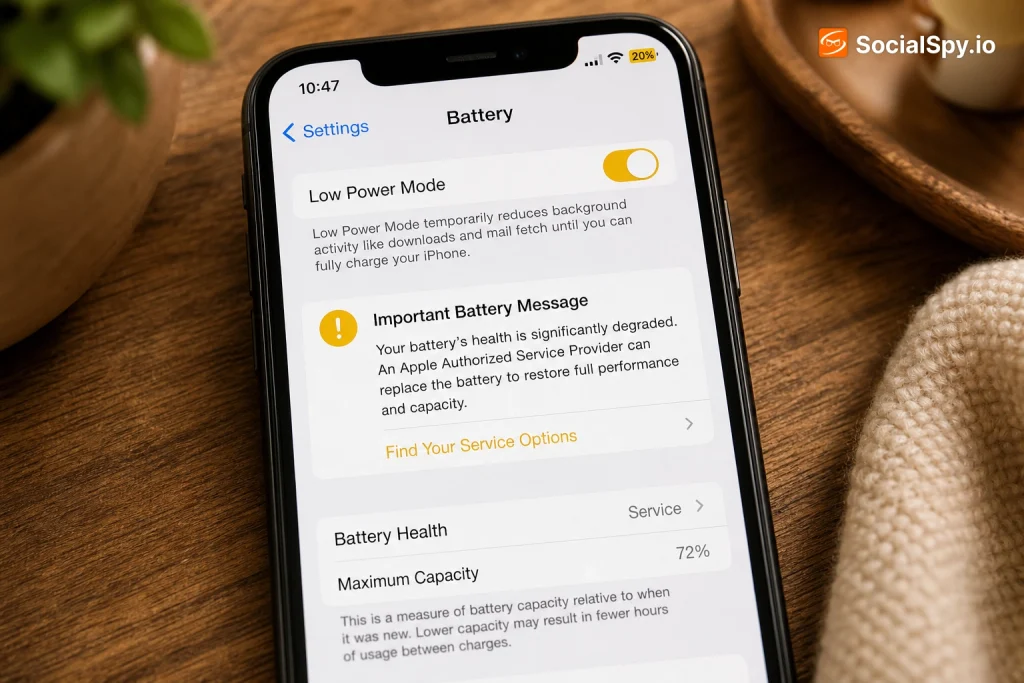
Apple introduced Low Power Mode back in iOS 9 in 2015, and the yellow (technically amber) battery icon has been its visual signature ever since. It’s not an error state. It’s a deliberate, reversible power-saving profile that iOS switches into automatically.
By default, iOS prompts you to enable it when your battery hits 20%, and again at 10%. You can also flip it on manually anytime through Control Center or Settings, regardless of your charge level.
Apple’s own support documentation is blunt about this: “Low Power Mode reduces power consumption… The yellow status bar indicates that Low Power Mode is on.”
The confusion usually comes from people never having read that fine print. They just see yellow, panic, and assume their $999 phone is failing.
What Actually Changes When It Kicks In
Low Power Mode isn’t just cosmetic — it genuinely throttles background activity to stretch your remaining charge. Apple has been fairly transparent about which systems get dialed back.
| System | Normal Behavior | Under Low Power Mode |
|---|---|---|
| Mail fetch | Push/fetch on schedule | Fetch paused |
| Background App Refresh | Enabled per app | Disabled |
| Auto-download (App Store) | Automatic | Paused |
| Display Auto-Lock | User-set timer | Shortened |
| Visual effects | Full animations | Reduced motion/effects |
| 5G (iPhone 12 and later) | Always-on 5G option | Can revert to LTE in some conditions |
| iCloud Photo sync | Continuous | Paused |
Apple has stated that on many models, Low Power Mode can extend battery life by up to several additional hours on a single charge, depending on usage. It’s most noticeable on older devices or when you’re stuck without a charger for an unusually long day.
One thing people don’t realize: Low Power Mode doesn’t stay on forever. Once you charge back above roughly 80%, iOS automatically turns it off unless you’ve forced it on manually through Control Center.
The Deeper Story: Why Your Battery Needed Saving in the First Place
The yellow icon itself is harmless. But if you’re seeing it multiple times a day, that’s a symptom worth investigating — because it usually means your battery’s actual capacity has shrunk.
Every lithium-ion battery, including the one in your iPhone, degrades through charge cycles. A full cycle equals using 100% of the battery’s capacity, whether that’s one full charge or several partial top-ups that add up to 100%.
- Apple rates iPhone batteries to retain at least 80% of original capacity at 500 complete charge cycles.
- Most people hit 500 cycles in roughly 18 to 30 months, depending on usage intensity.
- Heat is the single biggest accelerant of chemical aging — leaving your phone in a hot car or gaming while charging does more long-term damage than fast charging itself.
- Keeping a battery constantly at 100% or letting it repeatedly drain to 0% both stress the cell chemistry more than staying in the 20%-80% range.
As capacity shrinks, your phone simply can’t hold as much charge, so it naturally dips into that 20%/10% Low Power Mode threshold much faster than it used to. The yellow icon isn’t lying to you — your battery genuinely is running out sooner.
Batterygate: Why Apple Got Serious About Battery Transparency
This whole topic carries baggage from one of Apple’s biggest PR crises. In late 2017, users discovered that iOS was secretly throttling performance on iPhones with degraded batteries — specifically the iPhone 6, 6s, 7, and SE.
Apple admitted it had added a feature to prevent unexpected shutdowns on aging batteries by capping peak processor performance. The problem was the company never told anyone.
Here’s how the fallout played out:
- Apple issued a public apology and cut battery replacement prices from $79 to $29 for affected models, starting in early 2018.
- Apple added a new Battery Health menu in iOS 11.3, letting users see their Maximum Capacity percentage and whether “Peak Performance Capability” was being limited.
- In 2020, Apple agreed to a $113 million multistate settlement with U.S. state attorneys general over the undisclosed throttling.
- A separate class-action settlement paid eligible U.S. iPhone owners up to $25 per device.
That episode is directly why the Battery Health screen exists today, and why Apple now flags battery-related slowdowns explicitly instead of hiding them.
How to Actually Diagnose What’s Going On
If yellow is showing up constantly, don’t guess — check the real numbers. Apple gives you direct access to battery diagnostics.
- Open Settings and tap Battery.
- Tap Battery Health & Charging.
- Look at Maximum Capacity — this is a percentage compared to when the battery was new.
- Check whether it says Peak Performance Capability: Your battery is currently supporting normal peak performance, or shows a throttling warning.
- If capacity is below roughly 80%, expect faster drain, more frequent Low Power Mode triggers, and possibly unexpected shutdowns under heavy load.
Apple’s official warranty position: a battery is considered defective and eligible for free replacement under AppleCare+ or the standard one-year warranty if it drops below 80% of original capacity within that coverage window. Outside of warranty, replacement runs $89 for most current iPhone models in the US as of recent Apple pricing, or $0 if you have AppleCare+ (subject to a service fee on some plans).
Extending Your Battery’s Lifespan So You See Less Yellow
There’s also a feature most people ignore that directly fights this problem: Optimized Battery Charging, found in that same Battery Health menu. It uses on-device machine learning to learn your daily charging routine and delays charging past 80% until right before you typically wake up and unplug.
Beyond that setting, a few habits make a measurable difference over the life of the phone:
- Avoid leaving your iPhone plugged in and at 100% for extended periods, like overnight charging every single night without Optimized Charging enabled.
- Keep it out of direct sunlight and hot cars — Apple specifies an ideal operating range of 62° to 72°F (16° to 22°C) and warns against exposure above 95°F (35°C).
- If you’re using MagSafe or other wireless charging, know that it generates more heat than wired charging, which can modestly accelerate aging if used constantly.
- Update to the latest iOS version — Apple periodically tunes battery management algorithms in software updates, and some updates specifically address reported battery drain bugs.
- If you’re storing an iPhone long-term (a backup device, for instance), Apple recommends charging it to around 50% before powering off for storage, not 100% or 0%.
None of these habits will stop chemical aging entirely — that’s physics, not a bug — but they can meaningfully slow it down over a two-to-three-year ownership window.
Conclusion
The yellow battery icon is one of Apple’s more successful pieces of quiet UI design — it does its job of signaling “power-saving mode active” without most users ever needing to think about it, right up until it shows up so often that people start assuming their phone is dying. It isn’t a malfunction indicator. It’s Low Power Mode, and it’s working exactly as intended by trimming background tasks to buy you more screen time.
The real signal worth paying attention to isn’t the color of the icon — it’s how often you see it and what your Maximum Capacity number says in Battery Health. A three-year-old iPhone sitting at 78% capacity triggering Low Power Mode by 3 PM every day isn’t broken; it’s aging exactly the way lithium-ion chemistry predicts. At that point, the yellow icon has done you a favor: it’s telling you it might finally be time for a $89 battery swap rather than a $999 new phone.
FAQ
No. The yellow icon simply means Low Power Mode is currently active, either because you turned it on manually or because your charge dropped to 20% or 10%. It has nothing to do with physical battery damage on its own — check the Battery Health menu for actual capacity data if you’re concerned.
No, and it may actually help slightly. Low Power Mode reduces background activity and processor demand, which lowers heat generation and power draw, both of which are easier on long-term battery chemistry than running at full performance constantly.
Apple’s threshold for a free warranty replacement is below 80% Maximum Capacity within the coverage period, and most users start noticing real-world drain issues, unexpected shutdowns, or Peak Performance Capability warnings somewhere in the low-to-mid 80% range. If you’re seeing Low Power Mode trigger multiple times daily on a battery under 80%, a replacement is generally worth the $89 fee.