
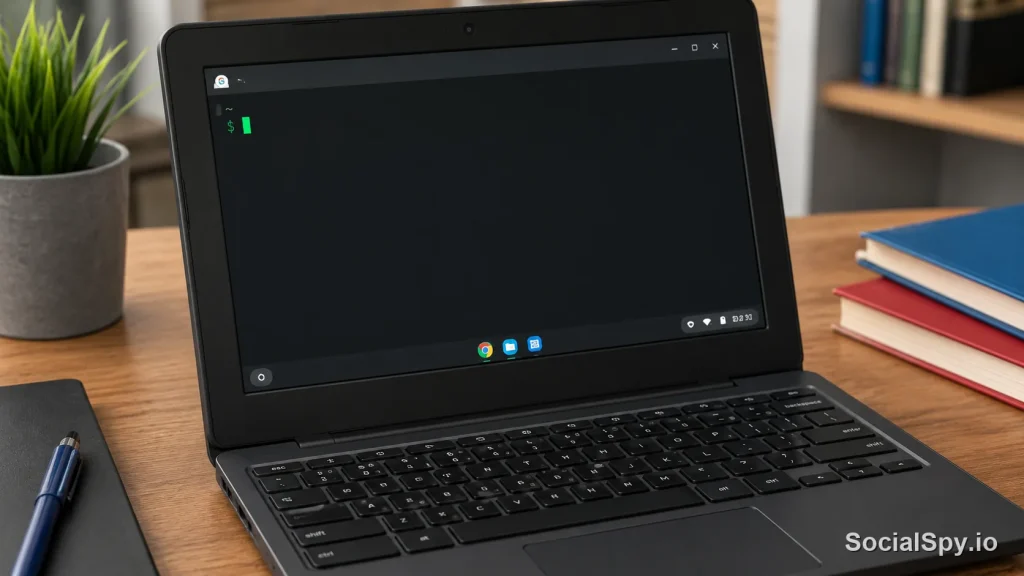
Chromebooks look deceptively simple on the surface, with their locked-down interface and app-first design. But hidden beneath that minimalist shell is a genuine command-line tool called Crosh that gives users diagnostic and networking power most people never realize exists. If you’ve ever wondered how to check your Chromebook’s battery health, run a ping test, or troubleshoot Wi-Fi without installing anything, Crosh is the answer.
What Crosh Actually Is
Crosh stands for Chrome OS Shell, and it’s a limited, sandboxed command-line interface built directly into ChromeOS. It ships on every Chromebook, from a $250 Acer Chromebook 315 to a high-end HP Dragonfly Pro Chromebook, and it doesn’t require any special setup to use.
Unlike a full Linux terminal, Crosh isn’t meant to give you root access or let you install software. Google designed it specifically as a diagnostic and troubleshooting layer, sitting between the average user’s point-and-click experience and the deeper Linux underpinnings that power ChromeOS.
It’s important to distinguish Crosh from other command-line options on modern Chromebooks:
- Crosh — the built-in shell, no Developer Mode required, sandboxed and safe
- Linux Terminal (Crostini) — a separate, opt-in Debian-based container accessed through Chromebook’s Linux development environment settings
- Bash via Developer Mode — full root shell access, only available after wiping the device and enabling Developer Mode, which disables verified boot
Most people who ask “what is Crosh” are really just trying to run a network test or check hardware stats, and Crosh alone covers nearly all of that without ever touching Developer Mode.
How to Open and Exit Crosh
Getting into Crosh takes about three seconds once you know the shortcut. There’s no menu item for it in the standard ChromeOS Settings app — it’s intentionally a bit hidden.
- Make sure you’re on the ChromeOS desktop (not inside an app in full screen).
- Press Ctrl + Alt + T simultaneously.
- A new browser-like tab opens showing `crosh>` with a blinking cursor.
- Type `help` to see the list of available commands.
- Type `exit` or close the tab to leave.
Crosh runs inside a Chrome tab, not a true terminal window — that’s a subtle reminder of how sandboxed it really is compared to a Linux or macOS terminal.
One quirk that trips up new users: Crosh doesn’t support copy-paste the same way a browser does. Selecting text and using Ctrl+Shift+V (paste without formatting) is the reliable way to paste commands in, since regular Ctrl+V sometimes fails depending on the ChromeOS version.
The Most Useful Crosh Commands
Crosh has roughly 40-50 commands depending on the ChromeOS build (Google has added and removed a few over the years, including experimental ones tied to specific hardware). Most users only ever need a handful.
Network Diagnostics
This is where Crosh earns its keep for everyday troubleshooting.
| Command | What It Does |
|---|---|
| `ping <address>` | Tests connectivity to a server or router, e.g. `ping 8.8.8.8` |
| `traceroute <address>` | Maps the network hops between your Chromebook and a destination |
| `ip_forwarding` | Checks/toggles IP forwarding for network debugging |
| `wpa_cli` | Interfaces with the Wi-Fi supplicant for deep Wi-Fi diagnostics |
| `netfilter` | Reviews or troubleshoots network filtering rules |
IT departments managing fleets of school or enterprise Chromebooks lean on `ping` and `traceroute` constantly, since it’s the fastest way to determine whether a connectivity complaint is a Chromebook problem, a router problem, or an ISP problem.
Hardware and System Commands
- `battery_test` — runs a real-time report on battery discharge rate, useful for spotting a battery that’s degrading faster than it should
- `memory_test` — checks RAM for read/write errors, handy on refurbished or hand-me-down Chromebooks
- `top` — a live view of CPU and memory usage per process, nearly identical to the Linux command of the same name
- `storage_status` — reports SSD/eMMC health metrics including estimated lifespan remaining
- `battery_firmware` — checks and can help update battery firmware on supported Chromebook models
Packet Capture and Advanced Debugging
- `packet_capture` — records network traffic to a file, which Google support agents sometimes ask users to generate when diagnosing enterprise Wi-Fi issues
- `modem status` (on cellular-equipped Chromebooks) — shows LTE/5G modem connection details
- `set_time` — manually adjusts system time, occasionally necessary when a Chromebook won’t sync via NTP due to a captive portal
Crosh vs. Linux Terminal vs. Developer Mode
A common point of confusion is treating Crosh, the Linux terminal, and Developer Mode as the same thing. They’re not, and mixing them up can lead to unnecessary risk.
Here’s how they actually compare:
| Feature | Crosh | Linux Terminal (Crostini) | Developer Mode Shell |
|---|---|---|---|
| Requires setup | No | Yes (enable Linux in Settings) | Yes (full device wipe) |
| Root access | No | Partial, within container | Yes, full root |
| Voids warranty | No | No | Debatable/varies by manufacturer |
| Disables verified boot | No | No | Yes |
| Can install apps/packages | No | Yes (apt-get, etc.) | Yes |
| Risk level | Very low | Low-moderate | High if misused |
Crosh sits at the safe end of this spectrum by design. Because it can’t install packages or modify the core OS, Google engineers built it to be something IT admins can hand to end users without much risk of them breaking the device.
The Linux terminal, formally called Crostini, is a much bigger step up — it runs a genuine Debian container and lets users run `apt install` for things like VS Code or GIMP. But it’s still sandboxed away from ChromeOS itself, so a broken Linux container can typically be deleted and recreated without harming the underlying Chromebook.
Developer Mode is the real threshold. Enabling it wipes the device, disables the verified boot security chain, and shows a scary boot screen every startup warning that OS integrity can’t be verified. That’s the tier where actual root shell access lives, and it’s genuinely not needed for 99% of what people search for when they type “what is Crosh.”
Why Crosh Matters for Everyday Users (and IT Admins)
Chromebooks dominate US K-12 education, representing roughly half of all classroom device shipments in recent years according to education market analysts, and they’re increasingly common in budget-conscious small businesses too. Crosh is a big part of why these devices are manageable at scale.
For Individual Users
- Diagnosing “my Wi-Fi is slow” complaints with `ping` and `traceroute` before assuming it’s the router
- Checking `battery_test` output before deciding whether a battery genuinely needs replacing or a device needs recycling
- Running `storage_status` on an older Chromebook before deciding if it’s worth keeping or upgrading
For IT Administrators
- Remote troubleshooting scripts that guide non-technical users through typing specific Crosh commands over a support call
- Generating `packet_capture` files to attach to Google Workspace or Chrome Enterprise support tickets
- Verifying firmware and hardware health across a fleet before mass battery replacement decisions
A large share of “Chromebook is broken” support tickets in school IT departments turn out to be Wi-Fi authentication issues that a two-minute Crosh ping test can immediately isolate from a hardware fault.
Common Mistakes and Limitations
Crosh isn’t magic, and it has real limits that catch people off guard.
- You can’t install anything. No `apt`, no `pip`, no package manager of any kind exists in Crosh — that capability lives only in the separate Linux terminal.
- Commands vary by device and ChromeOS version. A command available on one Chromebook model might be missing on another, especially ARM-based versus Intel-based chips, or on devices without cellular modems.
- It’s not a security bypass. Crosh cannot be used to remove enterprise enrollment, bypass a school’s device management policy, or unlock a Chromebook that’s been disabled by an administrator — those restrictions are enforced at a level Crosh has no access to.
- Typos silently fail. Unlike Bash, Crosh often just returns to the prompt with minimal error explanation if you mistype a command, which can make it feel broken when it isn’t.
- No persistent history across reboots in the way a full Linux shell would maintain extensive logs, since Crosh is intentionally lightweight.
Users occasionally try to use Crosh as a workaround for school- or work-managed Chromebook restrictions, assuming a terminal must mean unrestricted access. It doesn’t. Chrome Enterprise policies are enforced below the level Crosh operates at, so commands that might affect network settings on a personal device often simply get blocked or ignored on a managed one.
Conclusion
Crosh is one of the most underused tools already sitting on hundreds of millions of Chromebooks, precisely because Google never surfaces it in the standard UI. It won’t turn a Chromebook into a Linux workstation, and it was never meant to — that job belongs to Crostini and Developer Mode, each with its own tradeoffs in risk and capability. What Crosh actually delivers is something more practical: a fast, safe, zero-setup way to answer real questions like “is my Wi-Fi actually the problem” or “is this battery dying.” For the millions of students, teachers, and budget-minded professionals relying on Chromebooks as their primary computer in 2026, that’s a genuinely useful bit of hidden power worth knowing about.
FAQ
No. Crosh is available on every Chromebook out of the box with no special setup — just press Ctrl+Alt+T from the ChromeOS desktop. Developer Mode is a separate, much riskier feature that wipes your device and disables verified boot, and it’s not required for any standard Crosh command.
Crosh is designed to be safe for everyday troubleshooting and doesn’t void warranties or modify core system files. It cannot install software, alter firmware in destructive ways, or bypass hardware protections, which is exactly why Google built it as the recommended first stop for diagnostics before anything more advanced.
Crosh is a limited diagnostic shell built into ChromeOS itself, while the Linux terminal (Crostini) is a separate, optional Debian container you enable through Settings that supports installing real Linux software like `apt` packages. Crosh can’t install anything, but it also can’t be broken the way a misconfigured Linux container sometimes can.



