
Apple has sold more than 25 different iPad models since 2010, and with no visible generation label printed anywhere on the device itself, even longtime Apple users routinely get stuck trying to figure out exactly which one they own. That matters more than it used to, because iPadOS 26 and beyond quietly drop support for older hardware every year. Here’s the fastest, most reliable way to pin down your exact model and generation in 2026.
Why This Question Is Harder Than It Sounds
Apple doesn’t print “iPad Air 5th Generation” anywhere on the hardware. Instead, you get a cryptic model number like A2588 stamped in tiny text on the back, which tells you nothing on its own. That design choice makes sense for manufacturing, but it’s genuinely frustrating for anyone trying to sell, repair, or troubleshoot their device.
The confusion compounds because Apple currently sells four separate iPad product lines — iPad, iPad mini, iPad Air, and iPad Pro — and each has its own numbering scheme. An “iPad Air” from 2026 shares almost nothing internally with an “iPad Air” from 2014, yet they carry the identical marketing name.
- There have been 11 generations of the base iPad since 2010
- The iPad Pro line has been redesigned 6 times, with 11-inch and 13-inch variants running in parallel
- iPad mini has reached its 7th generation as of the 2024 refresh
- iPad Air jumped from the 5th to the 6th and then 7th generation within just a few years, adding an even larger 13-inch size option
Every one of these models can technically just be called “an iPad,” which is exactly why Settings and the model number sticker exist as the real source of truth.
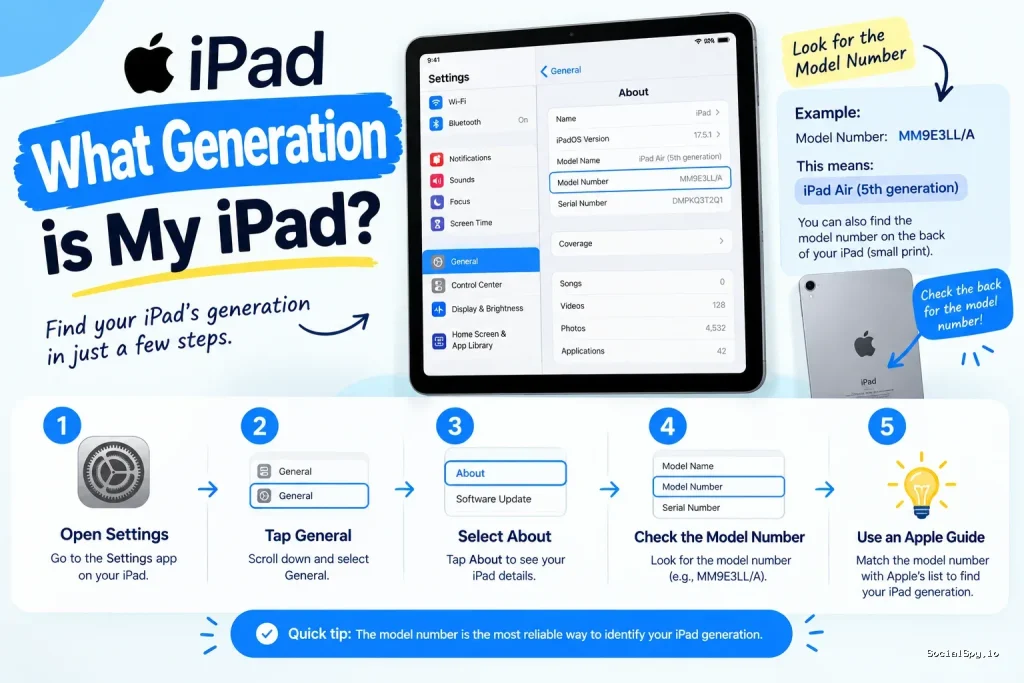
Method 1: Check Settings for the Model Name
This is the method Apple actually recommends, and it’s the most beginner-friendly option because it requires zero math or lookup tables. It works on any iPad running a reasonably modern version of iPadOS, including devices as far back as the iPad (5th generation) from 2017.
- Open the Settings app
- Tap General, then tap About
- Look for the Model Name field — this will literally say something like “iPad Pro (12.9-inch) (6th generation)” or “iPad Air (5th generation)”
- If Model Name doesn’t display a generation directly, tap Model Number to reveal the raw code (e.g., A2757) for a manual lookup
Older iPads running very outdated software sometimes show only the model number under “About,” without a friendly generation name spelled out. In that case, you’ll need to move to the model number lookup method below.
Method 2: Decode the Model Number on the Back
Flip your iPad over, and near the bottom you’ll see extremely small text that includes a model number starting with the letter A, followed by four digits. This number is unique to a specific hardware revision, and it’s the single most reliable identifier because it never changes regardless of software version, region, or cellular vs. Wi-Fi variant confusion.
Here’s a snapshot of some frequently searched model numbers and what they correspond to:
| Model Number | Device | Generation |
|---|---|---|
| A2270 / A2428 / A2429 / A2430 | iPad Air | 4th generation (2020) |
| A2588 / A2589 / A2591 | iPad Air | 5th generation (2022) |
| A2777 / A2993 / A3009 | iPad Air (11″ & 13″) | 6th generation (2024) |
| A2696 / A2757 / A2777 | iPad Pro 12.9-inch | 6th generation (2022) |
| A2604 / A2605 / A2606 | iPad mini | 6th generation (2021) |
| A3260 / A3345 | iPad mini | 7th generation (2024) |
A single letter or digit difference in a model number can mean the difference between a Wi-Fi-only unit and a cellular variant of the exact same generation — always match the full code, not just the first two digits.
If you want a more exhaustive, constantly updated breakdown that walks through every model number Apple has ever shipped, this detailed guide on how do I know what iPad I have covers the full lookup process in more depth than any single table can.
Method 3: Use the Physical Design and Feature Clues
If the model number has worn off, or you’re buying a used iPad and can’t power it on yet, physical design cues can narrow things down fast. Apple made several very visible hardware pivots that act as generation fingerprints.
Home Button vs. Face ID
- Has a Home button: This is either a base iPad (up through the 10th generation), an older iPad mini (up through 5th gen), or an iPad Air through the 3rd generation
- No Home button, Face ID or top-mounted Touch ID instead: This is an iPad Pro, iPad Air (4th generation onward), iPad mini (6th generation onward), or the redesigned iPad (10th generation onward)
Charging Port Type
- Lightning port: Signals an older device — iPad (up through 9th generation), iPad Air (up through 3rd generation), or early iPad Pro models
- USB-C port: Found on every current iPad Air, iPad mini (6th gen+), iPad Pro (since 2018), and iPad (10th generation onward)
Camera Placement
The 10th-generation base iPad moved its front camera to the landscape edge rather than above the screen in portrait orientation — a deliberate change to make video calls look better when the iPad is propped up on a stand or keyboard case. If your iPad’s front camera is centered on a long edge rather than a short edge, that’s a strong signal you’re holding the 10th generation or newer.
Method 4: Cross-Reference With Apple’s Official Support Pages
Apple maintains dedicated identification pages for each product line — separate pages exist for iPad, iPad Air, iPad mini, and iPad Pro — each showing side-by-side photos and specs for every generation ever released. These pages are the gold standard because Apple updates them the moment a new model ships, unlike third-party lists that can lag behind.
- Search “Identify my iPad model” directly in Safari to land on the correct Apple support article
- Use the serial number (found in Settings > General > About, or physically on the device) with Apple’s Check Coverage tool for an even more precise match tied to your specific unit
- Cross-check against storage capacity and color options, since Apple’s identification pages list every configuration a given generation shipped in
This matters more than people realize when buying secondhand. A seller might genuinely not know whether their “iPad Air” is the 4th or 5th generation, and the visual differences between those two are almost imperceptible — same chassis, same button layout, different chip inside. For a broader walkthrough of this exact scenario, how do I know what iPad have breaks down the edge cases that trip up secondhand buyers specifically.
Why Your iPad’s Generation Actually Matters in 2026
Knowing your generation isn’t just trivia — it directly determines what software, accessories, and features are even available to you. Apple’s support lifecycle for iPads tends to run 5 to 7 years before a model stops receiving major iPadOS updates, and security patches taper off not long after that.
Here’s what generation-dependent limitations look like in practice right now:
- Apple Pencil compatibility is generation-specific. The original Apple Pencil only pairs with older Lightning-based iPads, while Apple Pencil Pro requires an iPad with the M2 chip or newer and a USB-C port
- Apple Intelligence features require specific silicon. As of iPadOS 26, on-device AI features are gated behind chips from the A17 Pro or M-series and later, meaning even some recent-looking iPads that use older A-series chips are excluded
- 5G cellular support only exists on iPad (9th generation) and newer for the base line, and on iPad Pro/Air models from 2020 onward — a distinction that matters a lot if you’re relying on a cellular iPad as a mobile hotspot or for on-the-go connectivity, a trend covered well in this piece on how 5G is powering the next generation of smart devices
- Magic Keyboard and Smart Keyboard Folio compatibility is tied to exact screen size and generation, not just product name — an 11-inch iPad Pro keyboard will not fit a 13-inch model
Buying the wrong Apple Pencil or keyboard case because you guessed the generation wrong is one of the single most common — and most avoidable — mistakes iPad owners make.
This is also relevant for resale value. Listing an iPad on eBay or through Apple’s trade-in program without the correct generation and model number often results in a lowball estimate, since valuation tools default to the oldest matching model when details are ambiguous.
Conclusion
Figuring out your iPad’s generation takes under two minutes once you know where to look, and Settings > General > About should always be your first stop. If that screen doesn’t spell out a generation name, the model number etched on the back paired with Apple’s official identification pages will close the gap every time. Getting this right isn’t just satisfying trivia — it directly affects which Apple Pencil you can buy, whether Apple Intelligence features will even run, and how much a trade-in or resale is actually worth. Treat the model number the same way you’d treat a car’s VIN: it’s small, easy to overlook, and the single most trustworthy fact about the device you’re holding.
FAQ
Look at the back of the device for the model number, which starts with the letter “A” followed by four digits, printed in small text near the bottom edge. You can then search that exact model number against Apple’s official identification pages to get the precise generation, release year, and original specs.
Usually yes on any iPad running a reasonably current version of iPadOS, but very old devices running outdated software sometimes only display the raw model number instead of a friendly name. In that case, cross-referencing the model number manually against Apple’s support documentation is the more reliable fallback.
Apple frequently reuses the exact same chassis design across two or three generations while swapping the internal chip, camera sensor, or storage architecture, so visually identical iPads can have very different real-world performance. This is precisely why relying on the model number rather than appearance is essential, especially when buying a used device or deciding whether it can run current software.



