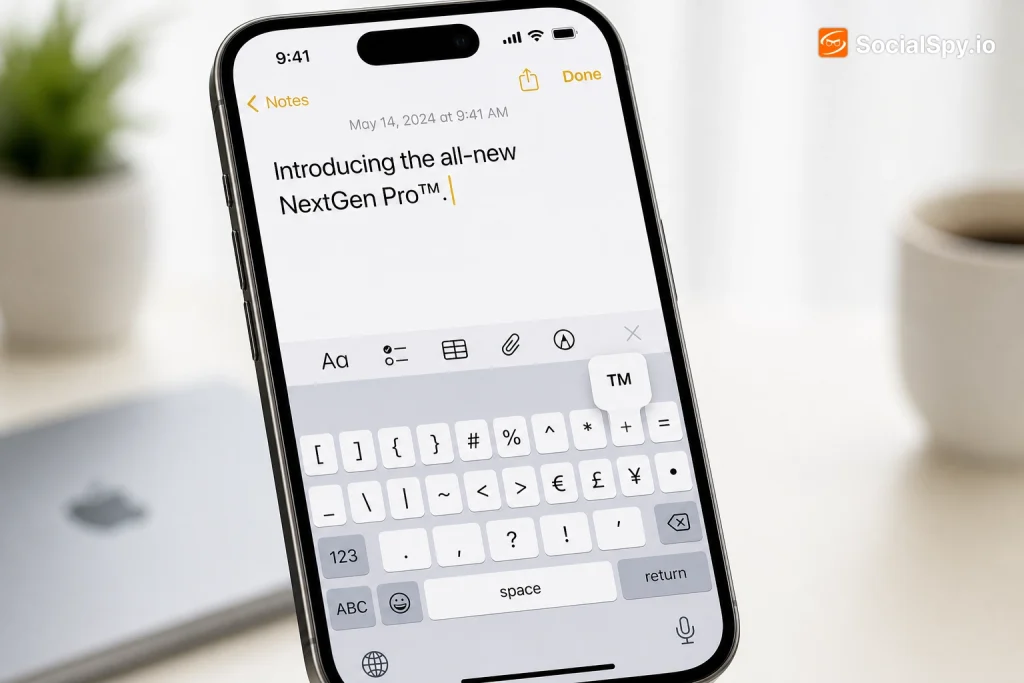
The trademark symbol shows up constantly in business emails, product descriptions, and social captions, but Apple buries it deep in the iPhone’s keyboard layers instead of giving it a dedicated key. Most iPhone owners end up copy-pasting the symbol from Google every time they need it, which is slower and clunkier than necessary. There are actually five different built-in ways to type ™ on an iPhone, and a couple of them work automatically once set up.
The Fastest Method: Press-and-Hold on the Symbol Keyboard
Apple actually hid the trademark symbol inside a key that has nothing to do with letters, which is why almost nobody finds it by accident. It’s tucked under a punctuation key on the numeric keyboard layer, accessible through a long-press gesture Apple calls a “key flick.”
Here’s the exact sequence that works on every iPhone running iOS 15 through the current iOS 18 release:
- Open any app where you can type — Messages, Notes, Mail, or Safari’s address bar all work.
- Tap the 123 key in the bottom-left corner of the keyboard to switch to the numbers and symbols layout.
- Find the $ or £ key (depending on your region settings) in the second row — on US keyboards this is usually near the dollar sign row.
- Press and hold that key for about one second until a small popup menu of extra currency and legal symbols appears above it.
- Slide your finger to ™ and lift up to insert it.
This same press-and-hold trick reveals other hidden characters on iOS, including the registered trademark ® and copyright © symbols, which typically live under the same key cluster or a neighboring one.
Early iOS testers noted that Apple has quietly moved this hidden symbol menu around in past updates, so if you don’t see ™ under the dollar key, check the adjacent quote-mark or hyphen key — it’s almost always one long-press away.
Setting Up a Text Replacement Shortcut (The Set-It-and-Forget-It Option)
If you type the trademark symbol regularly — say you run a small business account or manage social captions for a brand — the press-and-hold method gets old fast. Apple’s Text Replacement feature, buried in the keyboard settings, solves this permanently by letting you assign a custom shortcut phrase that auto-expands into any symbol or text string.
How to create the shortcut
- Open Settings.
- Tap General.
- Tap Keyboard.
- Tap Text Replacement.
- Tap the + in the top-right corner.
- In the Phrase field, paste or type the actual ™ symbol (you can grab it once from the press-and-hold method above, or copy it from a search result).
- In the Shortcut field, type something you’ll never accidentally trigger, like “tmtm” or “trdmk”.
- Tap Save.
From that point forward, typing “tmtm” anywhere on your iPhone — Messages, Instagram captions, Google Docs, Notion, even in-app browsers — will pop up a suggestion bubble that auto-fills the trademark symbol when you tap the space bar.
Why this beats other methods for frequent users
- Works system-wide, not just in Apple’s own apps, because Text Replacement is a keyboard-level feature that third-party apps inherit automatically.
- No internet connection required, unlike copy-pasting from a search engine.
- Syncs across devices if you have iCloud Keychain and Settings sync enabled, meaning the same shortcut appears on your iPad and Mac too.
- Can be layered — you can create separate shortcuts for ™, ®, and © simultaneously so all three legal symbols are one word-trigger away.
The main drawback is a one-time setup cost of about 30 seconds, and if you share your iPhone with family members through the same Apple ID without separate keyboard profiles, your custom shortcuts will show up for them too.
Using the Emoji and Symbols Keyboard
A lesser-known route to the trademark symbol runs through Apple’s Emoji keyboard, which despite the name also houses a small library of legal and mathematical symbols that don’t show up in a basic Google image search for “iPhone emoji.”
Here’s the breakdown of where these live:
| Symbol Location | How to Access | Symbols Available |
|---|---|---|
| Numeric keyboard long-press | Tap 123, hold $ or £ key | ™, ®, ¥, € |
| Emoji keyboard search | Tap globe/emoji icon, type “trademark” in search bar | ™ (as a text symbol result) |
| Kaomoji/Symbols tab | Swipe through emoji categories to the “#” symbols tab | ©, ®, ™ in some iOS versions |
To use the emoji search trick specifically:
- Tap the globe icon (or emoji smiley icon) at the bottom-left of your keyboard to switch to the Emoji keyboard.
- Tap the magnifying glass search bar at the top.
- Type “trademark”.
- iOS will surface both the ™️ emoji-style symbol (with color/font styling) and sometimes the plain text ™ character.
Note that the emoji-style trademark symbol renders slightly differently across apps — it can appear as a colored badge in iMessage but revert to plain text ™ in apps like Gmail or Slack that don’t fully support Apple’s emoji rendering engine. If you need consistent formatting across platforms, the plain Unicode ™ from the numeric keyboard or Text Replacement method is more reliable than the emoji-search version.
Copy-Paste and Third-Party Keyboard Alternatives
Sometimes the built-in methods aren’t convenient, especially if you’re working across multiple apps at once or your iPhone’s keyboard settings have been reset. Copy-paste remains the fallback, and it’s faster than people assume if you know where to source the symbol from.
Reliable copy-paste sources
- Apple’s own Notes app: once you’ve typed ™ there once using the long-press method, you can highlight and copy it for reuse in any other app during that session.
- Character Viewer on Mac (if you use Handoff/Universal Clipboard): opening the Mac’s Character Viewer via Edit > Emoji & Symbols, searching “trademark,” copying it there, and pasting on your iPhone through Universal Clipboard works almost instantly on the same Wi-Fi/Bluetooth network.
- Browser search bar trick: typing “trademark symbol” into Safari’s address bar surfaces a Google featured snippet with the ™ character large enough to tap-and-hold, copy, then paste back into your app.
Third-party keyboard apps worth considering
If you’re a heavy user of special characters — legal symbols, accented letters, or currency signs beyond what Apple supports — a few third-party keyboards handle this more gracefully than Apple’s default:
- Gboard (Google’s keyboard) includes a dedicated symbols row and a “special characters” search that surfaces ™, ®, and © without the long-press gesture.
- Grammarly Keyboard doesn’t add new symbols but does auto-correct common ™ typos like “tm” typed in isolation, which can be a minor annoyance if you’re a lawyer or brand manager typing “TM” as an abbreviation rather than wanting the symbol.
- SwiftKey offers customizable symbol rows you can drag into the primary keyboard view, effectively giving ™ its own permanent key.
The tradeoff with any third-party keyboard is that iOS requires you to grant Full Access for features like emoji prediction and cloud sync, which routes your keystrokes through that developer’s servers unless you specifically disable the option. For users who type trademark symbols in sensitive business or legal contexts, sticking with Apple’s native keyboard and the Text Replacement shortcut avoids that privacy tradeoff entirely.
Trademark vs. Registered vs. Copyright: Getting the Right Symbol
A surprisingly common mistake is using ™ when ® or © is legally more accurate, which matters more than most people realize if the text is going into a product listing, App Store description, or marketing document. These three symbols mean legally distinct things, and using the wrong one can actually undercut a brand’s legal protections or misrepresent its registration status.
- ™ (Trademark): Used for an unregistered trademark — a name, logo, or slogan a business is claiming rights to, but hasn’t yet formally registered with the U.S. Patent and Trademark Office (USPTO).
- ® (Registered): Used only after the USPTO has officially approved and registered the trademark — using this symbol prematurely is technically a misrepresentation under federal law.
- © (Copyright): Applies to creative works — text, images, software code, music — not brand names or logos, and doesn’t require registration to claim, though registering with the U.S. Copyright Office strengthens legal standing in disputes.
Businesses that update their trademark status from pending to registered often forget to update their iPhone Text Replacement shortcuts, still typing “tmtm” out of habit when they should be inserting ®. It’s worth setting up separate shortcuts for both symbols from day one so switching is just a matter of using a different trigger word.
Conclusion
Typing the trademark symbol on an iPhone doesn’t require memorizing an obscure keyboard shortcut or keeping a browser tab open just to copy-paste ™ every time you need it. The press-and-hold trick under the numeric keyboard’s dollar-sign key works instantly with zero setup, while a custom Text Replacement shortcut turns it into a two-second habit for anyone who types it daily. For most iPhone owners, setting up both — the manual gesture as a backup and a Text Replacement shortcut as the daily driver — covers every situation from a one-off email to a full-time job managing brand copy. The extra half-minute spent configuring Settings > General > Keyboard > Text Replacement pays for itself the very next time a client asks for a product name written correctly with its legal symbol attached.
FAQ
The trademark symbol isn’t on the visible keyboard layout by default — it’s hidden behind a long-press gesture on the numeric/symbol keyboard (tap “123” first), usually layered under the dollar sign or currency key. If long-pressing doesn’t reveal it, try the Emoji keyboard’s search bar and type “trademark,” or set up a Text Replacement shortcut in Settings so you never have to hunt for it again.
Yes, in some cases. If you insert the emoji-style trademark symbol from Apple’s Emoji keyboard, it can render with slightly different styling in iMessage compared to how it displays in Gmail, Outlook, or non-Apple apps, since not all platforms support Apple’s emoji rendering engine the same way. Using the plain Unicode ™ character from the numeric keyboard or a Text Replacement shortcut avoids this inconsistency and displays identically across virtually every app.
Yes, and it’s a meaningful distinction, not just a style choice. The ™ symbol signals an unregistered trademark claim, while ® can only be legally used once the USPTO has formally approved the trademark’s registration — using ® before registration is completed is considered a misrepresentation under U.S. trademark law, so businesses should confirm their registration status before switching symbols.