Chrome slows to a crawl, tabs eat memory like popcorn, and mystery extensions appear from nowhere — this is the exact mess “Chrome Cleaner” tools promise to fix. But not all cleaners are created equal, and some do more harm than good. Here’s what actually works in 2026, what’s snake oil, and how Google’s own built-in tools stack up against third-party software.
What “Chrome Cleaner” Actually Means in 2026
The term gets thrown around loosely, and that’s part of the problem. It covers three very different categories of tools that solve different issues.
- Performance cleaners — clear cache, cookies, browsing history, and temporary files to free up disk space and speed up load times.
- Security cleaners — scan for and remove browser hijackers, malicious extensions, and adware that redirect searches or inject ads.
- Settings-reset tools — restore Chrome’s homepage, new tab page, search engine, and startup behavior after they’ve been silently changed by a rogue installer.
Industry security researchers note that browser hijacking remains one of the most common “silent” malware categories, often bundled inside free software installers that users click through without reading.
Google actually killed its standalone Chrome Cleanup Tool for Windows back in 2023, folding its functionality into the built-in Safety Check feature that now lives directly inside Chrome’s settings menu. That’s a meaningful shift — it means the first place to look for cleaning your browser isn’t a download page, it’s a menu you already have.
Chrome’s Built-In Cleaning Tools (No Download Required)
Before installing anything, it’s worth knowing what’s already sitting inside Chrome. Google has quietly built out a genuinely capable cleanup suite over the past few release cycles.
Safety Check
Found under Settings > Privacy and Security > Safety Check, this feature runs a scan across four areas:
- Checks whether Chrome itself is up to date.
- Scans saved passwords against known data breaches.
- Reviews installed extensions for ones Google has pulled from the Chrome Web Store or flagged as malicious.
- Evaluates Safe Browsing protection level and site permissions that may be overly broad.
Safety Check now runs automatically in the background on a rolling basis in current Chrome versions, not just when manually triggered, and surfaces a notification badge on the profile icon when it finds something worth your attention.
Clear Browsing Data
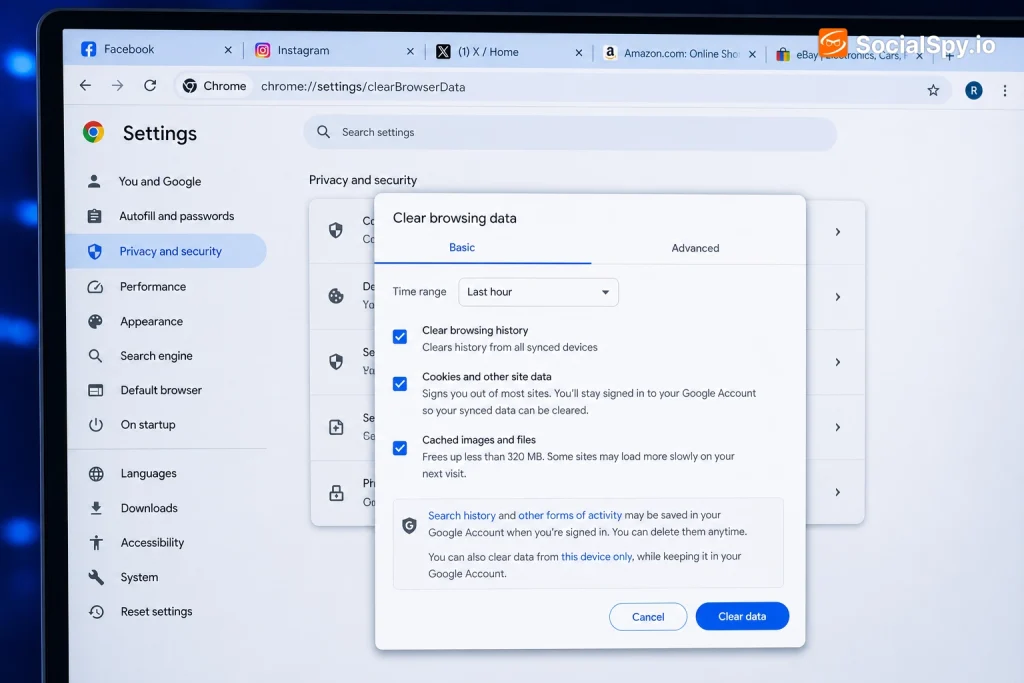
The classic tool, accessible via Settings > Privacy and Security > Clear browsing data, still matters. It lets you selectively wipe:
- Browsing history and download history
- Cookies and other site data
- Cached images and files
- Saved autofill form data
- Site settings and permissions
The time-range picker (last hour, 24 hours, 7 days, 4 weeks, or all time) is the detail most people skip — clearing “all time” cache on a browser that hasn’t been cleaned in years can reclaim several gigabytes on a heavily used profile.
Extensions Manager and “Manage Extensions” Warnings
Chrome now proactively flags extensions pulled from the Web Store for policy violations directly in `chrome://extensions`. If an extension you installed gets delisted for malware, data harvesting, or deceptive behavior, Chrome shows a red warning badge next to it — a feature that didn’t exist in earlier Chrome generations.
Third-Party Chrome Cleaners: What’s Worth Installing
Native tools cover the basics, but dedicated software still has a place — particularly for deep malware removal or cross-browser cleanup on shared or older machines.
| Tool | Best For | Cost (2026) |
|---|---|---|
| Malwarebytes AdwCleaner | Removing adware and browser hijackers | Free; Premium ~$44.99/year |
| CCleaner | Cache/junk file cleanup across the whole OS, not just Chrome | Free; Pro ~$29.95/year |
| Avast Cleanup Premium | Automated junk cleaning + extension audits | ~$39.99/year |
| HitmanPro | Second-opinion malware scanner for hijacked browsers | ~$29.95/year (1 PC) |
A few practical notes on this category:
- AdwCleaner is the closest spiritual successor to Google’s discontinued Chrome Cleanup Tool — it specifically targets potentially unwanted programs (PUPs) and browser-hijacking adware rather than general disk junk.
- CCleaner rebuilt significant trust after a well-documented 2017 supply-chain breach; current versions are code-signed and owned by Gen Digital (also behind Norton and Avast), but some IT admins still avoid it on principle.
- Avoid any Chrome extension that markets itself as a “Chrome Cleaner” or “Super Cleaner” directly from the Web Store — this category has repeatedly been a vector for the exact malware it claims to remove.
Red Flags: Fake and Scammy “Chrome Cleaner” Products
This is the part most articles gloss over, and it’s the most important section for actual safety. The phrase “Chrome Cleaner” is one of the most heavily exploited search terms in the browser-utility space.
Security teams at multiple antivirus vendors have repeatedly flagged pop-up ads reading “Your Chrome is infected — clean now” as fake scan results designed to trick users into installing actual malware.
Watch for these specific warning signs before downloading anything:
- A browser pop-up claiming to have “scanned” your device before you clicked anything — legitimate scanners never run without your explicit action.
- Chrome Web Store extensions with generic names like “Chrome Cleaner Pro” or “Super Chrome Optimizer” that have thousands of reviews but were published within the last few months.
- Download buttons on third-party sites (not the Chrome Web Store or the vendor’s own official domain) promising to “fix Chrome errors.”
- Software that requests full system access or admin rights just to clear a browser cache — that’s far more permission than the task requires.
- Free tools that pressure you into a “critical issues found — upgrade now” screen after the first scan, regardless of your actual system’s condition.
If you’re unsure whether a tool is legitimate, check whether it’s listed on AV-TEST or AV-Comparatives independent testing databases — both organizations publish regularly updated results on real antivirus and cleanup software, and scam tools almost never appear there.
Step-by-Step: A Real Chrome Cleanup Routine
Here’s the actual sequence worth running, in order, roughly once a month or whenever Chrome starts acting sluggish.
- Update Chrome first. Go to `chrome://settings/help` — an outdated version is often the root cause of both slowness and vulnerability.
- Run Safety Check. Let it complete all four scan categories before touching anything else.
- Audit extensions manually. Visit `chrome://extensions`, remove anything you don’t recognize or actively use — a good rule of thumb is if you can’t name what it does in one sentence, disable it.
- Clear browsing data with “All time” selected for cache and cookies, but leave passwords and autofill alone unless you’re troubleshooting a login issue specifically.
- Check `chrome://settings/resetProfileSettings` to fully reset Chrome to factory defaults if search engine or homepage hijacking is suspected.
- Restart Chrome and check Task Manager (`Shift+Esc` inside Chrome) to confirm memory usage has actually dropped.
For anyone managing multiple profiles or a shared family computer, doing this per-profile matters — Chrome cleanup settings don’t cascade across separate Google account profiles on the same device.
Chrome Cleaner vs. General PC Cleaners: Know the Difference
A common mistake is assuming a whole-system cleaner like CCleaner or a Mac-focused tool like CleanMyMac automatically fixes browser-specific problems. It doesn’t always.
- System cleaners target OS-level temp files, registry entries (Windows), and disk clutter — Chrome’s cache is just one folder among thousands they touch.
- Browser-specific cleaners dig into Chrome’s actual profile data: extension manifests, saved site permissions, DNS prefetch cache, and the SQLite databases behind autofill and history.
- Running only a system cleaner can miss a malicious extension entirely, since extensions aren’t “junk files” in the traditional sense — they’re user-authorized software running with real permissions.
This distinction matters most when troubleshooting symptoms like a hijacked new-tab page or search redirects, which are almost always extension or settings-level issues that a generic PC cleaner won’t touch.
Conclusion
The single biggest misconception about “Chrome Cleaner” tools is that you need to buy or download something to fix a slow, cluttered browser. In most cases in 2026, Chrome’s own Safety Check, extension warnings, and Clear Browsing Data tools handle the job Google engineers already built for exactly this purpose — for free, with no third-party permissions granted. Reach for dedicated tools like Malwarebytes AdwCleaner only when you suspect actual hijacking or adware that native tools aren’t catching, and treat any product marketing itself aggressively as a “Chrome Cleaner” — especially unfamiliar Web Store extensions — with real suspicion, since that exact phrase has become one of the most common lures in browser-targeted malware campaigns.
FAQ
For the vast majority of users, Chrome’s built-in Safety Check and Clear Browsing Data tools are enough to handle cache buildup, outdated extensions, and basic security scans without installing anything extra. Reach for third-party software only if you suspect a stubborn browser hijacker or adware infection that persists after a full reset of Chrome’s settings.
Many are not — this exact search term is heavily targeted by scam and adware developers who publish extensions with generic names like “Chrome Cleaner Pro” promising to fix problems your browser doesn’t actually have. Stick to well-established security vendors like Malwarebytes, and check independent testing sites like AV-TEST before installing any cleanup extension.
Yes, in many cases — clearing months or years of accumulated cache, cookies, and unused extensions can meaningfully reduce memory usage and startup time, especially on machines that haven’t had a cleanup in a long time. That said, if Chrome is still slow after a full cleanup, the bottleneck is more likely too many open tabs or insufficient RAM than leftover browser junk.