
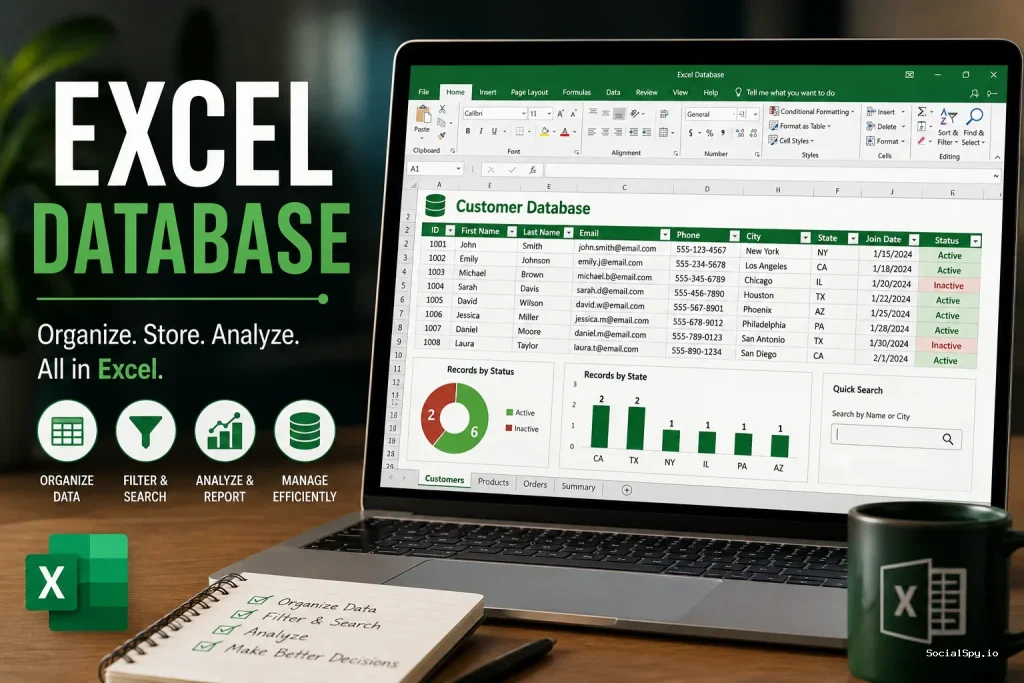
Millions of small businesses and departments inside Fortune 500 companies run their core operations on a spreadsheet they call “the database” — a workbook with thousands of rows, a dozen tabs, and a VLOOKUP formula someone wrote in 2019 that nobody dares touch. That informal system works surprisingly well for a while, right up until it doesn’t. This guide breaks down what an Excel database actually is, how to build one that won’t collapse under its own weight, and when it’s time to graduate to something else.
What People Actually Mean By “Excel Database”
Excel was never designed to be a database management system. Microsoft Access, SQL Server, and PostgreSQL are database engines; Excel is a calculation and visualization tool. But because nearly everyone already has Excel open, businesses have used it as a de facto database for decades — and Microsoft has quietly added features that make that use case far more viable than it used to be.
When people say “Excel database” today, they usually mean one of three things.
- A flat-file record store — a single sheet where each row is a record (a customer, an invoice, an inventory item) and each column is a field.
- A relational-style workbook — multiple sheets linked by a shared key (like a Customer ID), mimicking foreign-key relationships without enforcing them.
- A Power Query/Power Pivot data model — a more genuine analytical database built inside Excel using its business intelligence engine, which behaves much closer to an actual relational database.
Industry data-management surveys consistently find that over 50% of small and mid-sized businesses still rely on spreadsheets as their primary system of record for at least one core business function, even when a proper database tool is available.
Understanding which of these three you’re building — or which one you’ve accidentally built — determines almost everything about how stable, fast, and safe your data will be.
Building an Excel Database That Doesn’t Fall Apart
The single biggest mistake people make is treating a plain range of cells as a database. The fix is Excel’s Tables feature (Insert > Table, or Ctrl+T), which converts a static range into a structured object with real database behavior.
Once a range becomes a Table, Excel automatically extends formulas and formatting to new rows, applies structured references (like `Customers[Email]` instead of `C2:C500`), and enables built-in filtering and sorting per column. This alone eliminates the majority of “my formula broke when I added a row” support tickets.
Rules for a Clean Record Structure
Before entering a single row of real data, lock in these structural rules:
- One header row, no merged cells — merged cells break sorting, filtering, and nearly every lookup formula.
- One record per row — never split a single customer or transaction across two rows for formatting convenience.
- Atomic fields — store “first name” and “last name” separately rather than combining them, and keep phone numbers, dates, and IDs in consistent formats.
- A true unique key — every table needs an ID column (invoice number, SKU, employee ID) that never repeats, or lookups will silently return the wrong row.
- No blank rows or columns inside the range — a single blank row can quietly split your Table in two without warning.
If your source data arrives messy — names crammed into one column, addresses jammed with commas, product codes buried inside descriptions — Excel’s newer text functions solve that without VBA or manual find-and-replace. Excel Textsplit in particular has become the standard way to break combined fields into clean, atomic columns before they ever enter your database structure, which is exactly the kind of upfront cleanup that prevents years of downstream lookup errors.
Formulas That Turn a Sheet Into a Real Database
A spreadsheet only earns the label “database” once you can query it — filter, join, and aggregate records on demand. Five formulas do almost all of that heavy lifting in modern Excel.
| Formula | What It Replaces | Why It Matters |
|---|---|---|
| XLOOKUP | VLOOKUP, HLOOKUP | Searches left or right, handles missing values gracefully, no column-counting errors |
| INDEX/MATCH | Nested VLOOKUPs | Faster on huge datasets, works with multi-criteria matches |
| FILTER | Manual AutoFilter + copy/paste | Returns a dynamic, live array of matching records that updates automatically |
| SUMIFS/COUNTIFS | Manual subtotaling | Aggregates records by multiple conditions in one formula |
| UNIQUE | Remove Duplicates tool | Pulls a live list of distinct values (e.g., unique customer regions) without altering source data |
XLOOKUP deserves special attention because it fixed a genuine structural flaw. Classic VLOOKUP could only search left-to-right and broke the moment someone inserted a new column. XLOOKUP searches in either direction, defaults to an exact match instead of Excel’s dangerously permissive approximate match, and lets you specify a custom “not found” message instead of returning a cryptic `#N/A` error across a client-facing report.
For anything involving multiple conditions — say, flagging overdue invoices only for customers in a specific region above a certain balance — you’ll lean on logical formulas layered together. This is exactly where If and Formula in Excel logic becomes the backbone of database-style querying, letting you combine AND/OR conditions inside an IF statement to classify records without writing a single line of code. Once records are classified, Sum Formula in Excel techniques (particularly SUMIFS) handle the aggregation side, rolling thousands of transaction rows into the totals a manager actually needs to see.
Power Query and Power Pivot: The Real Upgrade Path
Here’s what most casual Excel users don’t know: Excel has shipped with a genuine, in-memory database engine since Excel 2016, and it’s free. It’s called Power Pivot, and its data-import companion is Power Query.
Power Query (Data > Get & Transform) lets you connect to messy source files — CSVs, folders full of exports, SharePoint lists, even a SQL database — and build a repeatable, step-recorded cleaning pipeline. Unlike manual cleanup, every transformation is logged, so refreshing the query re-runs the entire process automatically when new data arrives next month.
Power Pivot takes it further by letting you load multiple Tables into a relational data model inside the same workbook, complete with actual foreign-key relationships between tables — something a flat spreadsheet database can never truly enforce.
- Handles millions of rows — Power Pivot’s compression engine (VertiPaq) can hold far more data in memory than a normal worksheet can display.
- Supports DAX formulas — a formula language borrowed from SQL Server Analysis Services, enabling things like rolling 12-month averages across related tables.
- Refreshable connections — reconnect to source data and rebuild the entire report with one click instead of copy-pasting new exports every week.
- No coding required to start — the interface is menu-driven, though DAX itself has a learning curve comparable to learning basic SQL.
This is genuinely the closest Excel gets to being a real database, and it’s why large companies still build entire financial reporting systems inside Power Pivot models rather than migrating to a dedicated BI tool immediately.
Excel Database vs. Real Databases
Excel’s limits become obvious the moment more than one person needs to edit the same records simultaneously, or the record count climbs into six figures. Here’s how it stacks up against the tools people typically migrate to.
| Feature | Excel Database | Microsoft Access | Airtable | SQL Server / PostgreSQL |
|---|---|---|---|---|
| Max practical rows | ~100,000–250,000 before slowdown | ~2 million per table | ~500,000 per base (paid tiers) | Billions |
| Multi-user editing | Weak (co-authoring conflicts) | Limited, file-locking issues | Strong, real-time | Strong, built for concurrency |
| Referential integrity | None (manual key matching only) | Yes, enforced | Partial (linked records) | Yes, enforced with constraints |
| Learning curve | Low | Medium | Low-Medium | High |
| Cost | Included with Microsoft 365 | Included with some 365 plans | Free tier, paid from ~$20/user/mo | Free (open source) to enterprise licensing |
| Best for | Reporting, small teams, analysis | Desktop apps, forms | Team workflows, no-code apps | Production systems, large-scale data |
The practical takeaway: Excel is excellent as a reporting and analysis layer sitting on top of data, but risky as the system of record once multiple people are editing live, overlapping data at once. A shared workbook on OneDrive can technically support co-authoring, but two people editing the same row simultaneously still produces conflicts that a real database’s transaction logging simply prevents.
Keeping an Excel Database Clean and Auditable
Even a well-structured Excel database degrades over time if nobody enforces hygiene. A few habits separate workbooks that last five years from ones that get scrapped after five months.
Data Validation and Visual Flags
Use Data > Data Validation to restrict entry in key columns — dropdown lists for status fields, date-only cells for due dates, and whole-number constraints for quantities. This stops “Pending”, “pending”, and “PENDING ” (with a trailing space) from becoming three different values in your reports.
Pair validation with visual auditing. How to Do Conditional Formatting in Excel rules can automatically highlight duplicate IDs, overdue dates, or values that fall outside an expected range — turning a 20,000-row sheet into something a human can actually scan for errors in seconds rather than hours.
A Practical Maintenance Checklist
- Freeze the header row (View > Freeze Panes) so column meaning never gets lost while scrolling.
- Lock formula cells and unlock only data-entry cells, then protect the sheet, so calculated columns can’t be accidentally overwritten.
- Version your saves deliberately rather than relying only on AutoSave overwriting the same file — a quick habit built on Excel Keyboard Shortcuts Save As makes it painless to snapshot a workbook before a risky bulk edit.
- Audit for orphaned keys periodically — IDs referenced in one sheet that no longer exist in the master list, the spreadsheet equivalent of a broken foreign key.
- Document field definitions in a dedicated “Data Dictionary” tab so new team members don’t guess what a column named “Status_2” means.
None of these steps require add-ins or coding. They just require treating the workbook with the same discipline you’d apply to an actual database schema, which is precisely the mental shift that keeps an Excel-based system usable long-term instead of becoming unmanageable clutter.
When to Finally Migrate Off Excel
There’s a specific set of warning signs that indicate a workbook has outgrown its role as a database, regardless of how well it’s structured.
- Formulas take more than a few seconds to recalculate after every edit.
- More than 3-4 people need to edit the same dataset at the same time on a regular basis.
- You’ve started building VBA macros just to prevent people from breaking the structure.
- Reports require pulling data from outside sources (a CRM, a payment processor, a warehouse system) more than once a week.
- The file size has crept past roughly 50-100MB, and file-open times have become a running office joke.
Hitting two or more of these usually means it’s time to move core data into Access, Airtable, or a proper SQL-backed application, while keeping Excel as the analysis and visualization front-end — a role it will always excel at, connecting live to that external data through Power Query rather than storing the master copy itself.
Conclusion
Excel makes a genuinely capable lightweight database for small teams, low-concurrency use cases, and datasets under roughly a quarter-million rows — but only when it’s built deliberately with Tables, enforced keys, and modern lookup formulas rather than assembled ad hoc over years of copy-paste edits. The tools that turn a plain spreadsheet into something database-like — XLOOKUP, FILTER, SUMIFS, Power Query, and Power Pivot — are already sitting inside every Microsoft 365 subscription, so the barrier to doing this properly is knowledge, not cost. The moment concurrent editing, referential integrity, or dataset size becomes a real problem, the smart move isn’t abandoning Excel entirely, but demoting it from system of record to what it does best: the fast, flexible reporting layer sitting on top of a database that’s actually built for the job.
FAQ
Yes — a well-structured Excel Table with proper unique keys and modern lookup formulas like XLOOKUP handles tens of thousands of records without issue, and Power Pivot extends that comfortably into the millions since it uses a compressed in-memory engine rather than rendering every row on a worksheet.
Access is an actual relational database management system with enforced referential integrity, proper multi-user locking, and a query engine built for concurrency, while Excel simulates database behavior through formulas and Tables without enforcing any of those relationships automatically — meaning Excel is faster to start with but far easier to accidentally corrupt.
Not immediately — a clean Table with XLOOKUP, SUMIFS, and data validation covers most small business needs — but once you’re combining multiple related tables, refreshing data from outside sources regularly, or working with six-figure row counts, Power Query and Power Pivot stop being optional and become the difference between a workbook that stays fast and one that grinds to a halt.



