The letters and numbers on the back of an iPad don’t tell most people much of anything, and Apple hasn’t printed a friendly product name on the case since the very first models. That leaves a lot of iPad owners guessing when a repair shop, a trade-in site, or an app’s system requirements page asks exactly which iPad they own.
Why “Which iPad Do I Have” Is Trickier Than It Sounds
Apple has sold roughly 40 distinct iPad models since 2010 across four product lines: the base iPad, iPad Air, iPad mini, and iPad Pro. Several generations reuse similar body designs, screen sizes, and even names, so visually telling a 9th-generation iPad from an 8th-generation one is nearly impossible at a glance.
The confusion gets worse because Apple frequently keeps older models on sale as budget options even after newer ones launch. As of 2026, for example, Apple still sells a previous-generation iPad alongside its current flagship to hit a lower price point — meaning two iPads with the same screen size and similar branding can differ by two or three years of hardware.
- Multiple generations share nearly identical exterior designs
- Apple removed printed model names from the back of newer iPads
- Storage, cellular, and Wi-Fi-only variants all get separate model numbers
- Refurbished and secondhand markets mix generations freely
Knowing your exact model matters for more than trivia — it determines which iPadOS updates you’ll get, which Apple Pencil works with your device, and how much a trade-in company will actually pay you.
Method 1: Check Settings (The Fastest, Most Reliable Way)
This is the method Apple itself recommends, and it works on every iPad running iOS software back to the very first units.
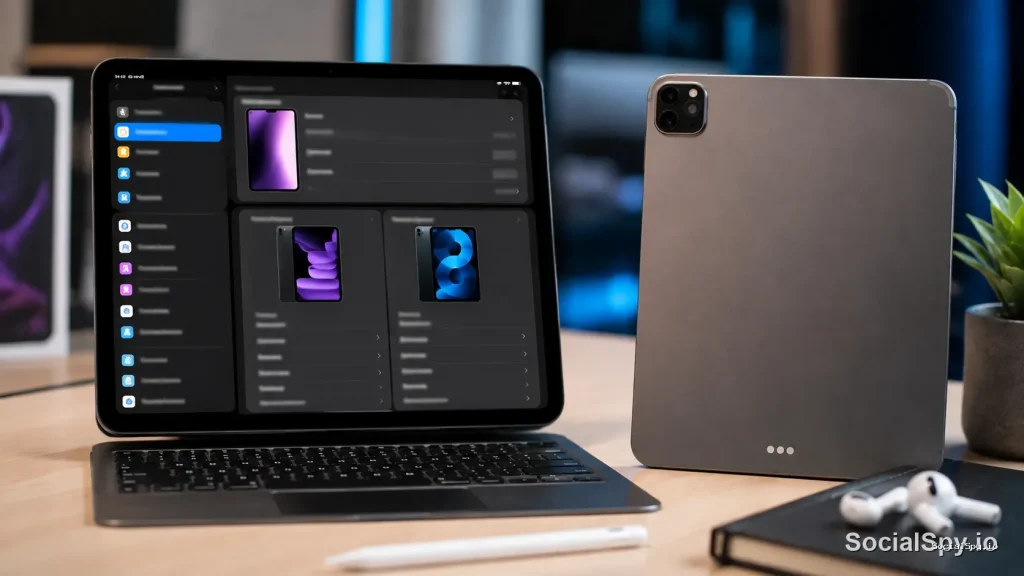
- Open the Settings app
- Tap General
- Tap About
- Look at the Model Name field — this gives you a human-readable answer like “iPad Pro 12.9-inch (6th generation)”
- Scroll down slightly to see the Model Number, which starts with a letter (usually “A”) followed by four digits
The Model Name field is genuinely all most people need. It literally spells out the generation, and if it’s an iPad Pro or Air, it also tells you the screen size.
Where it gets trickier is when the Model Name is vague or you need to distinguish between a Wi-Fi and cellular version. That’s where the Model Number becomes essential, since it’s the one identifier Apple never duplicates across configurations. A full walkthrough with screenshots for people who prefer visual steps is available in this guide on how to check which iPad you have, which is handy if Settings isn’t loading or your iPad is stuck on a lock screen.
Method 2: Check the Physical Engraving
If the iPad won’t turn on, or you’re evaluating one you’re about to buy secondhand, you’ll need to look at the hardware itself. Apple engraves the model number on the back of most iPads, though the exact placement has shifted over the years.
Where to look depending on age
- iPads from 2010–2017: full text engraved on the back, including “iPad” and sometimes storage/capacity
- iPads from 2018 onward: a much smaller model number etched near the bottom edge, often requiring a flashlight and reading glasses to see
- Cellular models: an additional regulatory model number and IMEI may be printed nearby
The engraved number is usually formatted like “Model A2270” — note that down, then cross-reference it in the next section. If the engraving has worn off (common on older iPads that lived in cases for a decade), the SIM tray on cellular models sometimes has a duplicate.
Method 3: Match the Model Number to a Real Generation
This is the step people get stuck on, because Apple’s model numbers aren’t sequential or intuitive. A2270 doesn’t obviously mean “iPad Pro 11-inch, 2nd generation” unless you look it up.
Here’s a snapshot of the identifiers for popular recent-era iPads to give you a sense of how the system works:
| Model Numbers | Device | Released |
|---|---|---|
| A2757, A2777 | iPad (10th generation) | 2022 |
| A2696, A2727, A2777 | iPad Air (5th generation) | 2022 |
| A2589, A2590 | iPad Pro 12.9-inch (6th generation) | 2022 |
| A2567, A2568 | iPad Pro 11-inch (4th generation) | 2022 |
| A2653, A2654, A2696 | iPad mini (6th generation) | 2021 |
| A2836, A2837 | iPad Air 11-inch (M2) | 2024 |
| A2925, A2926 | iPad Pro 13-inch (M4) | 2024 |
Apple maintains the definitive, constantly updated version of this list on its support site under “Identify your iPad model.” It’s the single most reliable source because Apple updates it every time a new SKU ships, including region-specific variants that sometimes get their own number.
A quick trick if you don’t want to dig through a spreadsheet: type your model number directly into a search engine along with “iPad.” Because these numbers are unique per configuration, the first result almost always confirms the exact device.
Method 4: Use the Serial Number for Even More Detail
The Model Number tells you the generation and screen size, but the Serial Number unlocks manufacturing and warranty specifics — useful if you’re buying used or trying to confirm a repair history.
You’ll find it in the same Settings > General > About screen, or engraved alongside the model number on the back.
Once you have it, here’s what you can check:
- Apple’s Check Coverage tool: confirms remaining AppleCare warranty and repair eligibility
- Purchase date estimate: the serial number encodes manufacturing week/year, which helps estimate age even without a receipt
- Activation lock status: sellers can use this to prove a device isn’t still tied to someone else’s Apple ID before you buy it
- Genuine parts verification: repair shops use it to confirm the screen or battery hasn’t been swapped with non-original components
If Settings isn’t accessible because the screen is cracked or the device won’t boot, connect the iPad to a Mac or PC — Finder (or iTunes on older Windows machines) displays the serial number the moment it’s recognized.
Why This Actually Matters: Real Consequences of Not Knowing
Knowing your exact iPad isn’t just satisfying curiosity — it has practical, sometimes costly implications.
Software support cutoffs
Apple typically supports iPads with major iPadOS updates for five to seven years after release. As of 2026, iPadOS 26 runs on iPads going back to certain 2018-era models, while iPadOS 27 (expected this fall) will likely drop support for a few of the oldest devices still receiving updates. If you don’t know your generation, you won’t know if you’re about to lose security patches.
Accessory compatibility
Apple Pencil compatibility is notoriously generation-specific:
- Apple Pencil (1st generation): works with iPads that charge it via Lightning port or adapter
- Apple Pencil (2nd generation): attaches magnetically, requires specific Pro and Air models
- Apple Pencil Pro: only works with the newest iPad Pro and iPad Air models with the right internal hardware
- USB-C Apple Pencil: a budget option tied to iPads with USB-C ports, launched in 2023
Buying the wrong Pencil because you guessed your iPad generation wrong is one of the most common return reasons Apple Store employees report.
Trade-in and resale value
Trade-in programs like Apple Trade In, Gazelle, and Decluttr price offers strictly by exact model, storage size, and connectivity. Two visually identical 11-inch iPad Pros — one Wi-Fi-only, one cellular — can have a resale gap of $60 to $120, and misidentifying which one you have will either shortchange you or get your offer revised downward after inspection.
Conclusion
The fastest and most trustworthy path to identifying your iPad is always the Settings app — Model Name for a plain answer, Model Number for precision. Everything else, from physical engravings to serial number lookups, exists as a backup for the cases where software access isn’t an option, like a dead battery or a device you’re inspecting before purchase. Once you know exactly what you’re holding, every downstream decision — which charger to buy, whether an update is coming, what a trade-in is actually worth — gets a lot less guesswork attached to it.
FAQ
Flip the iPad over and look for the engraved model number near the bottom edge, usually in tiny text. If it’s too worn or too small to read, connect the iPad to a computer with a USB cable — Finder on a Mac or iTunes on Windows will display the device name and often the model information even if the screen itself is dark.
The path is identical across every iPad still capable of running iOS/iPadOS software: Settings, then General, then About. The only real difference is cosmetic — older iPadOS versions have a slightly different Settings icon layout, but the About menu structure has stayed consistent for well over a decade.
No, they serve different purposes. The model number (like A2696) identifies which specific iPad configuration you own — generation, size, and connectivity — while the serial number is a unique identifier for your individual physical unit, used for warranty checks, activation lock verification, and manufacturing date estimates.