
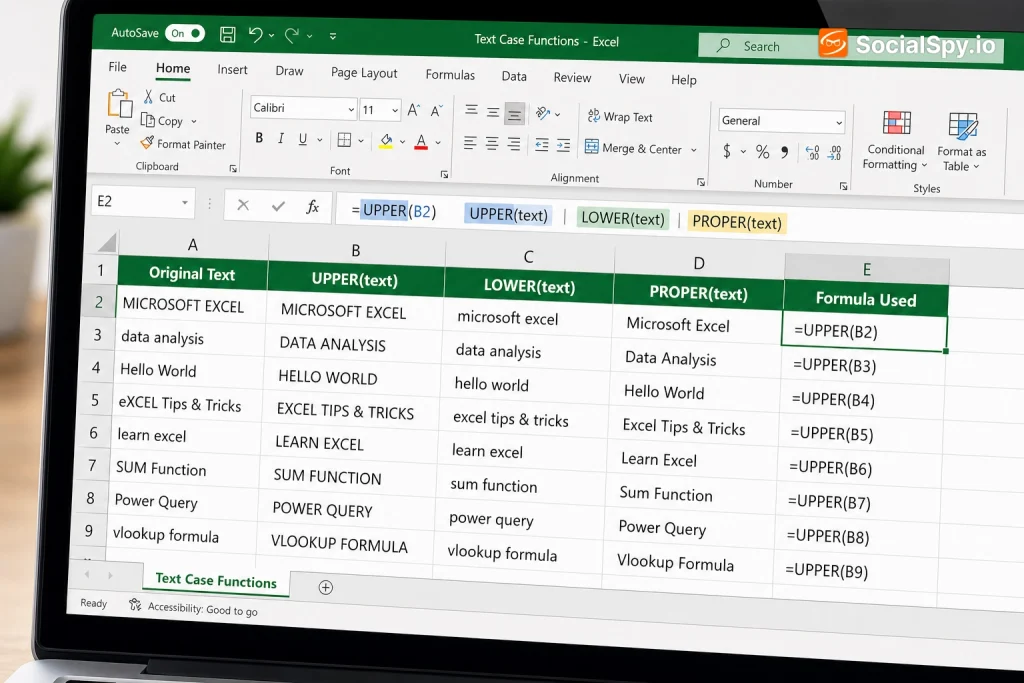
Excel has never had a dedicated “change case” button sitting on the ribbon, and that single missing feature has confused spreadsheet users for decades. Whether you inherited a sloppy customer list in ALL CAPS or need to fix a column of names typed in lowercase, the fix is simple once you know where Excel actually hides this functionality.
Why Excel Doesn’t Have a Simple Case Button
Microsoft Word has had a Change Case button since the 1990s, sitting right on the Home tab. Excel never got the equivalent, and there’s a practical reason for it.
Spreadsheets treat text as data, not prose. Word documents are edited character-by-character, but Excel cells are meant to be calculated, referenced, and transformed through formulas.
Microsoft’s design philosophy leaned on functions instead of a toggle button because functions:
- Can be applied to thousands of rows instantly through a single formula
- Recalculate automatically if the source data changes
- Can be combined with other operations, like trimming spaces or joining columns
- Keep an audit trail — you can see exactly what transformation happened
The tradeoff is that new users expect a button and instead find themselves needing a small formula toolkit. Once you learn the three core functions, though, case conversion in Excel actually becomes more flexible than what Word offers.
The Three Core Case Functions
Excel’s text-case toolkit centers on three functions, and they cover nearly every scenario you’ll run into.
UPPER, LOWER, and PROPER
| Function | What It Does | Example Input | Output |
|---|---|---|---|
| =UPPER(text) | Converts all characters to capital letters | jane doe | JANE DOE |
| =LOWER(text) | Converts all characters to lowercase | JANE DOE | jane doe |
| =PROPER(text) | Capitalizes the first letter of each word | jane doe | Jane Doe |
Here’s how you’d actually use one. Say your names are in column A, starting at A2.
- Click cell B2 and type =PROPER(A2)
- Press Enter to see the converted result
- Click B2 again, then drag the fill handle (the small square at the bottom-right corner) down through the rest of your data
- Excel will auto-adjust the formula for each row, converting the entire column in seconds
A common mistake is assuming PROPER() understands names the way a human would. It doesn’t — “McDonald” becomes “Mcdonald,” and “O’Brien” becomes “O’brien,” because PROPER() only capitalizes letters immediately after spaces, not after apostrophes or mid-word capitals.
That limitation matters more than people expect, especially with customer databases full of Irish, Scottish, and Dutch surnames (McCarthy, O’Neill, van der Berg). For those edge cases, you’ll need manual correction or a more advanced formula using SUBSTITUTE() and nested logic, since Excel has no native “smart capitalization” setting.
Step-by-Step: Converting a Whole Column
The formula approach always follows the same basic pattern, whether you’re fixing 20 rows or 20,000. Here’s the complete workflow from start to finish.
- Insert a helper column next to your existing data — right-click the column header and choose “Insert”
- Write the formula in the first empty cell, referencing the original text cell (e.g., =UPPER(A2))
- Copy the formula down the entire column using the fill handle or by selecting the range and pressing Ctrl+D
- Select the new column of converted results and press Ctrl+C to copy
- Right-click the original column and choose “Paste Special,” then select “Values” — this locks in the text instead of leaving it as a live formula
- Delete the helper column and the original formulas, since you now have static, converted text
That Paste Special step trips people up constantly. If you skip it and just delete the original column, every formula in your helper column breaks because it was referencing cells that no longer exist. This same paste-values habit comes up in plenty of other Excel workflows too — it’s the same core skill covered in a guide on how to properly copy formulas in Excel without breaking cell references.
Combining Case Conversion With Other Text Tasks
Case functions rarely work alone in real spreadsheets. They usually get nested inside bigger formulas that clean, merge, or reformat data in a single pass.
Cleaning and Merging in One Step
A frequent real-world task is merging a first and last name column while fixing inconsistent capitalization at the same time. Instead of doing two separate operations, nest PROPER() around a concatenation:
=PROPER(A2&” “&B2)
This grabs the first name, adds a space, adds the last name, and capitalizes the whole result correctly — all in one formula. If you’re regularly merging columns like this, it’s worth studying the different techniques covered in combining text from two cells in Excel, since concatenation habits and case-conversion habits tend to overlap in the same cleanup workflows.
Trimming Whitespace First
Imported data — especially from CSV exports or web scrapes — often has extra spaces before or after text. Case functions don’t remove those spaces, so wrap TRIM() around your formula:
=PROPER(TRIM(A2))
- TRIM() removes leading, trailing, and duplicate internal spaces
- PROPER() then capitalizes what’s left
- Nesting them prevents a second cleanup pass later
Fixing Mixed Case With SUBSTITUTE
For the McDonald/O’Brien problem mentioned earlier, some Excel users build a workaround using SUBSTITUTE() to manually re-capitalize the letter after an apostrophe. It’s clunky, but for a one-time cleanup of a few dozen names, it’s often faster than writing VBA:
=SUBSTITUTE(PROPER(A2),”‘S”,”‘s”)
This specific example fixes possessive apostrophes that PROPER() incorrectly capitalizes (turning “Company’S” back into “Company’s”).
Faster Alternatives to Formulas
Formulas are the standard method, but they’re not the only one — and for certain situations, they’re not even the fastest.
Option 1: Route Through Microsoft Word
Word’s built-in Change Case button (Shift+F3 cycles through cases, or use the Aa dropdown on the Home tab) can handle a quick conversion without writing any formula at all.
- Copy your Excel data
- Paste it into a blank Word document as unformatted text
- Select all the text and press Shift+F3 to cycle through UPPERCASE, lowercase, and Title Case
- Copy the corrected text back into Excel
This works well for a single column of names or titles, but it becomes tedious for multi-column datasets since Word doesn’t preserve Excel’s grid structure well.
Option 2: Power Query
Power Query (found under the Data tab as “Get & Transform”) has native case-transformation buttons, no formula required.
- Select your data and choose From Table/Range to load it into Power Query
- Right-click the column header, choose Transform, then pick Capitalize Each Word, UPPERCASE, or lowercase
- Click Close & Load to send the cleaned data back into your worksheet
Power Query is worth learning if you regularly import messy data, because it remembers every transformation step and reapplies them automatically the next time you refresh the data source — something formulas can’t do on their own.
Option 3: A Simple VBA Macro
For power users who convert case constantly, a short macro eliminates the helper-column dance entirely:
Sub ChangeCase() Dim cell As Range For Each cell In Selection cell.Value = UCase(cell.Value) Next cell End Sub
Swap UCase for LCase or StrConv(cell.Value, vbProperCase) to get lowercase or title case instead. Once saved, this can be assigned to a keyboard shortcut or a Quick Access Toolbar button, effectively giving Excel the one-click case button Microsoft never built in.
Common Mistakes and How to Avoid Them
Most case-conversion headaches come from a small handful of repeatable errors. Knowing them ahead of time saves a lot of troubleshooting.
- Forgetting Paste Special > Values: Deleting source columns while formulas are still live breaks everything downstream — always convert to static values first.
- Assuming PROPER() handles acronyms correctly: “NASA” becomes “Nasa,” and “USA” becomes “Usa,” since PROPER() has no concept of recognized abbreviations.
- Not accounting for numbers mixed with text: A cell like “invoice 42a” becomes “Invoice 42a,” not “Invoice 42A,” because PROPER() only looks at what follows a space, not letter-number boundaries.
- Applying case functions to formulas instead of static data: If A2 already contains a formula, wrapping it in UPPER() works fine, but it multiplies calculation overhead across huge sheets — flatten to values when performance matters.
- Ignoring locale-specific characters: Accented letters (é, ñ, ü) usually convert correctly in modern Excel (Excel 2016 and later on Microsoft 365), but older file formats like legacy .xls can behave inconsistently.
Data hygiene tasks like this tend to get skipped until a dataset causes a visible problem — a failed VLOOKUP, a rejected mail merge, a mismatched customer record. Building case-cleaning into your import routine from day one avoids that scramble later.
This kind of “do it right from the start” thinking matters well beyond spreadsheets, too — the same instinct that tells you to normalize your data early is the same instinct behind good habits like knowing how often you should actually change your passwords instead of waiting for a breach to force the issue.
When to Use Each Method
Not every situation calls for the same tool. Here’s a quick decision guide based on dataset size and how often you’ll repeat the task.
| Situation | Best Method |
|---|---|
| One-time fix, under 100 rows | UPPER/LOWER/PROPER formula + Paste Special |
| Recurring imports from the same source | Power Query with saved transformation steps |
| Quick single-column cleanup, no formulas wanted | Copy into Word, use Shift+F3 |
| Frequent case conversion across many workbooks | VBA macro with a custom shortcut |
| Need to preserve acronyms/special capitalization | Formula combined with SUBSTITUTE(), or manual review |
Choosing wrong isn’t catastrophic, but it does cost time. Writing a VBA macro for a single 15-row list is overkill, while manually retyping a 5,000-row customer list because you didn’t know PROPER() existed wastes an entire afternoon.
Conclusion
Excel’s lack of a dedicated case-change button looks like an oversight, but it actually pushes you toward more powerful, repeatable habits than a simple toggle ever would. Once UPPER(), LOWER(), and PROPER() become muscle memory, cleaning up inconsistent text takes seconds instead of manual retyping. For anyone handling recurring messy imports, pairing those formulas with Power Query or a lightweight VBA macro turns a recurring annoyance into a one-time setup.
FAQ
No, Excel has never included a native case-change button on its ribbon. Instead, you achieve the same result using the UPPER(), LOWER(), and PROPER() functions, or by routing data through Word, Power Query, or a VBA macro.
PROPER() only capitalizes the letter immediately following a space, so it doesn’t recognize special capitalization rules for names with internal capitals like “McDonald” or apostrophes like “O’Brien.” Fixing these requires manual correction or a nested formula using SUBSTITUTE() to re-capitalize specific letters.
Copy the cells containing your case-conversion formula, then right-click the destination and choose “Paste Special,” selecting “Values” from the options. This locks in the converted text so you can safely delete the original data or helper column without breaking anything.



