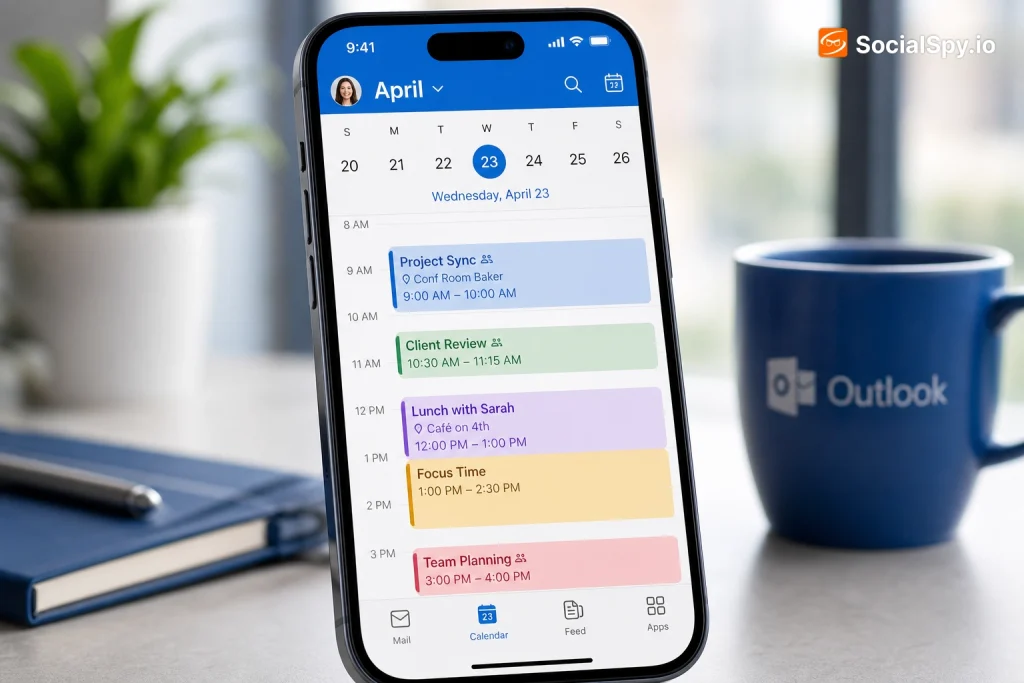
Juggling two calendars is how meetings get missed. If your work life lives in Microsoft Outlook and your personal life lives on your iPhone, you need those two systems talking to each other in real time, not just occasionally syncing when you remember to open an app.
Why This Actually Matters (And Where People Get Confused)
There are two completely different “Outlook” things on iPhone, and conflating them is the number one reason people think syncing is broken. There’s the Outlook app (a full email/calendar client Microsoft makes for iOS), and there’s the built-in iOS Calendar app that ships with every iPhone. You can sync your Outlook calendar into either one, or both, and they behave differently.
- Native iOS Calendar sync uses Microsoft’s Exchange ActiveSync (EAS) protocol under the hood, even for personal Outlook.com accounts.
- Outlook app sync keeps everything inside Microsoft’s own ecosystem and doesn’t touch the native Calendar app unless you enable it separately.
- Microsoft 365 work/school accounts sometimes require your IT admin to approve mobile device access before sync will even start.
Industry support forums consistently show that the single most common sync complaint isn’t a bug — it’s users editing events in one app while assuming changes will instantly appear in the other, when there’s actually a short propagation delay of anywhere from a few seconds to a few minutes.
Understanding which path you’re on determines which troubleshooting steps apply later, so it’s worth deciding upfront whether you want a lightweight native integration or the full Outlook app experience.
Method 1: Add Outlook Directly to iPhone’s Native Calendar App
This is the cleanest option if you just want your meetings showing up alongside Reminders, Siri suggestions, and widgets without installing a separate app. It works for both personal Outlook.com/Hotmail/Live accounts and most Microsoft 365 business accounts.
- Open Settings on your iPhone.
- Scroll down and tap Calendar, then tap Accounts.
- Tap Add Account, then select Outlook.com from the list.
- Sign in with your Microsoft email and password (complete two-factor authentication if prompted).
- On the toggle screen, make sure Calendars is switched on — you can leave Mail, Contacts, and Reminders off if you only want the calendar.
- Tap Save, then return to the Calendar app; your Outlook events should populate within a minute or two.
This method uses Apple’s native rendering, so events show up with the same look as your iCloud or Google calendars, color-coded and merged into one unified “Day,” “Week,” and “Month” view. It’s also the most battery-efficient option since it’s a lightweight background sync rather than a full app running push notifications and a separate UI layer.
When Native Sync Doesn’t Work
Some corporate Microsoft 365 tenants block EAS connections from personal devices as a security policy, especially in regulated industries like finance or healthcare. If your account keeps failing verification even with the correct password, that’s usually the cause — and no amount of retrying will fix it without your IT department whitelisting the connection or issuing a mobile device management (MDM) profile.
Method 2: Use the Microsoft Outlook App for iOS
If you’re already living inside the Outlook app for email, it makes sense to manage your calendar there too. The app has been steadily gaining features throughout 2026, including AI-generated meeting summaries and a “Time to Leave” travel alert that native iOS Calendar doesn’t offer.
Here’s how to get it running:
- Download Microsoft Outlook from the App Store (it’s free, with an optional Microsoft 365 subscription for premium features).
- Sign in with your Microsoft work, school, or personal account.
- Tap the Calendar icon at the bottom of the screen to confirm events are pulling in correctly.
- Go to Settings (tap your profile picture, then the gear icon) and scroll to Calendar.
- Toggle on Sync Contacts and Sync Calendars with iPhone if you also want events mirrored into the native Apple Calendar app.
That last toggle is the key one people miss — without it, your events stay siloed inside Outlook and never touch widgets, Siri, or CarPlay’s default calendar display.
Native Calendar vs. Outlook App: Quick Comparison
| Feature | Native iOS Calendar | Outlook App |
|---|---|---|
| Siri & widget support | Full support | Limited without dual-sync |
| Meeting AI summaries | Not available | Available |
| Battery/background usage | Low | Moderate to higher |
| Works offline | Yes | Yes, with delayed sync |
| Best for | Simplicity, native feel | Power users, heavy email/calendar overlap |
Fixing Common Sync Problems
Sync issues almost always trace back to one of a handful of root causes. Before assuming something’s fundamentally broken, run through this checklist.
- Check your internet connection. EAS sync requires either Wi-Fi or cellular data; Airplane Mode or a weak signal will silently delay updates.
- Verify Background App Refresh is on for Outlook (Settings > General > Background App Refresh) — if it’s off, the app only syncs when actively opened.
- Confirm Fetch New Data settings. Go to Settings > Mail > Accounts > Fetch New Data and make sure Push is enabled for your Microsoft account rather than a manual fetch interval.
- Remove and re-add the account if events are duplicating or stuck — this forces a full resync rather than a partial one.
- Check date/time zone settings on the iPhone (Settings > General > Date & Time) since mismatched time zones are a classic cause of events appearing an hour or more off.
- Update iOS and the Outlook app. Microsoft and Apple both regularly patch calendar sync bugs, and running outdated software is a frequent culprit reported in support communities throughout 2026.
If duplicates keep appearing specifically after adding the same account twice (once via native settings, once via the Outlook app with dual-sync enabled), that’s expected behavior — you’ll need to pick one sync path per calendar to avoid doubled entries showing up in Apple’s Calendar app.
Syncing Shared Calendars, Invites, and Multiple Accounts
Most people don’t just have one Outlook calendar — there’s often a personal one, a work one, and maybe a shared team calendar for family or a small business. iPhone can handle several simultaneously, but each needs to be added separately.
- Repeat the Settings > Calendar > Accounts > Add Account steps for each additional Outlook or Microsoft 365 account you use.
- Shared or delegated calendars (common in corporate Outlook setups where an assistant manages an executive’s schedule) typically require the calendar owner to grant “Reviewer” or “Editor” permission in Outlook on the web first, before it will appear on iPhone.
- Meeting invites sent via Outlook will show up as native iOS notifications once synced, letting you accept, decline, or tentatively respond right from the lock screen.
- Color-coding: iOS assigns a distinct color per account automatically, but you can customize this under Settings > Calendar > Accounts > [Account] > Calendar Color.
A subtle but useful detail: recurring meeting series edited on the desktop version of Outlook (say, changing a weekly Monday meeting to biweekly) can take up to 15 minutes to fully propagate to iPhone, since Exchange processes recurrence changes as a batch rather than instantly.
For anyone managing calendars across a large team, this multi-account approach becomes essential — layering personal, work, and shared calendars into one glanceable view is genuinely one of the more underrated productivity upgrades iOS offers.
Getting the Most Out of the Sync Once It’s Working
Once your calendars are actually talking to each other, a few extra settings make daily use noticeably smoother. These aren’t strictly required for syncing, but they’re what separates a functional setup from a great one.
- Enable Time Zone Override (Settings > Calendar) if you travel frequently, so meeting times don’t silently shift when you land somewhere new.
- Turn on Default Alert Times for both Events and All-Day Events so imported Outlook meetings inherit consistent reminder timing.
- Use the Search tab in Calendar to quickly find synced Outlook events by attendee name or subject line, which is faster than scrolling through months.
- Add Calendar widgets to your Home Screen or Lock Screen for an at-a-glance view that pulls from all synced accounts, not just iCloud.
Interestingly, some of the same iPhone models that handle heavy multi-account calendar syncing best are also the ones people hold onto longest, which is part of why understanding which iPhone has the largest screen matters if you’re juggling dense weekly calendar grids and want more visible real estate for back-to-back meetings. A bigger display genuinely changes how usable a packed Outlook week view feels on mobile.
It’s also worth noting that constant background syncing, push notifications, and Siri calendar suggestions all draw on battery reserves over time. If your phone is a few years old and struggling to make it through a meeting-heavy day, it may be less about software settings and more about degraded battery health — something covered in detail in guides like the iPhone 15 Pro battery replacement breakdown, the iPhone 14 battery replacement overview, or the iPhone 13 Pro Max battery replacement cost guide, depending on which model you’re carrying.
Conclusion
Syncing Outlook Calendar with iPhone isn’t a one-size-fits-all process, and that’s actually the useful takeaway here. Casual users juggling a single personal Outlook.com account are almost always better off with the five-minute native Settings > Calendar > Accounts method, since it’s lighter on battery and integrates directly with widgets and Siri. Power users buried in corporate email, shared team calendars, and AI-assisted meeting prep will get more mileage from running the full Outlook app with dual-sync enabled, even though it costs a bit more in background resource usage.
The real key to a frustration-free setup isn’t picking the “right” method on the first try — it’s understanding that native Calendar and the Outlook app are two separate sync pathways that can coexist, conflict, or complement each other depending on which toggles you flip. Once you know that distinction, most of the “sync is broken” panic resolves itself, and what’s left is a genuinely reliable system where a meeting added in Outlook on your work laptop shows up on your iPhone lock screen before you’ve even closed the tab.
FAQ
No, you don’t need the Outlook app at all. The native iOS Calendar app can connect directly to any Outlook.com, Hotmail, or Microsoft 365 account through Exchange ActiveSync via Settings > Calendar > Accounts, syncing events both ways without any third-party app installed.
This delay comes from how Exchange ActiveSync batches updates, particularly for recurring meeting series, rather than pushing every single change instantly. Simple one-time event edits usually sync within seconds, while recurrence changes to a meeting series can take up to roughly 15 minutes to fully propagate.
Yes, but the calendar owner must first grant you Reviewer or Editor access to that calendar through Outlook on the web or desktop before it becomes visible on your iPhone. Once permissions are granted, the shared calendar will appear as an additional selectable calendar under your synced Microsoft account in the iPhone’s Calendar app.