
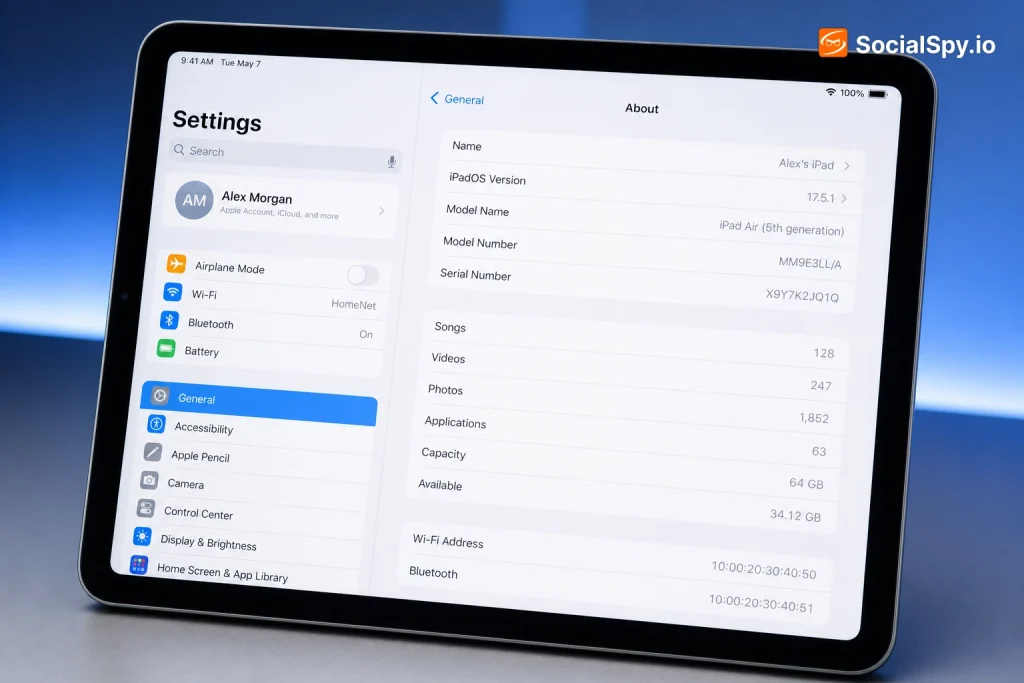
Every iPad looks nearly identical from across the room, but Apple has shipped over 40 distinct iPad models since 2010 across four product lines. Figuring out exactly which one is sitting on your desk matters more than it seems, especially when you’re troubleshooting a software update, buying a case, or deciding whether that tablet can even run iPadOS 18. Here’s exactly how to identify your iPad in under two minutes, using methods that work whether the device powers on or not.
Check the Model Name in Settings First
This is the method Apple wants you to use, and it works on any iPad running iPadOS 13 or later. It gives you a plain-English name instead of a cryptic code, which is a huge improvement over older iOS versions that just listed a serial number.
Here’s the exact path:
- Open the Settings app
- Tap General
- Tap About (near the top of the list)
- Look at Model Name — this now shows something like “iPad Pro (12.9-inch) (5th generation)” instead of a code
- Scroll down slightly to see Model Number (starts with “M” for the ordering code, like MHNF3LL/A)
Older iPads running earlier software versions only display the Model Number, not the friendly name, which is where a lot of confusion starts. Apple only added the readable “Model Name” field starting with iPadOS 13 in 2019, so a 2014-era iPad Air 2 running an old build might just show you “iPad5,4” or a similar internal identifier.
If your About screen shows only numbers and letters with no readable product name, your software is outdated enough that you’ll need the model number lookup method described below.
Decode the Model Number on the Back
Every iPad has a physical model number stamped in tiny print on the back cover, and this is the single most reliable identifier because it never changes and doesn’t require the device to power on. It’s formatted like A1234 — always the letter “A” followed by four digits.
Where to find it
- Flip the iPad over and look near the bottom, in very small gray or silver text
- On cellular models, this text sits alongside the regulatory and carrier certification markings
- If you have the original box, the model number is also printed on the barcode label on the side
- Squinting won’t help much — most people need a phone flashlight and camera zoom to read it clearly
Why the “A-number” is more reliable than the model name
Apple frequently reuses generation names in ways that create real ambiguity. There have been three different “iPad Pro 11-inch” models and six different standard “iPad” generations, all sharing near-identical branding. The A-number is unique to that specific hardware revision, cellular vs. Wi-Fi variant, and sometimes even the country of sale.
Once you have the A-number, search it against Apple’s official support document titled “Identify your iPad model,” or plug it into a quick web search — the four-digit code alone (e.g., “A2270”) reliably surfaces the exact generation and year.
Use the Serial Number for a Definitive Answer
If the model number narrows things down but you want absolute certainty — say, you’re checking warranty status or verifying a used iPad before buying it — the serial number is the gold standard.
You can find it in two places:
- Settings > General > About > Serial Number (if the device powers on)
- Printed on the back near the model number, or on the original box
Once you have it, head to Apple’s Check Coverage page (checkcoverage.apple.com) and enter the serial number. This tool tells you:
- The exact model and generation
- Whether the iPad is still covered by AppleCare or the standard one-year warranty
- Estimated purchase date range, which helps date used or gifted devices
- Activation lock status, which matters enormously if you’re buying secondhand
| Identification Method | Best For | Requires Power On? |
|---|---|---|
| Settings > About (Model Name) | Quick identification on modern iPadOS | Yes |
| Physical model number (A-number) | Dead, locked, or bricked iPads | No |
| Serial number lookup | Warranty, activation lock, resale verification | No (number can be found on box) |
| System Information via Mac/PC | Identifying via Finder/iTunes when connected | Yes, cable connection |
Identify It by Design and Physical Features
If you don’t have access to Settings and can’t find readable text on the back, physical design cues can narrow things down fast, especially between the four current product lines: iPad, iPad mini, iPad Air, and iPad Pro.
Key visual differences to check
- Home button presence: Any iPad with a physical round Home button below the screen is from 2020 or earlier (except the budget iPad, which kept it until 2022’s 10th-generation redesign)
- Screen size: 7.9-inch or 8.3-inch means iPad mini; 10.2 to 10.9-inch spans the standard iPad and iPad Air; 11-inch and 12.9-inch are exclusively iPad Pro territory
- Camera bump: A single rear camera lens rules out the newest iPad Pro models, which have used dual or triple-lens camera systems since 2020
- Charging port: A round-pin Lightning port means the device predates the industry-wide 2023-2024 shift to USB-C; iPad Pro switched to USB-C back in 2018, well ahead of the rest of the lineup
- Face ID vs. Touch ID in the power button: iPad Air (5th gen and later) and modern iPad mini models moved Touch ID into the top button rather than the Home button, a distinctive middle-ground design
Color and material clues
Apple’s iPad Air line has offered bold color options (blue, pink, purple, “Starlight”) since its 2020 redesign, which the more subdued iPad Pro and standard iPad lines don’t typically match. If your device is a saturated color like sky blue, it’s almost certainly an iPad Air, not a Pro.
Check via a Connected Computer
If the iPad’s screen is cracked, frozen, or the device won’t boot past an Apple logo, connecting it to a computer can still pull identifying data.
On a Mac:
- Connect the iPad with a USB or USB-C cable
- Open Finder (macOS Catalina or later) or iTunes (older macOS)
- Select the iPad in the sidebar
- Click on the device name/details area — it cycles through serial number, capacity, and model info
On Windows:
- Install the latest iTunes from Apple’s website (not the Microsoft Store version, which has fewer diagnostic details)
- Connect the iPad
- Click the device icon near the top left
- View the summary pane for serial number and model details
This method is especially useful for IT departments and repair shops managing multiple devices, since Apple Configurator 2 (Mac-only, free from the App Store) can bulk-identify dozens of iPads by serial number in seconds.
Why Knowing Your Exact Model Actually Matters
This isn’t just trivia. The specific generation of your iPad determines real, practical limits on what you can do with it.
- Software compatibility: iPadOS 18 (2024) dropped support for the 6th-generation iPad (2018) and iPad Air 2, meaning those devices are now frozen on older software permanently
- Accessory compatibility: The 2nd-generation Apple Pencil only works with iPads that have a flat edge and magnetic charging strip — trying to pair it with an older round-edge iPad simply won’t work
- Charging cable: Knowing whether you have Lightning or USB-C prevents buying the wrong $20 charging cable or dongle
- Repair and trade-in value: Trade-in programs like Apple’s own or third parties (Gazelle, Decluttr) price iPads down to the exact generation, and a mismatched model number can void an online quote entirely
- Screen and case fit: A case marketed for the “iPad Air 5th generation” will not properly fit an “iPad Air 4th generation” despite near-identical screen sizes, because camera cutouts and button placement shift slightly between generations
Analysts covering Apple’s device ecosystem regularly point out that fragmentation across iPad generations is far wider than on iPhone, since Apple has kept older iPad hardware on sale and in circulation for many more years per model.
Conclusion
Identifying your exact iPad doesn’t require guesswork once you know where Apple hides the information. The Settings app’s About screen is the fastest path for a working device, the etched model number on the back is the most bulletproof method for anything that won’t power on, and the serial number lookup through Apple’s own coverage checker gives you a definitive, warranty-backed answer. For anyone buying a used iPad, selling one, or just trying to figure out if a hand-me-down tablet can still run current apps, spending the two minutes to properly identify the model number will save far more time than it costs — and it’s the single piece of information every Apple support rep, repair shop, and accessory manufacturer will ask for first.
FAQ
Turn the iPad face-down and look for the tiny model number (formatted like A2270) etched into the back cover, usually near the bottom edge. If that text is too small or worn to read, connect the iPad to a Mac or Windows PC using Finder or iTunes, which can pull the model and serial number even from a device stuck on a black or frozen screen.
No, they’re different identifiers that serve different purposes. The model name is a human-readable label like “iPad Air (5th generation)” found in Settings, while the model number is a code like A2588 etched on the device itself that uniquely distinguishes hardware variants, including Wi-Fi versus cellular versions sold in different regions.
Not reliably on its own, since Apple has reused storage tiers like 64GB and 256GB across many different iPad generations over the years. Color is a slightly better clue for certain lines, since the iPad Air has offered distinct colors like “Starlight” and “Purple” since 2020, but you should always confirm with the model number for certainty.



