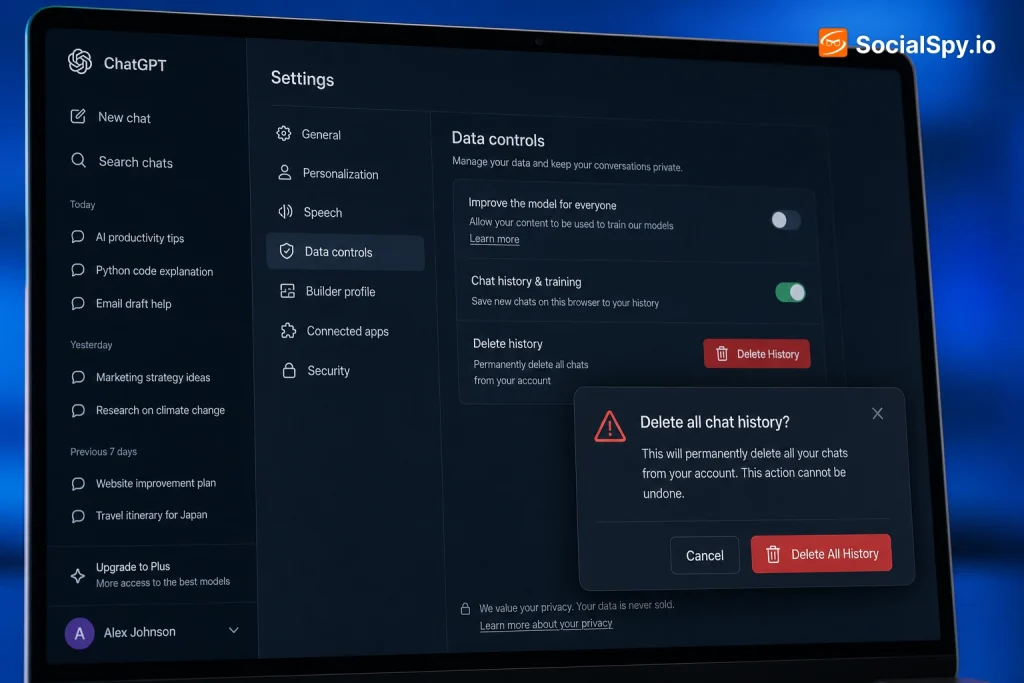
ChatGPT now holds onto a lot more than people realize — chat logs, memory snippets, uploaded files, and even voice recordings. Clearing that history isn’t as simple as hitting one “delete” button, because OpenAI actually keeps deleted conversations for up to 30 days before permanent removal. Here’s exactly how the deletion process works, what actually disappears, and what doesn’t.
Deleting Individual Chats vs. Wiping Everything
There are two very different levels of deletion, and mixing them up is the most common mistake users make.
Deleting a single chat removes just that one conversation thread from your history sidebar. Deleting all chats nukes your entire conversation archive in one action, including anything you’d previously archived.
On Desktop or Web (chat.openai.com or chatgpt.com)
- Hover over any conversation in the left sidebar
- Click the three-dot (…) menu that appears
- Select Delete
- Confirm in the pop-up dialog box
To delete everything at once instead:
- Click your profile name in the bottom-left corner
- Go to Settings → Data Controls
- Find Delete all chats
- Confirm twice — OpenAI requires a double confirmation to prevent accidental wipes
On Mobile (iOS/Android App)
The mobile app mirrors the desktop flow almost exactly, but the menu structure is slightly buried:
- Tap the hamburger icon to open your chat history
- Swipe left on a conversation (iOS) or long-press it (Android) to reveal delete options
- For bulk deletion, tap your profile icon → Settings → Data Controls → Delete all chats
One quirk worth knowing: as of the 2024 interface overhaul, OpenAI moved “Data Controls” out from under a generic “Settings” tab into its own dedicated menu for many accounts, so if you don’t see it immediately, check under Personalization instead.
What Actually Happens After You Hit Delete
This is the part most users get wrong. Clicking delete doesn’t mean the data vanishes from OpenAI’s servers instantly.
According to OpenAI’s own privacy documentation, deleted conversations are removed from your visible account immediately but are retained in backend systems for up to 30 days, after which they’re permanently purged — unless the company is legally required to keep them longer.
- Immediate effect: Chat disappears from your sidebar and can’t be reopened
- 30-day backend retention: Data sits in OpenAI’s systems, inaccessible to you, before permanent deletion
- Legal exceptions: Content can be retained longer if required for fraud prevention, legal obligations, or active investigations
- Training data caveat: If “Improve the model for everyone” was enabled when you had the conversation, snippets may have already been used to train models before you deleted the chat — deletion afterward doesn’t retroactively undo that training
This 30-day window became a bigger deal in mid-2025 after a New York federal court, as part of the New York Times v. OpenAI copyright litigation, ordered OpenAI to preserve consumer ChatGPT logs — including ones users had deleted — rather than purging them on schedule. OpenAI pushed back publicly, but the order illustrates that “deleted” and “gone forever” aren’t always the same thing when litigation is involved.
Turning Off Chat History Entirely
If you don’t want conversations saved in the first place, you can disable history storage rather than deleting after the fact.
Temporary Chat Mode
This is the closest thing ChatGPT has to an “incognito” browser tab. Temporary Chats:
- Don’t appear in your sidebar history at all
- Aren’t used to train OpenAI’s models
- Still follow OpenAI’s 30-day safety retention policy on the backend (for abuse monitoring), but never surface in your account
- Won’t factor into ChatGPT’s Memory feature
To activate it, click the icon at the top of the chat window (a circle with a line through it on newer versions, or Temporary Chat in a dropdown) before starting your conversation.
Disabling “Chat History & Training”
There’s a persistent toggle for users who want every future conversation excluded from storage:
- Settings → Data Controls
- Toggle off Chat history & training (label varies slightly by platform version)
| Setting | What it does | Best for |
|---|---|---|
| Delete individual/all chats | Removes past conversations retroactively | Cleaning up old history |
| Temporary Chat | Prevents that single session from being saved | One-off sensitive queries |
| Chat history & training toggle (off) | Stops all future chats from saving or training models | Privacy-first ongoing use |
| Memory deletion | Clears saved facts ChatGPT remembers about you | Resetting personalization |
Turning off chat history and training also has a side effect worth knowing: it disables features that rely on referencing past chats, like continuing a conversation thread days later or letting ChatGPT recall context from an earlier session.
Don’t Forget About Memory — It’s Separate From Chat History
This is where a lot of privacy-conscious users get tripped up. Memory (the feature that lets ChatGPT remember things like “I’m vegetarian” or “I work in fintech”) is stored separately from your chat logs.
Deleting your entire chat history does not automatically erase memory entries. You have to clear it independently.
- Go to Settings → Personalization → Memory
- Review the list of saved memories ChatGPT has built about you
- Click Manage to delete individual entries, or Clear all to wipe everything
- Alternatively, just tell ChatGPT directly: “Forget that I mentioned my job” — OpenAI added natural-language memory editing in 2024
Memory was rolled out gradually starting with paid tiers in early 2024 and expanded to Free users by mid-2024, meaning even free-tier accounts now accumulate a persistent profile unless it’s manually cleared.
Enterprise and Team accounts generally don’t get cross-session Memory enabled by default, since the feature is aimed at consumer personalization rather than business workflows.
Exporting Your Data Before You Delete It
If there’s any chance you’ll want a record of old conversations — for work reference, tax-related advice, code snippets, whatever — export before you delete, because once it’s gone, it’s gone from your view permanently.
- Settings → Data Controls
- Click Export data
- OpenAI emails you a downloadable .zip file containing your conversations in JSON format, typically within a few minutes to a few hours
- The export includes conversation text, timestamps, and model used, but not files/images beyond metadata references in most cases
This export function is also the fastest way to satisfy a personal GDPR or CCPA data-access request without filing a formal support ticket, since it’s self-serve and near-instant.
Account-Level Deletion vs. Chat Deletion
Deleting chats is different from deleting your entire OpenAI account, and the two get confused constantly.
Deleting chats leaves your account, subscription, API keys, and billing info intact — only conversation content is removed.
Deleting your account is permanent and far more consequential:
- Cancels any active ChatGPT Plus, Pro, or Team subscription (no partial refund for unused time)
- Revokes all API keys tied to that account
- Removes access to any custom GPTs you built
- Cannot be undone — OpenAI explicitly states account deletion requests, once processed, are irreversible
To delete the full account: Settings → Data Controls → Delete Account, which requires typing “DELETE” to confirm and triggers a support-verified processing window (historically up to 30 days for full account and associated data removal, similar to chat retention).
- Use chat-only deletion if you want a clean slate but plan to keep using ChatGPT
- Use full account deletion only if you’re leaving the platform entirely, since it also kills API access some developers forget is tied to the same login
Conclusion
Deleting ChatGPT history is straightforward on the surface — a menu click here, a confirmation there — but the actual privacy picture is layered. Chat deletion, Memory clearing, model-training opt-outs, and account deletion are four separate levers, not one switch, and OpenAI’s 30-day backend retention window (extended indefinitely in some cases by the ongoing NYT litigation) means “deleted” is more of a process than an instant event. The most privacy-durable habit isn’t deleting after the fact — it’s toggling off chat history and training upfront, or defaulting to Temporary Chat for anything sensitive, so there’s nothing sitting on OpenAI’s servers to delete in the first place.
FAQ
No. Deletion removes the chat from your visible history right away, but OpenAI’s backend systems retain the data for up to 30 days before permanent removal, and longer if it’s subject to a legal hold, such as the preservation order tied to the New York Times copyright lawsuit.
No, Memory is stored separately from conversation history and must be cleared independently through Settings → Personalization → Memory, either by deleting individual entries or using “Clear all.”
Yes, you can toggle off “Chat history & training” in Data Controls so future conversations aren’t saved to your history or used to train models, or use Temporary Chat mode for individual sessions you don’t want stored.