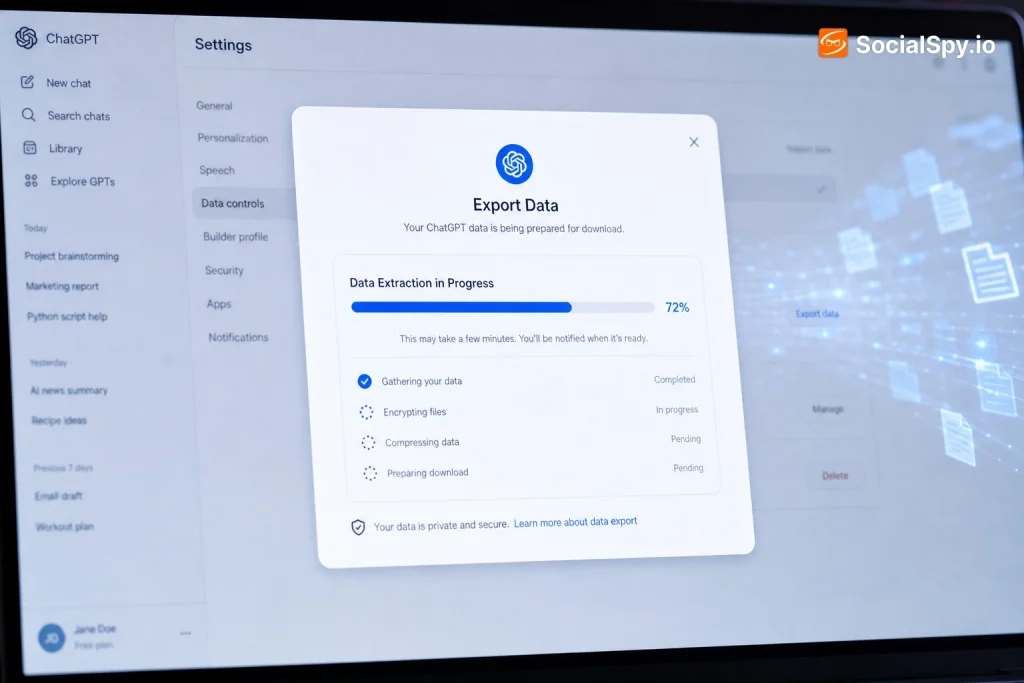
ChatGPT has quietly become a personal archive of research notes, code snippets, half-finished essays, and years of back-and-forth conversation. If you’ve ever wanted to back up that history, migrate it somewhere else, or simply see what OpenAI actually stores about you, the process isn’t as obvious as clicking “download.” Here’s exactly how to pull a complete export of your ChatGPT data, what’s actually inside the file, and where the built-in tool falls short.
The Official Export Tool: What It Actually Gives You
OpenAI built a native export feature directly into ChatGPT’s settings, and it’s the only method guaranteed to capture your complete conversation history rather than whatever happens to be visible on screen. It’s a manual, on-demand process — there’s no scheduled or automatic backup option as of 2024.
Here’s the step-by-step path:
- Log into chat.openai.com on desktop (the mobile app doesn’t currently support this).
- Click your profile name in the bottom-left corner, then select Settings.
- Go to Data Controls.
- Click Export next to “Export data.”
- Confirm the request in the popup — OpenAI sends a confirmation email first.
- Click the confirmation link in that email to trigger the actual export job.
- Wait for a second email titled “Your ChatGPT data export is ready to download.”
- Click the download link and save the ZIP file — the link expires in 24 hours.
The wait time between confirming and receiving the download link varies. For accounts with a light history it can take a few minutes; for power users with thousands of messages across years, OpenAI’s own support documentation notes it can take up to several hours.
OpenAI’s help center is explicit that the export “may not include all account data” — it’s designed for portability of conversations, not as a forensic-grade dump of everything tied to your account.
What’s Inside the ZIP File
Once downloaded and unzipped, you’ll find a handful of files that together form your extraction. Understanding each one matters because most people only ever open chat.html and miss the more useful raw data.
| File | What It Contains |
|---|---|
| conversations.json | Every conversation as structured data, including a full node-tree of edits, regenerated responses, and branching chat paths |
| chat.html | A human-readable, browsable version of your chat history with a sidebar, styled to look like the ChatGPT interface itself |
| user.json | Basic account metadata: user ID, email, and account creation timestamp |
| message_feedback.json | Thumbs-up/thumbs-down ratings you’ve given to responses |
| model_comparisons.json | Data from any side-by-side model comparison tests you participated in |
| shared_conversations.json | Metadata on any chats you generated public share links for |
conversations.json is the file that matters most if you want to actually reuse this data — it’s the machine-readable source of truth. Each conversation is stored as a “mapping” object, essentially a tree where every node is a message, which is how ChatGPT preserves edited prompts and regenerated answers as separate branches rather than overwriting them.
Why the Raw JSON Is Harder to Read Than It Looks
Open conversations.json in a plain text editor and you’ll immediately understand why most people give up and just use chat.html instead. It’s not a simple list of messages — it’s a nested tree structure with parent/child node IDs, timestamps in Unix epoch format, and metadata fields for things like the model slug (e.g., gpt-4, gpt-4o, gpt-3.5-turbo) used for each response.
Common friction points people run into:
- Timestamps are Unix epoch integers (like 1718900123), not human dates — you’ll need a script or online converter to make sense of them.
- Branching conversations mean a single “chat” can contain multiple divergent paths if you ever hit “regenerate” or edited a prompt, so a naive parser might duplicate or skip content.
- System and tool messages (like hidden instructions for code interpreter, browsing, or DALL-E calls) are mixed in alongside your visible messages, tagged with an “author.role” field such as “system,” “tool,” or “assistant.”
- Deleted conversations generally do not appear in the export once you’ve permanently deleted them, though OpenAI’s retention policy means some data may persist briefly on their servers for safety/legal review even after deletion from your view.
If you’re comfortable with basic scripting, a short Python snippet using the built-in json library can flatten conversations.json into a clean CSV with columns for conversation title, timestamp, role, and message text — turning an unreadable blob into something you can actually search in Excel or Google Sheets.
Images, Files, and What the Export Leaves Out
This is where the official export tool has real, practical limitations that catch people off guard. It’s built primarily for text.
DALL-E Images and File Uploads
Images you generated with DALL-E inside ChatGPT are referenced in conversations.json by URL or internal file ID rather than embedded as actual image files in most export versions. Depending on when you export, those asset links can point to OpenAI’s blob storage and may have limited or expiring access, meaning the image itself isn’t guaranteed to survive long-term inside your backup.
Files you uploaded for Code Interpreter (now called Advanced Data Analysis) or for retrieval in Custom GPTs are similarly referenced by ID rather than fully bundled. If you relied on ChatGPT to analyze a spreadsheet or PDF, the export documents the conversation about that file — not necessarily a durable copy of the file itself.
Custom GPT Configurations
If you built Custom GPTs — with specific instructions, uploaded knowledge files, and action schemas — the standard data export does not give you a clean, re-importable configuration file for those GPTs. Your conversations with a Custom GPT show up, but the underlying builder configuration lives outside the export and would need to be manually copied from the GPT editor screen.
Memory Data
ChatGPT’s persistent Memory feature (rolled out in 2024, which lets the model remember facts about you across sessions) is managed separately. You can view and delete individual memories under Settings > Personalization > Manage Memory, but memory entries are not itemized as a distinct file inside the export ZIP the way conversations are.
API-Based Extraction: The Power-User Alternative
If you’re a developer, there’s a second path that gives you far more control, though it comes with an important caveat: the OpenAI API cannot retrieve your ChatGPT.com conversation history. The consumer chat product and the developer API are separate systems with separate data stores.
What the API-based approach is actually good for is a different kind of extraction — pulling data out of workflows you’ve built on top of the API, such as:
- Logs from your own application that calls the Chat Completions or Assistants API, which you control and can export in any format you want
- Threads created through the Assistants API, which you can programmatically list and retrieve via endpoints like GET /v1/threads/{thread_id}/messages
- Fine-tuning job data and usage logs from the OpenAI platform dashboard at platform.openai.com, exportable as CSV under Usage
In short: if your “ChatGPT” activity happened through the web/app interface, the Settings export is your only real option. If it happened through the API in a tool you built, you already have full programmatic access and don’t need OpenAI’s export feature at all.
Third-Party Extraction Tools: Convenience vs. Risk
A cottage industry of browser extensions and scripts has grown around making ChatGPT export easier — tools like ChatGPT Exporter, Superpower ChatGPT, and various Chrome extensions that add “download as Markdown/PDF” buttons directly to the chat interface. These can be genuinely useful for grabbing a single conversation quickly without waiting for OpenAI’s email-based flow.
But there’s a real tradeoff to weigh before installing one:
| Factor | Official Export | Third-Party Extension |
|---|---|---|
| Completeness | Full history, all conversations | Usually one conversation at a time, or requires bulk-scraping mode |
| Data access risk | None — OpenAI’s own infrastructure | Extension has access to your logged-in session and page content |
| Format options | JSON + HTML only | Often supports Markdown, PDF, Notion, plain text |
| Speed | Minutes to hours, via email | Instant, in-browser |
Because these extensions typically inject scripts into the ChatGPT page to scrape rendered content, you’re implicitly trusting the developer with access to whatever is on screen while it’s active. For anything containing sensitive business data, client information, or proprietary code discussed in chats, sticking with OpenAI’s own export mechanism is the more conservative choice.
Your Legal Right to This Data (And Its Limits)
The export feature isn’t just a convenience — it exists largely because of data portability law. Under the EU’s GDPR Article 20, individuals have a right to receive personal data they’ve provided to a controller “in a structured, commonly used and machine-readable format.” California’s CCPA grants a similar right to access and receive a copy of personal information collected.
OpenAI’s export tool is effectively the company’s compliance mechanism for both. That’s also why the export includes account metadata like your user ID and timestamps, not just chat content — that’s the “personal data” a portability right typically covers.
What this legal framing does not guarantee:
- It doesn’t obligate OpenAI to hand over internal logs of how your data was used to train models (training data usage is governed separately by OpenAI’s privacy policy and, for many users, opt-out settings in Data Controls).
- It doesn’t cover data OpenAI may retain for safety, abuse-monitoring, or legal-compliance purposes after you delete a conversation.
- Enterprise and Team plan admins have a different export path entirely — through the admin console — which can pull conversation data across an entire workspace, subject to the org’s own data retention controls, rather than one user requesting their own file.
Practical Tips for a Clean, Usable Extraction
If your goal is genuinely usable data — for research, a personal knowledge base, or migrating to another AI tool — a little preparation before and after the export saves hours of cleanup.
- Rename conversations before exporting. ChatGPT auto-titles chats based on the first message, and vague titles like “Help with code” become useless at scale. A quick renaming pass makes conversations.json far easier to search later.
- Export before a major account change. If you’re canceling a Plus subscription, switching email addresses, or leaving an employer’s Team workspace, export first — access to settings can change or disappear with account status.
- Convert epoch timestamps immediately. Run a quick script or use an online converter as your first cleanup step so every downstream tool you use shows real dates.
- Separate system/tool messages from your own prompts if you’re building a personal archive — otherwise search results get cluttered with hidden plugin and browsing metadata.
- Store the ZIP somewhere encrypted if your chats include sensitive personal, medical, financial, or client information — the export file itself has no built-in password protection.
Data extraction from ChatGPT is straightforward at the surface level but reveals real gaps once you dig in: no scheduled backups, incomplete asset bundling for images and files, and a hard split between what the consumer product and the developer API can each hand you. Treat the Settings export as a strong starting point rather than a complete mirror of your account, verify what’s actually inside the JSON before assuming a workflow depended on it will still function, and export proactively rather than waiting until you need the data urgently — the 24-hour download window has caught more than a few people off guard.
Frequently Asked Questions
How long does OpenAI keep my export link active, and what happens if I miss it?
The download link in the confirmation email expires 24 hours after it’s sent. If you miss the window, there’s no way to reactivate that specific link — you have to go back into Settings > Data Controls and submit a brand-new export request, then wait for the full process again.
Does the export include conversations I’ve already deleted?
No, in nearly all cases deleted conversations won’t appear in a new export once removed from your account. OpenAI’s data retention policy notes that deleted content may persist briefly on backend systems for security and legal review, but it isn’t retrievable by you through the standard export tool after deletion.
Can I import my exported ChatGPT data into another AI tool like Claude or Gemini?
Not directly — there’s no standardized import feature on competing platforms that reads OpenAI’s conversations.json format natively. You’d need to write a conversion script or use a third-party tool to reformat the JSON into plain text or Markdown files, which most other chat platforms accept as reference documents rather than true conversation history.