
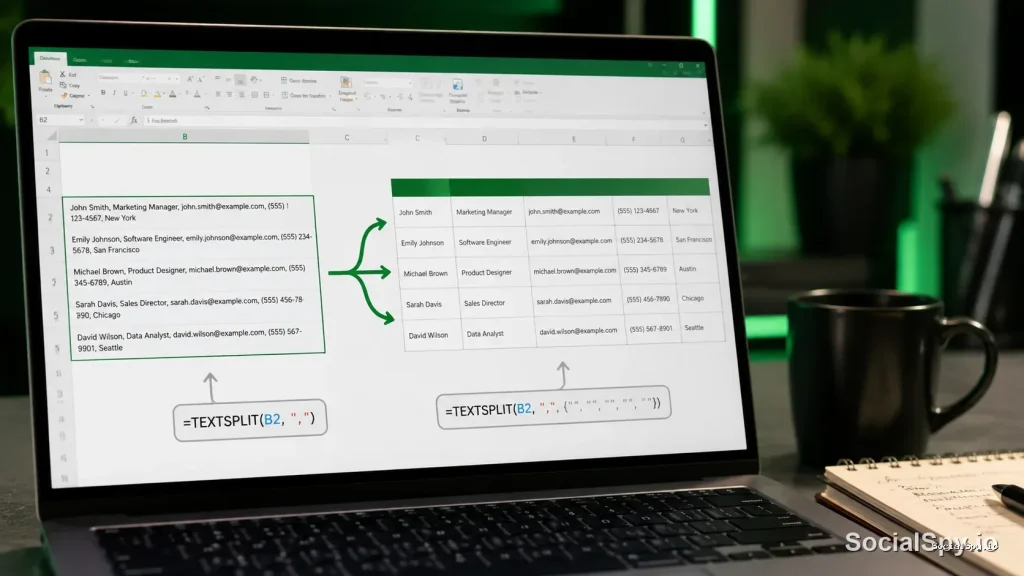
For decades, splitting messy text in Excel meant digging through the Data ribbon, running the Text to Columns wizard, and praying nothing broke when the source data changed. TEXTSPLIT changes that entirely by turning text-splitting into a live, dynamic formula. It’s one of the most genuinely useful additions to Excel’s modern function library, and most users still don’t know it exists.
What TEXTSPLIT Actually Does
TEXTSPLIT takes one string and explodes it across multiple cells — either along a row, down a column, or both — based on whatever delimiter or delimiters you tell it to look for. It’s a dynamic array function, meaning one formula in one cell can populate an entire range automatically, a behavior Excel calls “spilling.”
The full syntax looks like this:
=TEXTSPLIT(text, col_delimiter, [row_delimiter], [ignore_empty], [match_mode], [pad_with])
Here’s what each argument controls:
- text — the string or cell reference you want to split (required)
- col_delimiter — the character(s) that trigger a new column (optional if row_delimiter is used)
- row_delimiter — the character(s) that trigger a new row
- ignore_empty — TRUE/FALSE, whether to skip consecutive delimiters instead of creating blank cells
- match_mode — 0 for case-sensitive matching, 1 for case-insensitive
- pad_with — what to fill in when rows have uneven numbers of items (default is #N/A)
A simple example: if cell A1 contains “Jordan-Smith,Marketing,Chicago” and you write `=TEXTSPLIT(A1,”,”)`, Excel instantly spills “Jordan-Smith”, “Marketing”, and “Chicago” into three adjacent cells. No wizard, no clicking through steps, no static output that goes stale the moment someone edits A1.
TEXTSPLIT vs. Text to Columns: Why This Matters
Text to Columns has been in Excel since the 1990s, and it still works fine for one-time cleanup jobs. But it has real limitations that TEXTSPLIT was specifically built to solve.
Text to Columns overwrites data in place and produces a static result. TEXTSPLIT produces a live formula that recalculates the moment your source text changes — that single difference is why spreadsheet professionals have largely moved on from the old wizard.
| Feature | Text to Columns | TEXTSPLIT |
|---|---|---|
| Updates automatically | No | Yes |
| Multiple delimiters at once | Limited | Yes (via array of delimiters) |
| Can split rows and columns simultaneously | No | Yes |
| Risk of overwriting adjacent data | High | Low (spills, warns on conflict) |
| Works in older Excel versions | Yes (all versions) | No (365/2021+ only) |
The practical upshot: if you’re building a report that refreshes from a data export every week, TEXTSPLIT means you set the formula up once and never touch it again. Text to Columns means re-running the wizard every single time, which is exactly the kind of repetitive manual work that formulas are supposed to eliminate.
Real-World Use Cases That Actually Come Up
TEXTSPLIT isn’t a novelty — it solves problems that show up constantly in day-to-day spreadsheet work. Here are the scenarios where it earns its keep.
Splitting full names into first and last
Anyone who’s imported a contact list knows the pain of a single “Full Name” column. With `=TEXTSPLIT(A2,” “)`, a name like “Priya Raghavan” splits into “Priya” and “Raghavan” across two cells instantly. This pairs naturally with functions covered in guides on how to combine text from two cells in Excel, since teams often split names apart, clean them, then recombine them into a standardized format.
Parsing CSV-style data pasted from another system
Data exported from CRMs, POS systems, or web scrapers often arrives as one long delimited string per row — think “SKU-4471|Blue|Medium|24.99”. A single TEXTSPLIT formula using the pipe character as a delimiter breaks that into four clean fields without touching the source system.
Handling multiple delimiters in one string
This is where TEXTSPLIT genuinely outclasses the old wizard. You can pass an array of delimiters like `{“,”,”;”,”/”}` and TEXTSPLIT will split on any of them in a single pass:
- Feed in text like “apples,oranges;bananas/grapes”
- Use `=TEXTSPLIT(A1,{“,”,”;”,”/”})`
- Get four clean items in four cells, regardless of which punctuation separated them
Splitting addresses into rows and columns simultaneously
Because TEXTSPLIT accepts both a column delimiter and a row delimiter in the same formula, you can turn a multi-line address block into a structured grid in one step — commas break it into columns, line breaks (via CHAR(10)) break it into new rows.
Common Errors and How to Fix Them
TEXTSPLIT is forgiving compared to older text functions, but it does throw a few predictable errors that are worth knowing before you hit them cold.
- #N/A errors from uneven splits — When some rows produce more pieces than others (say, some names have a middle name and others don’t), the shorter rows pad with #N/A by default. Fix this by adding a pad_with argument, like `=TEXTSPLIT(A1,” “,,,,””)` to pad with blank text instead.
- #SPILL! errors — This happens when the cells TEXTSPLIT needs to spill into aren’t empty. Clear the adjacent cells or move your formula to a location with open space to the right and below.
- #VALUE! errors — Usually caused by referencing an empty cell or a delimiter that doesn’t exist anywhere in the text. Double-check that the text argument actually contains the delimiter you specified.
- Case sensitivity surprises — By default, TEXTSPLIT matches delimiters case-sensitively when match_mode is set to 0. If you’re splitting on a word like “AND” but the data has “and” too, set match_mode to 1.
- Delimiter inside the text itself — If your delimiter (like a comma) also appears inside a quoted field, such as an address with “Chicago, IL” as one logical unit, TEXTSPLIT will split it anyway since it doesn’t understand quoted-field logic the way a full CSV parser does.
Combining TEXTSPLIT With Other Functions
TEXTSPLIT rarely operates alone in a serious spreadsheet — it’s usually the first step in a longer formula chain. Wrapping it inside other dynamic array functions is where it becomes genuinely powerful.
- INDEX + TEXTSPLIT — Since TEXTSPLIT spills an array but doesn’t let you grab just one piece directly, wrap it in INDEX to pull, say, only the second item: `=INDEX(TEXTSPLIT(A1,”,”),1,2)`.
- TEXTSPLIT + TRIM — Data with inconsistent spacing around delimiters (like “apple, banana, cherry”) benefits from wrapping the whole thing, or mapping TRIM across the spilled range, to clean stray spaces.
- TEXTSPLIT + VSTACK/HSTACK — When you need to split multiple cells’ worth of text and stack the results into one continuous table, VSTACK combined with TEXTSPLIT (via LAMBDA and MAP) handles it, though this gets into more advanced dynamic array territory.
- TEXTSPLIT + LET — Wrapping the formula in LET lets you name the split result once and reference it multiple times without recalculating TEXTSPLIT repeatedly, which matters for performance on large datasets.
One practical formatting note: once your text is split apart, you’ll often want to adjust column widths so the newly spilled data doesn’t get visually truncated. If you’re not familiar with resizing behavior, it’s worth reviewing how to modify column width in Excel so the spilled results actually display cleanly rather than showing truncated cells or the dreaded ##### overflow indicator.
Availability, Platform Quirks, and Workarounds
TEXTSPLIT is a Microsoft 365 exclusive function, part of the same 2022 wave of dynamic array functions that brought in TEXTBEFORE, TEXTAFTER, and VSTACK/HSTACK. If you’re on Excel 2019, 2016, or an older perpetual-license version, TEXTSPLIT simply won’t exist in your function list — no amount of updating within that version will unlock it.
Here’s how availability breaks down as of 2026:
- Excel for Microsoft 365 (Windows and Mac) — Fully supported, including via subscription-based Personal, Family, and Business plans
- Excel 2021 and Excel 2024 (perpetual license) — Not included; these one-time-purchase versions were frozen at the function set available when they shipped
- Excel for the web — Supported, since it draws from the same 365 function library
- Google Sheets — Has its own SPLIT function with different syntax and fewer options (no built-in row-delimiter or pad_with argument)
Mac users running Excel 365 get the identical function with identical syntax — there’s no platform-specific quirk here, unlike some legacy features. If you’re regularly jumping between Mac and Windows and want to work faster overall, it’s worth brushing up on shortcut keys for Excel on Mac, since navigating spilled array ranges and jumping between cells is much faster with keyboard shortcuts than trial-and-error mouse clicks.
For anyone stuck on an older, non-365 version, the honest answer is that Text to Columns, combined with formulas like MID, FIND, and LEFT, remains the only path — there’s no perfect substitute for TEXTSPLIT’s dynamic behavior without a 365 subscription.
Formatting and Cleanup After Splitting
Splitting text is rarely the last step in a workflow — what happens after matters just as much. A few adjacent tasks come up constantly once TEXTSPLIT has done its job.
- Standardizing capitalization — Names and addresses pulled from different systems often arrive in inconsistent case (all caps, all lowercase, mixed). After splitting, running the results through PROPER or UPPER cleans things up, and it’s worth reviewing how to change text case in Excel for the full range of options beyond the basic formulas.
- Protecting the split results from accidental edits — Once a TEXTSPLIT formula has spilled correctly across a range, it’s easy for someone to overwrite one of the spilled cells by accident, breaking the whole array. Locking down a finished sheet by learning how to make an Excel spreadsheet read only prevents that kind of accidental corruption when sharing the file with a team.
- Re-collapsing helper columns — Large TEXTSPLIT operations often generate several helper columns that clutter the view once you’ve extracted what you need. Knowing how to collapse rows in Excel (and the equivalent grouping approach for columns) keeps a workbook navigable without deleting the underlying formulas.
Conclusion
TEXTSPLIT represents a real shift in how Excel expects users to handle text: instead of running a one-time cleanup operation and hoping the data never changes, you build a formula once and let it stay accurate forever. That’s a meaningful upgrade for anyone dealing with recurring data exports, CRM dumps, or messy CSV pastes on a weekly basis. The catch is the 365 requirement — if your organization is still on a perpetual license, this is one more argument for making the jump, since the function gap between subscription and one-time-purchase Excel keeps widening every year. For everyone already on 365, there’s no real reason to keep reaching for the Text to Columns wizard when a single dynamic formula does the same job better, faster, and without the maintenance headache.
FAQ
No. TEXTSPLIT was introduced in 2022 as part of the Microsoft 365 dynamic array function set, and it is not available in perpetual-license versions like Excel 2019 or Excel 2021. Only Excel for Microsoft 365 and Excel for the web support it as of 2026.
Yes. You can pass an array of delimiters, such as `{“,”,”;”,”-“}`, as the col_delimiter or row_delimiter argument, and TEXTSPLIT will split the text wherever any of those characters appear, without needing separate formulas for each one.
Flash Fill (Ctrl+E) guesses a pattern from your manual example and fills in a static result based on that guess, which can misfire on inconsistent data and never updates automatically. TEXTSPLIT is an explicit, rule-based formula that always applies the exact delimiter logic you specify and recalculates live whenever the source text changes.



